CleanMem: RAM/memory cleaner that actually works

September 6, 2009 65 Email article | Print article

I have never really been a fan of memory optimization programs. The reason for this is most of the memory optimization programs I have come across actually make your computer slower(as opposed to faster) because of the way they are designed to work and the lack of effectiveness. Up until now whenever asked to recommend a memory cleaner, I have always pointed people towards AnVir Task Manager. AnVir Task Manager has a really nice memory cleaning tool that works differently than the average memory cleaner. In layman’s terms, instead of the industry standard of “overloading” the memory to force Windows to clean up memory usage (this is the reason why you will notice many memory cleaning programs almost freeze your computer while cleaning up your memory) AnVir Task Manager sort of “resets” the memory usage of a program as if the program was just turned on. This approach to memory cleaning is about the best memory cleaning approach you will find because it is quick and effective for memory leaking software.  Now that does not mean a AnVir Task Manager will solve your RAM woes (only buying more physical RAM will do that), but it is a nice supplement to have.

While I have been recommending AnVir Task Manager, many dotTechies have been telling me “Ashraf, Ashraf, be cool like us and get CleanMem – it actually works!” Today I thought my self “Enough is enough… I want to be cool too!” So I decided to give CleanMem a go; and I must say the buzz around CleanMem is well deserved because it actually works.

You see CleanMem works a lot like AnVir Task Manager in terms of cleaning memory. For the more technical people the developer has a more technical explanation of how CleanMem works (calls API, blah, blah) on his website so read that if you are interested. I will rather explain it for us simple people this way: instead of the typical lets-overload-the-memory-to-force-memory-cleanup approach, CleanMem sort of “resets” the memory usage of a program just like AnVir Task Manager. To make the cake taste even better, CleanMem does not stay on in the background like other programs. Instead when you install CleanMem it sets itself (via Windows Task Scheduler) to run every 30 minutes (you may change this… just go to Windows Task Scheduler). So every 30 minutes CleanMem runs automatically and instantly “resets” the memory usage of all running processes. It does it very quickly (it comes and goes in literally half a second) and without putting any load on your computer (uses ~1 MB RAM and little to no CPU) so you may even forget it is running. Please note that there is no interface to CleanMem. It does its thing and goes away so you never see it. While CleanMem is set to automatically run, you may manually launch CleanMem at any time but you will still never see an interface to it.

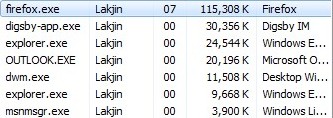
To convince the skeptics, I did a real-life test of CleanMem. Here is my memory usage of some running processes before I run CleanMem:
2009-09-05_2359402

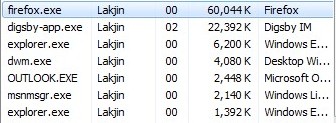
Here is after I run CleanMem:

2009-09-06_0000092

Amazing isnt it? Especially note the drop in RAM usage of the most notorious memory leaking program out there: Firefox. Keep in mind this memory cleaning was done instantly and without any load on my computer by CleanMem. As I already mentioned, CleanMem does this memory cleaning every 30 minutes automatically so even when the programs go back to leaking memory, they will be dealt with on a regular basis.

As I already mentioned, if you have a RAM shortage problem, the best way to solve that is to purchase more RAM. Memory cleaners are just supplement programs – they are not replacements for the actual hardware. In terms of supplement memory cleaners, CleanMem is one of the best ones out there. I highly recommend it.

You may download CleanMem from the following link:

Supported OS: Windows 2000/XP/2003/Vista/ 2008/7

Version Reviewed: v1.4.2

CleanMem homepage

[Direct link download page - installer version]

65 Comments »

  1. Agent 001 September 6, 2009 at 1:01 AM (comment permalink) -

    How much resource it uses itself?

    1
  2. Ashraf September 6, 2009 at 1:04 AM (comment permalink) -
    Mr. Boss

    @Agent 001: It comes and goes in about half a second so it is hard to tell. However I saw it used ~1 MB RAM and little to no CPU when it was running for that half second.

    2
  3. yeobaby September 6, 2009 at 4:41 AM (comment permalink) -

    @Ashraf: Glad to see you recommend this cause I remember not too long ago I asked you to have a look at it and was wondering if I was wasting my time using it. There’s another program I’m using called Process Lasso and maybe you can have a look at it too, thnx. I believe this is the site http://www.bitsum.com/prolasso.php

    3
  4. Ashraf September 6, 2009 at 4:55 AM (comment permalink) -
    Mr. Boss
  5. loonacycle September 6, 2009 at 6:07 AM (comment permalink) -

    good read. this site/format gives me memories of Gizmos now belly-up one. i think you have found your niche, just don’t get money hungry
    or start power tripping. cheers ;)

    5
  6. Mike September 6, 2009 at 6:08 AM (comment permalink) -

    Thanks for the info. And it’s very timely: if I leave Firefox alone for a couple of days, with 7-10 tabs open, it can use a gig or more of memory. Exiting and re-entering Firefox has been my means of taming this. Until the Firefox crew solves this leak issue, this memory cleaner may be a good key.

    6
  7. giovanni September 6, 2009 at 6:26 AM (comment permalink) -

    Hi Ashraf!

    FreeRAM XP Pro 1.52 is also not bad and works pretty well too especially in old home PC such as mine.

    Alternatively I suggest you trying this unknown but in my humble view pretty effective application called “MZ RAM BOOSTER” that allows you to improve the performance of your computer by auto-recovering RAM and fine tuning some system settings using minimal resources and almost no CPU time.

    FULL REVIEW here:

    http://www.softpedia.com/reviews/windows/Mz-Ram-Booster-Review-45098.shtml

    The Good

    Mz RAM Booster is a free application intended for optimizing your system’s performance. The options available lead to an increased speed of the computer and will not affect its stability in any way.

    The Recommended Settings button will greatly ease the work of newbies as the software will scan the system for resources and provide the optimum configuration for your computer.

    The Bad

    Some of the parts in the Help file should have been explained more extensively as not all the users are familiar with some of the terms.

    The Truth

    The application is free and does a pretty good job. System stability will not be affected and you can try and test it for as long as you want.

    EDITOR’S RATINGS:

    User Interface: EXCELLENT
    Features: VERY GOOD
    Ease of use: EXCELLENT
    Pricing/Value: EXCELLENT
    Overall: EXCELLENT

    Please note that, if you want to run this program, you must have .NET FRAMEWORK 2.0 installed in your PC

    Finally, if you want to increase your COMPUTER performance dramatically in each aspect of the HARDWARE (Cpu Tweaks, HDD Tweaks, Memory Tweaks, Graphic Card Tweak, CD/DVD Tweaks, Modem Tweaks, Internet Tweaks, Windows Tweaks, Boot Files Optimization, Registry Optimization etc…) take a peep at this pretty unknown tool that scans your hardware (CPU, RAM, Graphic Card, Hard Disk, CD/DVD, Modem ect.) with a specially designed algorithm applying the best values for over 50 powerful tweaks!

    http://www.softpedia.com/get/Tweak/System-Tweak/AutoMz-Ultimate-Tweaker.shtml

    Enjoy

    7
  8. David Roper September 6, 2009 at 6:55 AM (comment permalink) -

    Ahhhh!! A thumbs up. Must get

    8
  9. tejas September 6, 2009 at 9:21 AM (comment permalink) -

    I used CleanMem on my old ThinkPad that couldn’t handle more than 512MB of RAM, and it worked great. Never caused a problem, and in fact solved a few.

    9
  10. Ashraf September 6, 2009 at 9:39 AM (comment permalink) -
    Mr. Boss

    @giovanni: Sounds like nice softwares. Thanks.

    @David Roper: Lets pretend there is an imaginary thumbs up =).

    10
  11. Madhu Kumar September 6, 2009 at 11:19 AM (comment permalink) -

    Hi Ashraf,

    I was looking for a ‘memory optimization program’.
    Thanks for suggesting CleanMem. I am going to try it.

    But one doubt.
    You are giving 2 download options. One for installing and one portable.
    But without installation how this will work?
    I am a fan of portable applications, but when I used a portable acrobat reader, it was not really working as an installed one. I have to open the portable acrobat first and then to drop the file in it. Not at all easy to use.
    Will portable CleanMem work automatically?

    You tell that CleanMem run in every 30 minutes.
    But it is a long time. Please tell how setup it for 15 minutes.
    Is it in the Settings->’Idle Time’?

    While installing it asks 32-bit or 64-bit?
    I am using XP2. What is my bit?

    Thanks again, Ashraf.

    11
  12. Ashraf September 6, 2009 at 11:44 AM (comment permalink) -
    Mr. Boss

    @Madhu Kumar: I believe the portable version is not set to work automatically… you will have to do that manually. Otherwise it should work the same as the installer version.

    If you want to change the time interval you want CleanMem to run go to “Control Panel” -> “Performance and Maintenance” -> “Scheduled Tasks” -> right click on “Clean System Memory” -> select “Properties” -> go to “Schedule” -> click on “Advanced” -> under “Repeat Task” change the 30 to 15.

    Are you on XP Home? If so you can only have 32-bit of XP Home so you have 32-bit. Otherwise if you still are not sure you can right click on “My Computer” and if it lists “64-bit” you are using 64-bit. If it doesn’t list “64-bit” you are on 32b-it.

    Hope that helps.

    12
  13. Madhu Kumar September 6, 2009 at 1:06 PM (comment permalink) -

    Hi Ashraf,

    Thanks for your quick reply with suggestions.

    I am using XP2 Professional.
    I right clicked on ‘My Computer”, but couldn’t see “64-bit”.
    Then it may be “32-bit”.
    But who knows the difference of these BITS!

    13
  14. Bill Gates II September 6, 2009 at 3:43 PM (comment permalink) -

    I was woundering if there are any other diffrences between CleanMem and AnVir Task Manager besides that CleanMem wonly runs when cleaning system memory?

    14
  15. surfriot September 6, 2009 at 5:07 PM (comment permalink) -

    I’ve been using this (clean mem) for a while, works great and easy. Very light resource.

    15
  16. Gail September 6, 2009 at 6:32 PM (comment permalink) -

    Thanks for the tip! It really helped this non-techie to see your before and after. Those are the kinds of numbers I need! Downloading now–

    16
  17. Mehdi S September 7, 2009 at 5:22 AM (comment permalink) -

    Check out this one Ashraf…Great piece of software…In fact, I already am using cleanmem and this soft..Link below

    http://88.191.26.34/computers_are_fun/sweepram/

    17
  18. secret2008 September 7, 2009 at 6:04 AM (comment permalink) -

    @Ashraf:

    The portable version CAN be set to run automatically.
    It is a zip file and inside it there are batch files that will “set it up.”

    18
  19. Evan September 7, 2009 at 9:38 AM (comment permalink) -

    @Ashraf

    Thanks for giving CleanMem a try. I’ve been looking forward to you reviewing it.If you have any questions about it feel free to drop me a line.

    Keep up the great reviews and sources for freeware!

    -Evan
    PcWinTech Admin (Home of CleanMem)

    19
  20. Ashraf September 7, 2009 at 11:13 AM (comment permalink) -
    Mr. Boss

    @Bill Gates II: Well CleanMem also clears out file cache now but in terms of memory cleaning, I don’t think so. The only main difference I can think of with AnVir Task Manager you can set it to clear out programs every XX minute that are using XX memory or higher where as CleanMem does it for all of them regardless of how much memory they are using.

    @Mehdi S: Interesting. I may check it out.

    @secret2008: I never said it can’t be set. I said it was not set to run automatically; in other words you have to take more steps to up it up as opposed to the installer version that sets it up when you install.

    @Evan: @Evan: Thanks for coming here and supporting your great software =).

    20
  21. Evan September 7, 2009 at 12:39 PM (comment permalink) -

    @Ashraf: You need to give thanks to Shane. He’s the developer, but I’ll let him know. I’m always on the lookout for sites that give mention of PcWinTech so I can try and provide some feedback to the community.

    We have a new section of the site that contains a few tech tools he’s written that you mind find useful. Check it out over at PcWinTech.

    @Bill Gates II: Since CleanMem doesn’t run in the background it doesn’t monitor memory usage. When it runs it just “jump starts” Window’s built in “cleaning mechanics”.

    Thanks guys.

    -Evan
    http://www.PcWinTech.com

    21
  22. Dan September 7, 2009 at 8:01 PM (comment permalink) -

    AShraf or any one else out there, can someone please confirm if this runs on Windows 7 or if really needed on Windows 7?

    I have the RC version presently, and in the scheduled tasks I don’t see it runnning.

    By the way, great site and lots of good info here.

    Thanks All.

    22
  23. Evan September 7, 2009 at 9:07 PM (comment permalink) -

    @Ashraf: Glad to be here. Let me know if you have any questions about the other tools on the site.

    @Dan: Yes, CleanMem does work on Windows 7. Did you download the portable version? If you did then you have to add it manually to Windows Task Schedular. The portable version is ideal to put on a thumbdrive to use as a tool to quickly show someone the benefits of CleanMem.

    -Evan
    http://www.PcWinTech.com Admin (Home of CleanMem)

    23
  24. Ashraf September 7, 2009 at 9:41 PM (comment permalink) -
    Mr. Boss

    @Dan: As Evan said yes it works on Win7. I myself run it, and tested it, on Win7.

    @Evan: Will do.

    24
  25. Dan September 9, 2009 at 7:36 AM (comment permalink) -

    Ashraf/ Evan,
    Thanks for your speedy response.

    System: Windows 7 – RC
    After close investigation I found that it was not a problem with Cleanmem, but Scheduled Task itself was not working. When I opened “Scheduled Tasks” to create a task, I was getting a “Reading data error” in the preview pane.

    I tried manually installing “Visual Basic Runs” files but nothing would work. How this got corruputed, I have no idea, but luckily I had a previous saved image that I restored. Scheduled Tasks worked on this.
    I can only think that something got erased, DLL’s etc during some sort of system clean.

    I have a habbit of trying various registry and system cleaners that I am sure did this. If you don’t try them, how will one know what all they can do is my take on this.

    Just goes to show that one must always have some sort of Backup!

    Regards,

    25

Leave A Response »