
 Email article
As you already known, once your Windows 8 account has a password, you have to enter that password every time you awake the computer or tablet from sleep mode or you turn it on. If you find having to manually login every time annoying, in this article I will show you how to automatically login into your account whenever you boot up your computer or tablet.
Take note a side effect of this trick is you will now also bypass the Lock Screen. If you want to disable the Lock screen only (and not automatically login), read this guide to learn how. Also take note this trick only automatically logs you in when you turn on your computer or tablet from shutdown or restart; that mean when you wake up the computer from sleep or hibernate mode, you have to enter the password to login in — this trick doesn’t apply for them.
HOW TO AUTOMATICALLY LOGIN ON STARTUP
To do this tip, you should follow these steps:
- You need to open User Account window by pressing the hotkey Windows + R to bring up the Run dialog, then type “netplwiz” (without the quotes), and click/tap “OK.” If you use a tablet, you can wipe from the right edge, choose “Search” then enter “netplwiz” to the box and run the “netplwiz” result.

- In User Account window, you can see the list of all users in your Windows. You should choose the username you want to auto login. There is an already-checked box “User must enter a username and password to use this computer,” what you have to do is uncheck it.

- After that, you have to click “Apply.” Then there will be a dialog that asks you to enter the password.
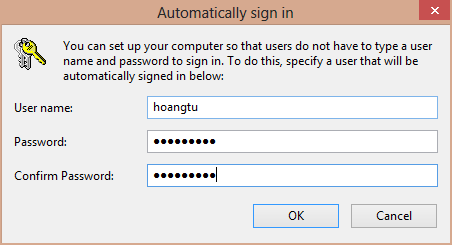
- Once you has entered your password, you’re good to go.
- Now restart your computer and you will see it boot directly to the Start screen.
CONCLUSION
Enjoy!




