
 Email article
Windows Explorer is the default file manager provided with Windows. It is fine for most people but is not ideal in many aspects such as moving files around. This is where freeware file managers come in; with options such as multiple panes, these programs make managing your files a breeze! On that note, here are the best free file managers available for Windows.
This review is part of our Best Free Windows Software section. Check out more articles on the best free Windows programs from here.
Table of Contents
- Best Free File Manager
- Runner Up
- Honorable Mention 1
- Honorable Mention 2
- Honorable Mention 3
- Other Alternatives
Best Free File Manager
 Program Name: Q-Dir
Developer: Nenad Hrg
Download Size: 455KB
Version Reviewed: 5.47
Requires: Windows NT/98/Me/2000/XP/2003/Vista/Server 2008/7
Approximate Memory Usage When Idle: 7.96MB
Pros
- Portable
- Supports up to 4 panes
- Has tabs
- Supports drag + drop
- Supports filters
- Supports different views
- Has a magnifier (magnifies any portion of the screen)
- Ability to add favorites
- Has a preview pane (in addition to the 4 panes) for previewing files/folders
- Has all the normal file management functions that are found in Windows Explorer
Cons
- Too many panes can become quite cumbersome
Discussion
Q-Dir is both simple and effective and is a very capable file manager solution.
One of the best aspects of Q-Dir is its user interface. This may come across as strange but the program offers users several options for adjusting the layout to their preferences. Users can choose to do the following:
- Display the default 4 square panes arrangement
- Display a 3 pane arrangement with only one horizontal window at the top
- Display a 3 pane arrangement with only one horizontal window at the bottom
- Display 2 vertical panes
- Display 2 horizontal panes
- Display 4 vertical panes
- Display 4 horizontal panes
- Display 3 vertical panes
- Display 1 vertical pane in the left pane and 2 horizontal panes in the right pane
- Display 2 horizontal panes in the left pane and 1 vertical pane in the right pane
- Display a single pane
In addition to panes, tabs are supported.
There isn’t really a best display option; the option anyone chooses depends on their preferences and how many files or folders they will be manipulating at any instant. Q-Dir also gives users options for the type of icons they want to display such as tiles and small icons. It also includes the option of using a color filter in order to differentiate between different types of items. Also handy is the zoom tool which allows for any area of the screen to be magnified. Users can also choose to duplicate the window and choose and select any one of several themes which are available.
Another brilliant characteristic of the program is the ability to save the current state. This allows users to resume browsing at a later period of time, after closing the manager, as if the program was never closed in the first place. Users can implement built-in windows functions from directly within the program such as:
- Shutting down
- Opening the run prompt
- Opening the command prompt
There is also an option for restarting the manager which may be necessary to allow certain changes made to files or the program itself. In addition, provision is made to include files from network locations. Q-Dir can also be set as the default explorer and thus can essentially completely replace all of the functionality of Windows Explorer. Users also have the option of previewing their audio, image and video files before opening them. Finally users can add frequently accessed locations to their favorites so as to have quick and easy access to them.
The only issue I have found with this program is that when using multiple pane configurations, the program can become quite cluttered especially when using 3 or 4 panes. But then again, more than two panes is the attraction of Q-Dir.
Q-Dir is an excellent program which should comprehensively address all of the basic to advanced needs of anyone using the program.
Runner Up
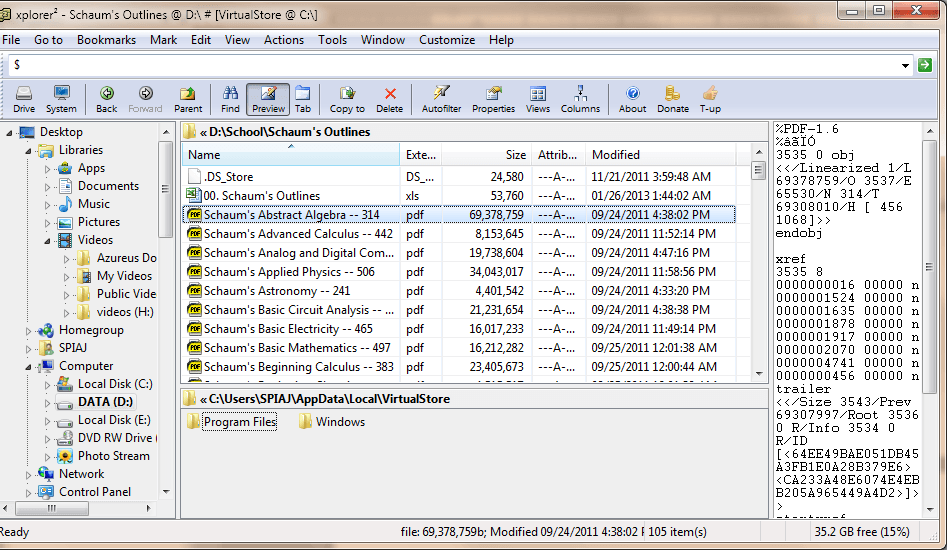 Program Name: Xplorer2 Lite
Developer: ZABKAT
Download Size: 1.77MB
Version Reviewed: 2.2.0.2
Requires: Windows
Approximate Memory Usage When Idle: 3.24MB
Discussion
Xplorer2 Lite is a complete file manager solution which bests Windows Explorer in many aspects.
Firstly Xplorer2 Lite makes use of a dual window system where 2 separate folders are displayed in one window thus allowing for the easy transfer of files. Additionally the program makes use of tabs. These two features alone make Xplorer2 Lite a very powerful contender. Also there are various options for how the icons are displayed. These are:
- Large icons
- Small icons
- List
- Details
- Thumbnails
Bookmarks allow for the fast access of user favorites and can be added quite easily. Another interesting feature is the sticky selection feature which is similar to holding ctrl and selecting items. Xplorer2 Lite also makes use of a built in text viewer/editor and allows for the previewing of .txt files as well as audio, video and image files.
Perhaps the most powerful feature of Xplorer2 Lite is its DOS command functionality. Users can use this provision in order to create scripts to process batch files. Xplorer2 Lite also allows users to clone their current windows and manage the corresponding files. The program also allows users to save the state of their browsing just before closing the program which allows for its reopening in exactly the same state as it was in before.
My two main issues with Xplorer2 Lite are the lack of a powerful built in search function and, the annoying prompts which appear if a feature which is not included in the LITE version is unknowingly selected by users of the program.
Despite these 2 gripes, it is clear to see that Xplorer2 Lite is both an effective program, capable of some quite advanced functionality such as the DOS command feature.
Honorable Mention 1
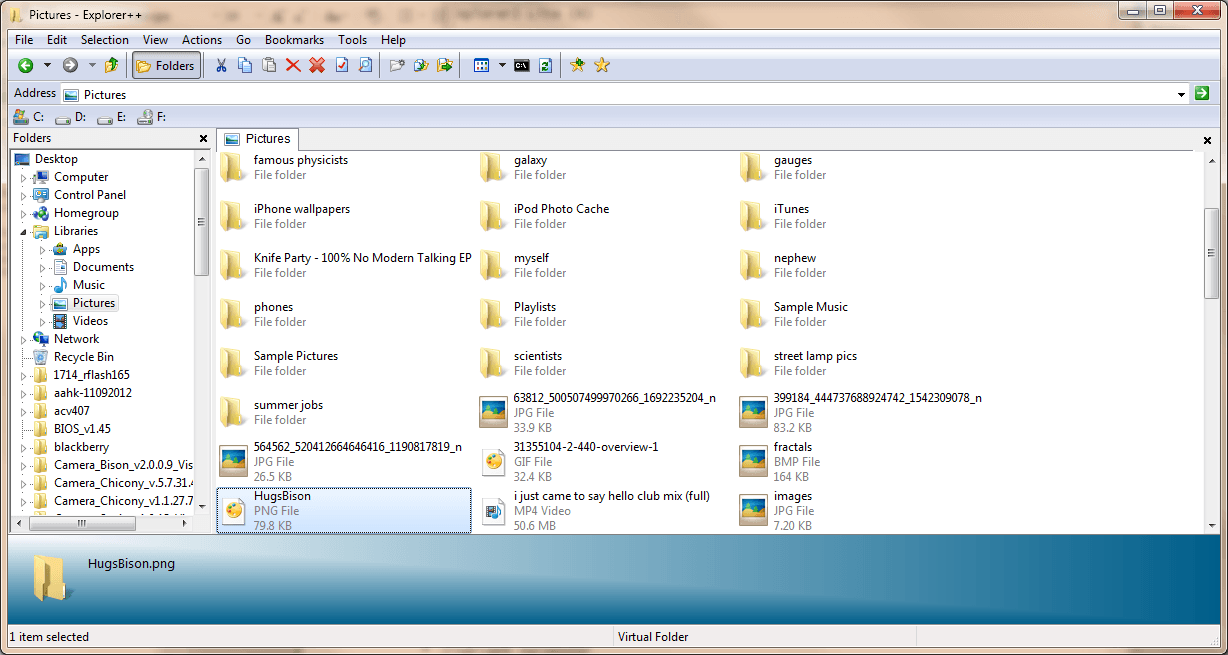 Program Name: Explorer++
Developer: David Ecreg
Download Size: 578KB
Version Reviewed: 1.3.4.485
Requires: Windows 2000/XP/Vista/7
Approximate Memory Usage When Idle: 13.54MB
Discussion
Explorer++ is a lightweight but effective file manager.
The GUI of Explorer++ is similar to that of Q-Dir when the single division option is selected along with the ‘one-4-all’ option under extras tree view. In other words, Explore++ only has one pane but it does use tabs. It’s interface is very well laid out. Explorer++ offers users options such as bookmarking and a command prompt option and the ability to customize the colors of the program.
One of the assets of this program is the ease with which it allows users to copy file, folder and universal file paths. Users simply need to select the file/folder and select the required action under the file menu. Also the options for ‘removing’ files from folders go beyond what one would typically expect. Users can choose to:
- Delete (moves to the recycle bin)
- Delete permanently (skips the recycle bin but the file may be recoverable via a data recovery program)
- Destroy File(s) (the file in question will not be recoverable)
Explorer ++ also allows users to use the wildcard select function. This function is used to help persons search for files whose names they are not sure of; users simply need to type the portion of the file name that they do know, followed by an asterisk which represents the missing character(s). Under the ‘Go’ menu shortcuts to popular locations such as ‘Computer’, ‘My Documents’, ‘My Music’, ‘My Pictures’, ‘Desktop’ and ‘Recycle Bin’ among others can be found and accessed.
There are 2 issues I have found with Explorer ++. Firstly, the interface is not as customizable as that of Xplorer2 Lite or Q-Dir and users are limited to a single window system. In addition there is no preview pane available.
However, Explorer ++’s lightweight nature combined with its ease of use and great features still make it one of the better file managers out there today.
Honorable Mention 2
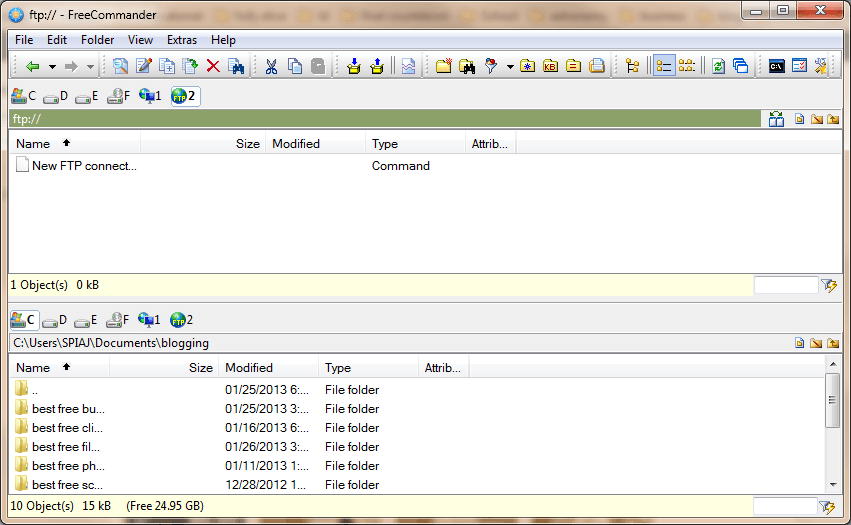 Program Name: FreeCommander
Developer: Marekk Jasinski
Download Size: 2.54MB
Version Reviewed: 2.8.2
Requires: Windows 2000/XP/Vista/7
Approximate Memory Usage When Idle: 11.64MB
Discussion
The additional functionality offered by FreeCommander over Windows Explorer is a sure way to improve your file browsing experience.
Like Xplorer2 Lite, Free commander uses a dual pane window system with tabs which allows for ease of navigation and file transfer between folders. Users are given several choices as to how they would like to display their icons such as:
- List
- Details
- Small Icons
- Large Icons
- Thumbnails
- Display split/dual windows in a stacked manner or side by side.
Unlike Xplorer2 Lite however, FreeCommander does include its own powerful search functionality, allowing users to track down files with ease. The program also has powerful filtering capabilities.
FreeCommander has the unique functionality of being able to pack and unpack files which would come in quite handy as no additional programs need to be opened in order to carry out these functions. Also, FreeCommander gives users the ability to create and verify MD5 Checksums. It also gives provision for several time saving shortcuts and allows users to set their favorite tools which are programs of the users’ choice. Additionally users can save frequently accessed or important locations using the ‘favorites’ option. FreeCommander also allows users to take desktop snapshots if desired.
Perhaps one of the stronger points of FreeCommander is the way it integrates some of the elements of Windows directly into the program. For example, the command prompt, control panel, start menu, desktop and a few select system directories can be accessed via icons located on the toolbar of the program. Clicking on these icons opens up drop down menus and allows for the selection of the desired folders/options.
The main issue I have with this program is the lack of the preview option. According to some dotTechies, it is possible to download TotalCommander plugins and use them with FreeCommander; one of those plugins adds the preview option. I haven’t tried it myself, though.
FreeCommander is definitely worth trying out as a Windows Explorer substitute since it possesses some great features which Explorer simply does not offer.
Honorable Mention 3
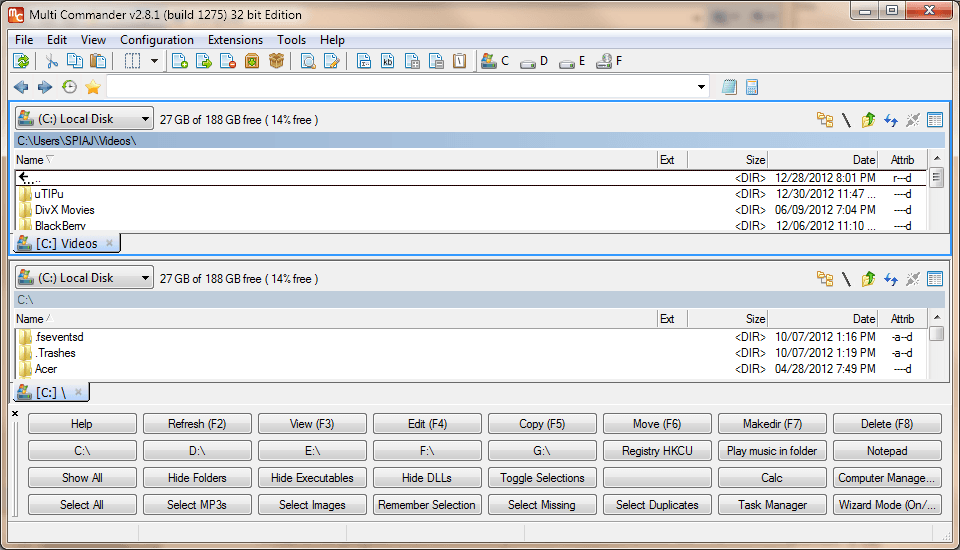 Program Name: Multi Commander
Developer: Mathias Svensson
Download Size: 5.ooMB
Version Reviewed: 2.8.1
Requires: Windows
Approximate Memory Usage When Idle: 9.06MB
Discussion
Multi Commander is another powerful option for all of your file manager needs.
On opening the program users are prompted to choose how they want the interface to look and given the following options:
- Commander Style “Look ‘n’ Feel”
- Windows Explorer Compatibility “Look ‘n’ Feel”
- Option to choose from multiple profiles
Like Xplorer2 Lite and FreeCommander, Multi Commander uses a dual window system with tabs. It also takes full advantage of tabbed browsing which is an invaluable feature in the world of file managers. Users are also given the option of customizing the interface of the program to their preferences.
Similarly to FreeCommander, this program also allows users to pack and unpack files. In addition it allows for the testing of the integrity of these packed files. It also has ftp support. In addition users will have access to tools for the simpler tasks involved in photo manipulation such as the rotation and conversion of picture formats. It can also display media information for movies as well as view the properties of audio files. Multi Commander also allows for the renaming of multiple files at once which could come in quite handy. It can also convert text to different formats such as the format for Unix. The search function must not be forgotten as this is extremely important for locating files. In combination with the advanced filter options present, users can easily find their files.
One of my main issues with this program are the buttons at the bottom of the program window make the window very cluttered and are simply not laid out very well. Also, there is no preview option.
Other Alternatives
- PowerDesk
- BetterExplorer
- Ultra Explorer
- Unreal Commander
- … and many more




