
 Email article
Nowadays, computers are quite the keys to our kingdoms. While I’m sure it varies from person to person (and age group to age group), many people have critical data on their computers which, if lost, would be hurtful at best and devastating at worst. So it is always a good idea to make regular backups of your data to keep your data safe.
To make those backups, you can spend roughly $50 purchasing a shareware backup program… or you can read this article to learn about the best free file, drive, and system backup programs. Yeah, you heard it — based on your feedback, our own research, and diligent testing, we have reviewed the best free backup programs out there for Windows and compiled a list of notable backup programs which you can use to backup your data and stay safe in case of a disaster. Keep reading to learn more!
This review is part of our Best Free Windows Software section. Check out more articles on the best free Windows programs from here.
BEFORE WE BEGIN
There is one thing I would like to clarify before we begin.
When talking about backup programs, there are two distinct types: file-level backup and drive-level backup (also known as system-level, sector-level, or imaging programs). While there is overlapping functionality between the two types (e.g. some drive-level backups allow you to do selective restores, essentially allowing you to restore individual files instead of your whole drive), the two backup types serve two distinct purposes.
File-level backups are for when you have some specific files and/or folders you would like to backup. Let’s say, for example, you have important work-related files on your computer. If your computer were to ever crash, all the other files, programs, data, etc. on your computer is replaceable and wouldn’t be missed. However, if you were to lose those work-related files, you would be screwed. Since only these specific work-related files are important to you, you may decide that they are the only ones you want to keep a backup of. It is in this situation (and similar situations — this doesn’t just have to be for work) that file-level backups come into play.
You see file-level backups allow you to pick specific files and/or folders to backup. While you can, in theory, tell file-level backup programs to backup the files on your whole computer, these type of backup programs are generally for the purposes of backing up only select files and/or folders as opposed to your whole drive or your whole system.
Drive-level backup programs, on the other hand, are at the drive or system level. These programs are intended for those that need to backup whole drives, partitions, or systems. If, in case of a crash or whatnot, you would require the data on your whole system (or on a specific drive or on a specific partition), then you need a drive-level backup program.
As already mentioned, many drive-level backup programs allow you to do selective restore which essentially means you can restore specific files from a backup. However, the main purpose of drive-level backup programs is to backup a whole operating system, drive, or partition — not only specific files or folders.
In this article, we look at both drive-level and file-level backup programs. We have broken the article into two separate sections and ranked each type of backup program separately. First we will discuss the best drive-level backup programs and then we will discuss the best file-level backup programs. Skip down about half-way if you want to read about file-level backup and don’t care about drive-level backup. If you want to know about drive-level backup, no need to skip anything — just keep reading.
That said, let’s begin…
Drive-level Backup Software (aka System-level, Sector-level, or Imaging Backup Programs)
For the purposes of this review, we not only looked at the features of the backup programs but also did tests on each program, specifically looking at restore-ability We know that many backup programs can create a backup but have trouble restoring backups when the need arises. So we made sure to restore each program’s ability to restore backups.
The following is the main criteria we looked at when judging each backup program:
- Is rescue/recovery bootable media supported?
- Are restores successful?
- What type of backups can be carried out (i.e. does it only do full backups or can it carry out differential or incremental backups)?
- Does it allow access to files from backed up images, i.e. selective restore?
- Does it check the integrity of backups made?
- Can backed up images be encrypted or password protected in any way?
- Does it allow for automatic shutdown of computer on completion of backup?
It should be noted that all of the programs reviewed here have scheduling capabilities, make use of Microsoft Shadow Copy (or similar functionality) to allow for creation of a backup while files/drive/system is in use, can carry out full backups, and check the integrity of the backups made. So we didn’t use any of these three factors as differentiators. Unfortunately, none of the programs have the ability to restore backups to dissimilar hardware (i.e. a different computer). We have yet to find a free drive-level backup program that can restore backups to dissimilar hardware — you need to go paid for that capability.
All testing was performed on an Acer Aspire 5315 with a T7500 2.2GHZ Core2Duo processor and 2GB DDR2 RAM running Windows 7 Ultimate 32-bit. These are quite humble specs, so unless you have an extremely old computer, you should have no issue running all of the programs mentioned below; if I can run it, you probably can too. All of the backups were of a 14.6GB partition with 8.20GB of data, except for the backup done with Paragon Backup And Recovery Free 2012 as it could not detect the 14.6GB partition for some some odd reason.The backup carried out with Paragon was of a 477MB partition with 171.4MB of data.
After carrying out the backups, the restore function was tested and the outcome noted.
The time it took for each program to make the backup (under default settings) is noted by the line labelled “Backup Time” for each specific program, while the outcome of the restorations (i.e. was the restore of the backup successful or not) are given by the “Restore Successful” line. Please note that the backup times we note will vary from computer to computer and will depend heavily on how much data you backup and what type of data. The notes are not absolute numbers that you should rely on to determine “oh this is how long a backup of my computer will take”; rather, they should be taken into consideration relative to the other programs. In other words, which program is the fastest? Slowest? Etc.
The following are two terms that are necessary to know to fully understand this review:
Recovery Media
Recovery media — also known as rescue media, bootable media, rescue disc, etc. — is a CD/DVD/USB drive that allows you to run the backup program from outside Windows.
Why would anyone want to run a backup program outside of Windows? Well, for one, you cannot restore a backup of your whole operating system or main drive or main partition while booted inside Windows. In other words, you cannot restore a backup of your Windows while inside Windows (duh). Using recovery media to boot into a backup program while outside Windows nullifies this issue.
Recovery media also helps if your Windows installation ever becomes corrupted (for whatever reason) — you can restore a backup using the bootable CD/DVD/USB and be up and running in no time.
There are three ways in which recovery media may be implemented:
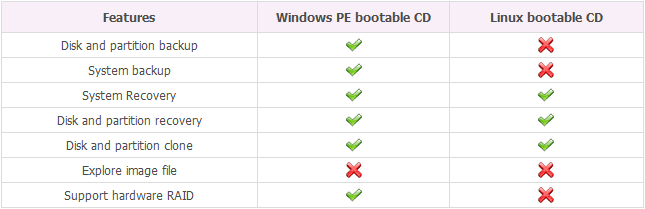
- First is the Linux-based option. Linux-based bootable media run a customized Linux kernel in order to run the user’s computer temporarily, load the backup/restore software, and perform the necessary functions (often which is only the ability to restore, not make backups). Even though these are Linux-based bootable media, they work just fine with your Windows backups.
- Second is the Windows Preinstallation or WinPE-based option. This type of backup is licensed from Microsoft and works similarly to the Linux option, except most WinPE-based recovery media allow you to create backups in addition to restore.
- Finally there is the Windows Automatic Installation Kit (WAIK) way. WAIK is the successor to WinPE and it has several advantages over it, but it requires a huge 1.7GB download to use.
Most free backup programs provide Linux-based bootable media due to the fact that it costs them to provide WinPE, but some also allow for WinPE-based.
Full, Differential, and Incremental Backups
There are three different ways a backup of a drive, system, or partition can be made.
- A full backup backs up all of the data on the source drive, system, or partition. This type of backup takes the most time out of all three types because it backups up all files, regardless of if they have been changed or not. When you run a new backup, the first backup is always full. Then, after the first time, if your backup program supports differential or incremental backups, you can use them.
- Differential backups save only the changes made to the source partition, system, or disk since the last full backup (i.e. new or changed files/folders). In other words, differential backups do not re-backup unchanged files that are already stored in a full backup you made previously. Because differential backups only backup changed or new files and not all files, differential backups are quite a bit faster than full backups.
- Incremental backups back up new or changed data since the last full or incremental backup. For example, if a full backup is made and then an incremental backup is made, the next incremental backup will only backup data which is new or has been changed since the last incremental backup. (The difference between differential backup is, in this situation, differential backup would backup all new or changed data since the last full backup, not since the last differential backup.) Incremental backups are the fastest of the three because incremental backups backup the least amount of data.
There is no hard-set rule for free drive-level backup programs when it comes to type of backup. All of them obviously can do full backups, but many can do incremental backups and some can also do differential backups. Take note that not having differential backups isn’t as critical as not having incremental backups.
With that being said, below are the best free drive-level backup programs for Windows.
Table of Contents [AOMEI Data Backuper vs EaseUS Todo Backup vs Macrium Reflect vs Paragon Backup & Recovery vs DriveImage XML]
- Best Free Drive-Level Backup Program 1
- Best Free Drive-Level Backup Program 2
- Runner Up
- Honorable Mention 1
- Honorable Mention 2
- Other Alternatives
Note: Typically we only feature one program as the ‘Best Free’ in a specific category. For drive-level backup software, however, we have two. The reason being is our first choice is the best out of them all but is a relatively new program; as such, some people may not feel comfortable trusting their backups to a new program. This is why we have a second choice for best free drive-level backup program.
Best Free Drive-Level Backup Software 1
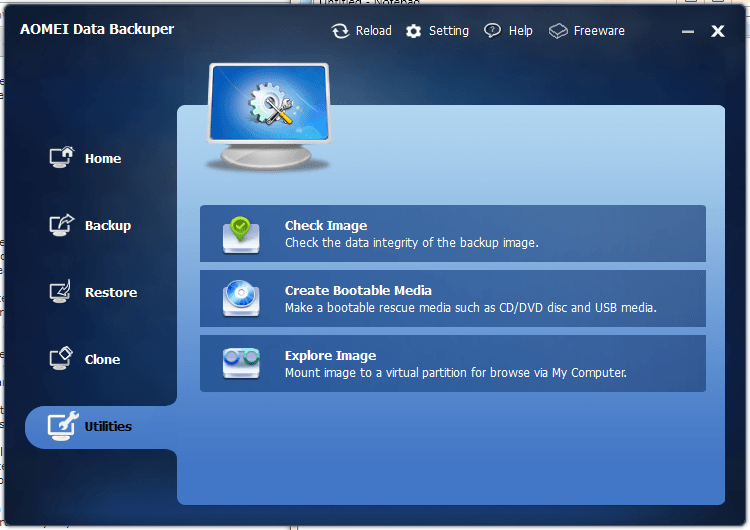 Program Name: AOMEI Data Backuper
Note: AOMEI Data Backup is free for all
Developer: AOMEI Technology Co., Ltd
Download Size: 52.1MB or 14MB
Note: 52.1MB version has the ability to create Linux-based and WinPE-based bootable media. 14MB can only create WinPE-based bootable media.
Note: Windows XP/Vista/Server 2003/Server 2008 users must download the 52.1MB version. The 14MB version only supports Windows 7/8/Server 2008/Server 2012 but the 52.1MB version supports Windows XP and higher (i.e. Windows XP/Vista/Win7/Win8/Server 2003/Server 2008/Server 2012).
Version Reviewed: 1.1.0.0
Requires: Windows XP/Vista/Win7/Win8/Server 2003/Server 2008/Server 2012 (32-bit and 64-bit)
Approximate memory usage when idle: 12.99MB
Backup Time: 12mins, 11secs
Restore Successful: Yes
Type of Rescue/Recovery Media Supported: Linux-based and WinPE-based bootable CD/DVD/USB drive
Ability to Password Protect Backups: Yes
Pros
- Supports full, differential, and incremental backup
- You can backup whole drives, your whole system, or just specific partitions
- Backups can be made sector-by-sector (i.e. of used and unused space) or just data only (i.e. used space only)
- Ability to password protect/encrypt backups
- Allows you to compress backup images, and control the amount of compression
- Has the ability to check the integrity of backup files, to ensure they haven’t been corrupted
- Ability to automatically split large backup image files into smaller files
- Allows for exploration/mounting of backup image files, which in turn allows for selective restore of specific files and/or folders
- Supports both MBR (up to 2TB in size) and GPT (up to 4TB in size) disks
- Supports all types of disks that are recognizable in Windows: internal, external, removable, flash, USB, IDE, SATA, SSD, etc.
- Supports RAID
- Has the ability to store backups anywhere — locally on your computer, external drive, networked folder, etc.
- Supports Linux-based and WinPE-based bootable rescue CD/DVD/USB drive
- Supports Volume Shadow Copy Service, so you can backup files even while using your computer
- Cloning of disks/partitions is supported
- Is true freeware — free for home and business use
Cons
- Does not allow for scheduling of backups
- Some people may need to install Windows Automation Installation Kit (WAIK) in order to create WinPE-based bootable media (regardless of if you download the 52.1MB or 14MB version). If you don’t have WAIK installed, it is a 1.7GB download. Data Backuper will prompt you to install WAIK when creating a WinPE-based bootable, if it is necessary for you.
 Linux-based bootable media can restore backups but cannot create them (WinPE-based can create and restore backups)
- Cannot restore backups to dissimilar hardware
- Is a new program, so it may have some bugs. (However, as per our tests, it is able to successfully create and restore backups.)
- Unknown if dynamic disks are supported
- Note: Most people use basic disks. Unless you specifically configured your computer to use dynamic disk, you use basic disk and don’t have to worry about lack of dynamic disk support.
Discussion
Like with AOMEI Partition Assistant, AOMEI Data Backuper is the new “new kid on the block” in the backup arena. And boy has it landed with a bang!
Similar to what AOMEI did with Partition Assistant, Data Backuper is looking to attract users by offering a freeware program with features that other rival freewares don’t have. Most notably, AOMEI Data Backuper has the ability to create full, incremental, and differential backups (after you create the first initial full backup, you must select incremental or differential from the ‘Home’ tab for each backup), provides users with the options to create either Linux-based bootable media or WinPE-based bootable media, and is free for everyone… home and business users.
Aside from those, AOMEI Data Backuper has all the basics you expect to have in a drive-level backup program: the ability to compress backups, the ability to password protect backups, the ability to automatically split backup files to smaller pieces, the ability to selectively restore files from backups or to fully restore backups, and more.
The only feature AOMEI Data Backuper is missing that can be found in most other freewares is the ability to automatically schedule backups. Hopefully this feature is added in new versions of the program but, as it stands, Data Backuper doesn’t have it; so if this feature is critical to you, keep reading this review for other software suggestions.
Overall, AOMEI Data Backuper is an excellent drive-level backup program.
That said, it should be noted AOMEI Data Backuper is a new program. Yes, it has a lot of features but there is an inherent risk of using a new, not-time-tested program for backups. Now, as per our tests, AOMEI Data Backuper does successfully create and restore backups, so it isn’t like the program is buggy and doesn’t work. But, as with all new programs, there are bound to be some bugs lurking around. So the question really is do you want to trust your backups to a new program? Or would you rather stick to a program that has been around for a few years? The choice is yours. If you pick the latter (aka better you get less features than be sorry later), then keep reading to learn about more time-tested programs.
Best Free Drive-Level Backup Software 2
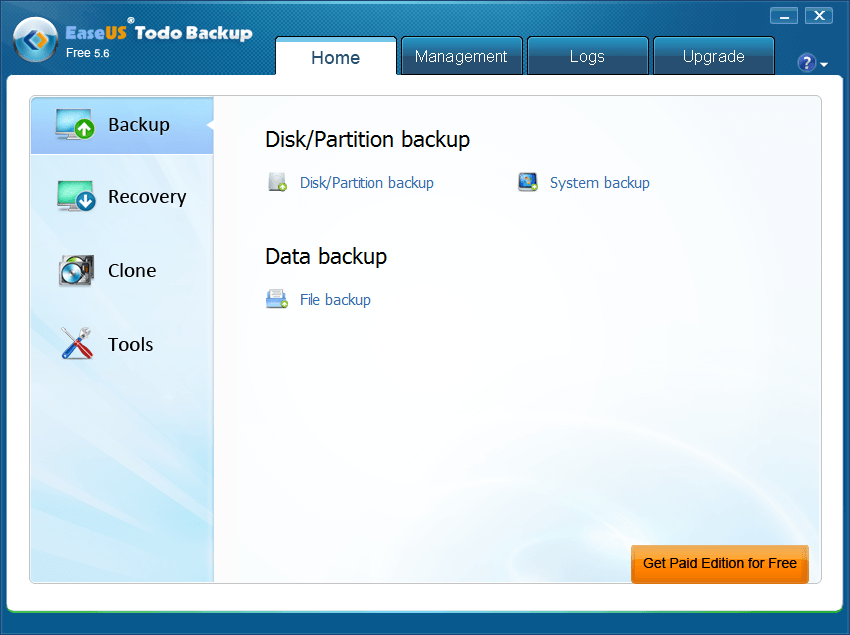
Program Name: EaseUS Todo Backup Free
Note: EaseUS Todo Backup Free is free for noncommercial use only
Developer: Chengdu Yiwo Tech Development
Download Size: 112MB
Version Reviewed: 5.6
Requires: Windows 2000/XP/Vista/Win7/Win 8 (32-bit and 64-bit)
Approximate memory usage when idle: 14.86MB
Backup Time: 8 mins, 33 secs
Restore Successful: Yes
Type of Rescue/Recovery Media Supported: Linux-based CD/DVD/USB drive
Ability to Password Protect Backups: No
Pros
- Does full and incremental backups
- You can backup whole drives, your whole system, or just specific partitions
- Doubles as a file-level backup program — has the ability to backup select files and folders, too, in addition to whole partitions/drives/system
- Can do sector-by-sector backup or backup of data only
- Allows you to compress backup images, and control the amount of compression
- Can schedule automatic backups
- Has the ability to check the integrity of backup files, to ensure they haven’t been corrupted
- Ability to split large backup image files into smaller files
- Allows for exploration/mounting of backup image files, which in turn allows for selective restore of specific files and/or folders
- Supports Linux-based bootable rescue CD/DVD/USB drive
- Notification of backup operations can be provided via email
- Supports both MBR (up to 2TB in size) and GPT (up to 4TB in size) disks
- Has the ability to store backups anywhere — locally on your computer, external drive, networked folder, etc.
- Supports Volume Shadow Copy Service, so you can backup files even while using your computer
- Has the extra features of
- Being able to clone (i.e. copy just data or do sector-by-sector copy) drive or partition to another drive or partition
- Being able to wipe disks or partitions
Cons
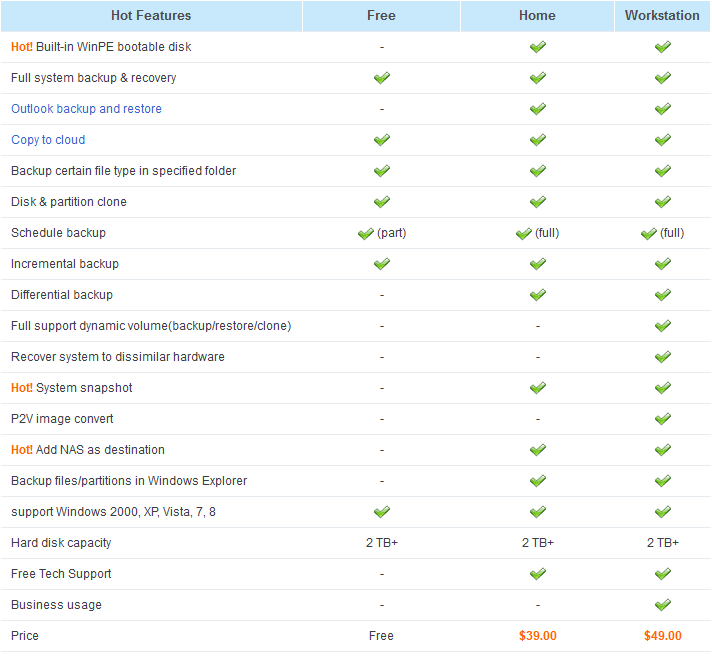
 Does not allow for encryption/password protection of backups (need paid version of password protection)
- No differential backup option (need paid version for differential backup)
- Free for home-use only
- No WinPE-based bootable media (need paid version for WinPE-based bootable media)
- Cannot restore backups to dissimilar hardware
- Supports basic disk only, not dynamic disks
Discussion
EaseUS T0do Backup Free is a simple but effective option for carrying out all of your disk imaging or cloning needs. EaseUS Todo Backup Free allows users to backup and restore their entire disk or the individual partitions on the disk. It also offers users the options of backing up only the partition(s) which contains the operating system with the ‘System backup’ option. EaseUS Todo Backup also offers users the facility of cloning their entire disk or individual partitions (aka copying your disk to another disk or partition to another partition). EaseUS allows for the adjustment of the compression level of backups with the highest level allowing for the smallest sized backups but taking the longest amount of time to perform. Additionally, the option is given for image files to be split into smaller files which may be more manageable depending on the situation. It is also possible to notify administrators via email of the results a backup session. One of the great features of EaseUS Todo Backup is that it allows for incremental backups. EaseUS Todo Backup also offers users the option of shutting down or rebooting the computer after a backup operation is completed.
EaseUS allows for additional options such as:
- Checking the integrity of an image
- Creating a bootable disk
- Wiping the data from a disk
- Mounting a disk or partition image to a virtual partition
- PreOs
The PreOs option allows users to access a pre-Windows environment on the next boot of their computers allowing for recovery options to be accessed without actually booting into windows. This is not meant to be a replacement for rescue media as it does not guarantee complete safety in the cases of boot or hard drive failure.
While EaseUS does offer users an incremental backup, differential backups may be more suited for the purposes of some users and this option is not offered. There is also no ability to password protect or encrypt backups in the free version.
Overall, despite its shortcomings, EaseUS Todo Backup Free is an excellent drive-level backup program.
Runner Up
 Program Name: Macrium Reflect Free
Note: Macrium Reflect Free is free for noncommercial use only
Developer: Paramount Software UK Limited
Download Size: 33.2MB
Version Reviewed: 5.1.5529
Requires: Windows XP/Vista/7/8/Server 2003/Server 2008 (32-bit and 64-bit)
Approximate memory usage when idle: 8.92MB
Backup Time: 10mins, 28secs
Restore Successful: Yes
Type of Rescue/Recovery Media Supported: Linux-based and WinPE based CD/DVD/USB drive
Ability to Password Protect Backups: Yes
Discussion
Macrium Reflect Free is a powerful drive-level backup program which allows users to easily backup the contents of their hard drives.
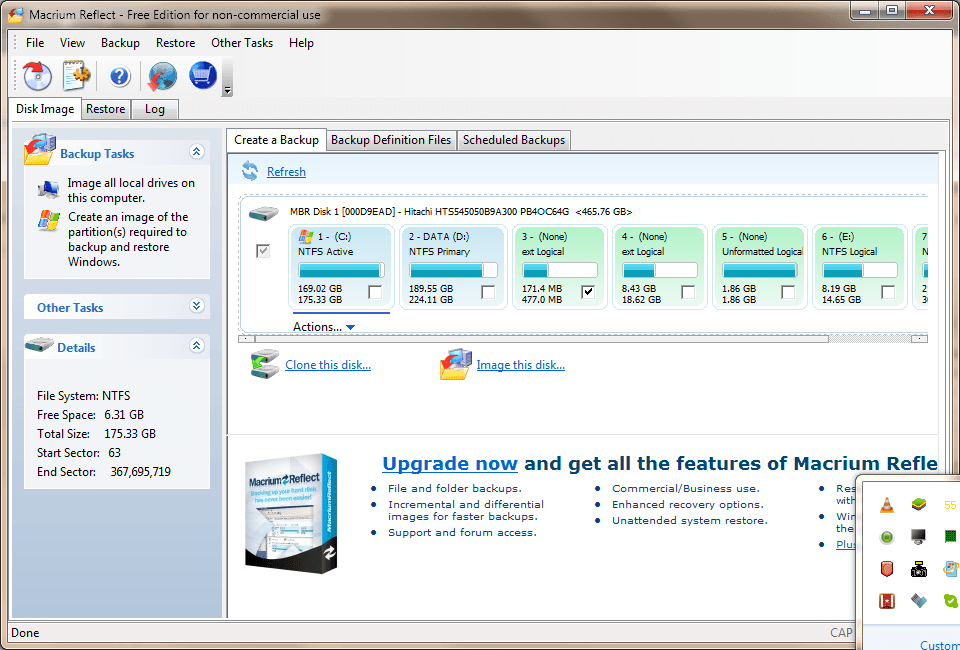
The main screen of the program clearly displays a list of all of the available hard disks and partitions and allows users to easily carry out tasks on either by selecting the required disk or partition. Users can either choose to clone or to create an image of their entire hard disk or do the same for selected partitions.
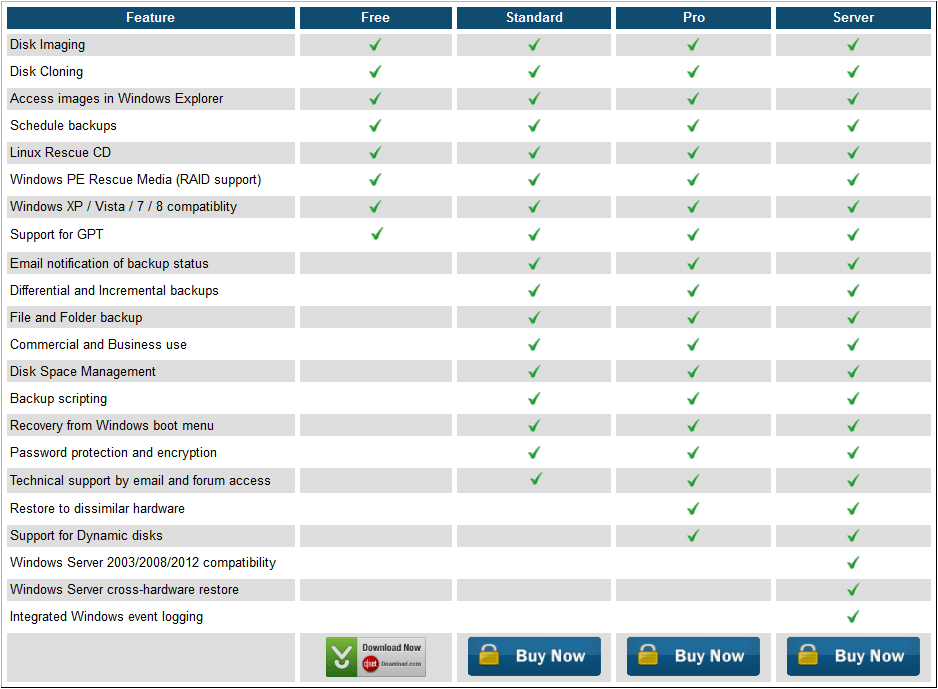 There is also an option for backing up only the partition which contains Windows. Macrium Reflect also allows users to create rescue media using either the Windows-PE option or the Linux option; the Windows PE option offers users greater flexibility as it supports a wider range of PC hardware. In addition users can easily verify the file systems of their drives as well as all created images. Macrium gives users of setting their computer to automatically shutdown after the program has completed a backup task.
When restoring backups, you can restore whole backups or selectively restore files.
Users are given several options for tweaking the performance of Macrium Reflect Free. For example, the compression level can be adjusted, where backups can be compressed into smaller files. Also, there is an intelligent sector copy option which allows only disk sectors used by the file system to be copied, as opposed to making an exact copy where even deleted files may be recovered and will generally take longer.
My only issue with this program is that it gives users no incremental or differential backup options — only full backups with this program. Despite that, however, Macrium Reflect Free will ensure that you have a stress free backup/restore process. This is yet another excellent free drive-level backup program
Honorable Mention 1
 Program Name: Paragon Backup & Recovery Free
Note: Paragon Backup & Recovery Free is free for personal use only
Developer: Paragon Software Group
Download Size: 103MB
Version Reviewed: 2012
Requires: Windows 2000/XP/Vista/7/8 (32-bit and 64-bit)
Approximate memory usage when idle: 25.52MB
Backup Time: 14 seconds (for 477MB partition)
Restore Successful: Yes
Type of Rescue/Recovery Media Supported: Linux-based CD/DVD/USB drive
Ability to Password Protect Backups: Yes
Discussion
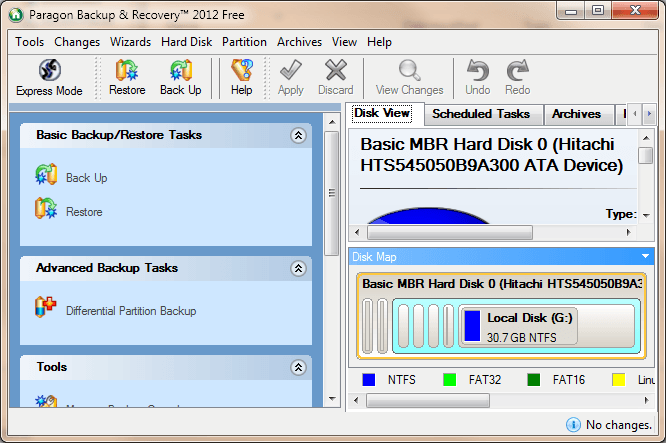
 Paragon Backup & Recovery Free possesses some powerful features considering the fact that it is a free program and it may surprise users.
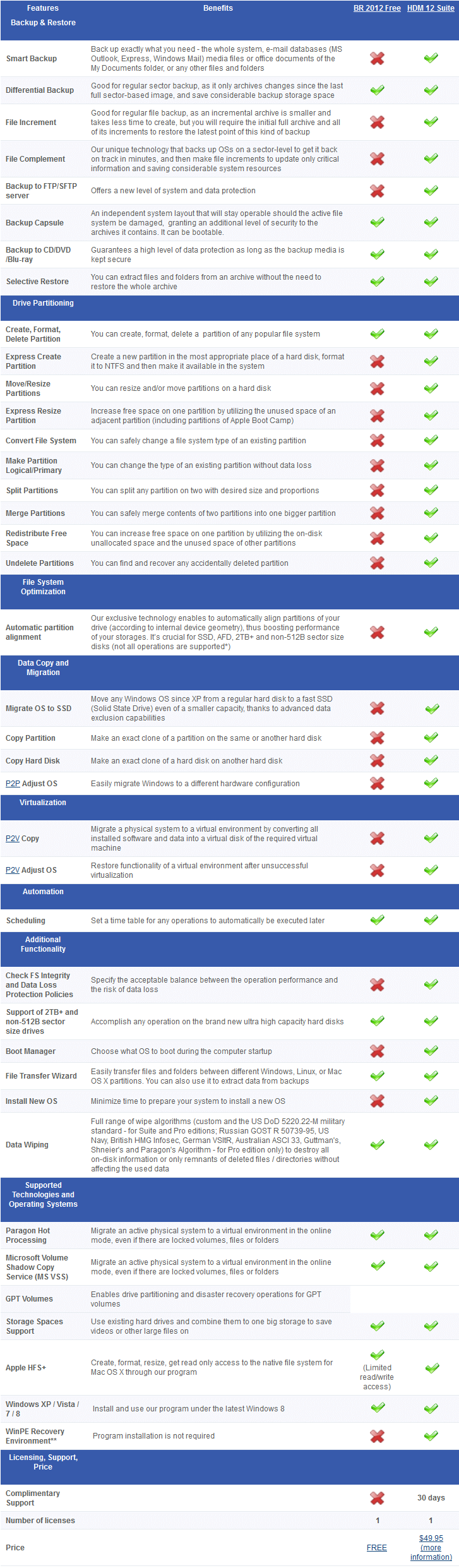
Paragon allows users to backup or restore images of a single or all of the partitions contained on their computer’s hard drive and gives the option of performing a differential backup. This program also allows users to create a secure partition which remains operable even if the system partition is damaged. Additionally, it allows users to create recovery media as well as to check the integrity of both recovery disks and image files. It also allows users to transfer files between partitions and to access files from backed up images. Paragon Backup & Recovery 2012 Free also allows users to set their computers to shutdown after carrying out a backup operation.
As an added bonus, Paragon Backup & Recovery 2012 has basic partitioning features which support Windows, Linux, and Apple file systems.
The only issue I had with this program is that it offered no option to make an exact clone of an entire hard drive. Also, this program offers users differential backups but no incremental backups which may not be ideal for some users, and that differential backup method is a bit quirky.
Overall, this is a good program and a viable option for backing up your data
Honorable Mention 2
 Program Name: DriveImage XML
Note: DriveImage XML is free for private use only
Developer: Runtime Software
Download Size: 1.78MB
Version Reviewed: 2.44
Requires: Window XP/Server 2003/Vista/7/8
Approximate memory usage when idle: 18.35MB
Backup Time: 18mins, 24secs
Restore Successful: Yes
Type of Rescue/Recovery Media Supported: Linux-based LiveCD and BartPE
Ability to Password Protect Backups: No
Discussion
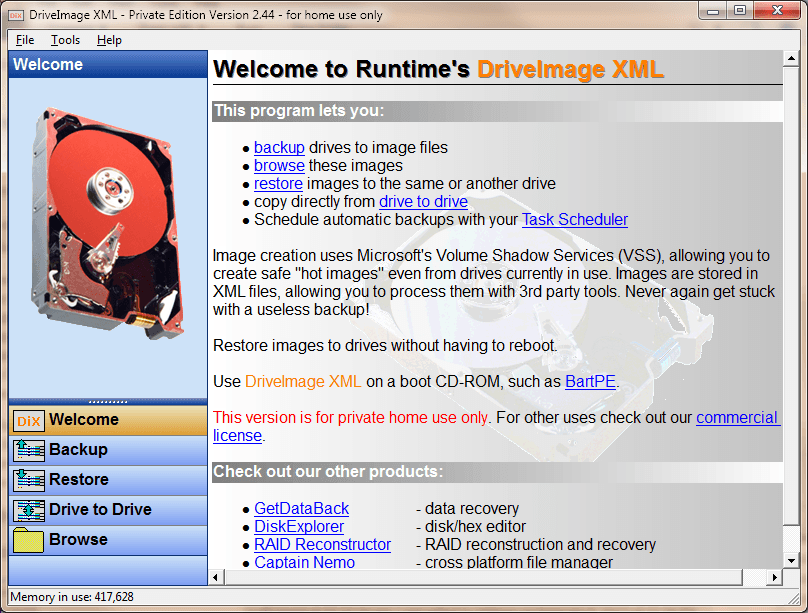
DriveImage XML is quite a simple program but it gets the job done. DriveImage XML allows users to:
- Backup drives to image files
- Browse image files
- Restore images to the same or another drive
- Clone drive
Don’t let this program’s simplicity to fool you as it is quite an effective drive-level backup program.
DriveImage XML allows users to backup and restore an entire disk or individual partitions. It also allows users to browse files contained within backups as well as to clone the entire contents of one drive to another. Additionally, it gives users the option of creating a backup of a partition even as it is being used. It also allows users to access a command line interface which allows the running of the program from batch files. . DriveImage XML also allows users to schedule their backup tasks as well as to fix Vista boot problems. Users can choose the level of image compression they desire a well as choose to split large image files into smaller, more manageable files. DriveImage XML also allows users to create backups which can be processed with third party software as backups are stored as .XML files. Although the program does support recovery media, users can not create their own recovery media from directly within the program and must use a program such as BartPE in order to create their own recovery disk. You can also directly download the LiveCD ISO and burn that to CD/DVD, if you wish.
However, DriveImage XML did not allow for differential or incremental backups. Also I did not encounter any option which allowed for the shutdown of the computer after a backup operation was carried out.
DriveImage XML is simple and effective but requires a level of comfort with the technical in order to create compatible recovery/rescue media.
Other Alternatives
- Comodo Backup
- Puresync Backup
- Keriver 1-click Backup
- Redo Backup
- …and many more
File-level Backup Software
As already explained, unlike drive-level backup programs which aim to backup whole drives/systems/partitions, file-level backup programs are for the purposes of backing up specific files and folders that are deemed important.
Because the purpose of file-level backup programs is different than drive-level backup programs, our main judgement criteria is a bit different. We evaluated file-level backup programs on the following:
- Time taken to conduct backup?
- Type of backup archive used (i.e. is it proprietary or non-proprietary format — can files be restored without using the backup program itself)?
- Does the program check the integrity of backups?
- Can backups be scheduled?
- Are filters supported to exclude or include specific files or file types?
- Are restores successful?
- Is it capable of carrying out full, differential, or incremental backups?
- Is encryption/password protection of backups possible?
All of the file-level backup programs have filtering capabilities, we did not use that as a differentiator.
All programs were tested on a 1.84GB folder containing 105 files. The testing computer was an Acer Aspire 5315 with a T7500 2.2GHZ Core2Duo processor and 2GB DDR2 RAM running Windows 7 Ultimate 32-bit.
With that being said, here are the best free file-level backup programs for Windows…
Table of Contents [BackUp Maker vs Cobian Backup vs Areca Backup vs FBackup]
- Best Free File-Level Backup Program
- Runner Up
- Honorable Mention 1
- Honorable Mention 2
- Other Alternatives
Best Free File-level Backup Program
 Program Name: BackUp Maker
Note: BackUp Maker is free for private purposes only
Developer: ASCOMP Software GmbH
Download Size: 6.5MB
Version Reviewed: 6.504
Requires: Windows XP/Vista/7/8/Server 2003/Server 2008 (32-bit and 64-bit)
Approximate memory usage when idle: 31.76MB
Backup Time: 7 mins
Type of Backup Archive: .ZIP
Restore Successful: Yes
Ability to Password Protect Backups: Yes
Can Schedule Backups: Yes
Pros
- Does full and partial (incremental/differential) backups
- Users can either manually select the files or folders to backup or easily select Libraries to include in backup (Documents, Music, Pictures, Podcasts, and Videos folders), backup bookmarks from Chrome, Internet Explorer, and Firefox, and backup emails from Outlook, Windows Live Mail, and Windows Mail.
- Can create multiple backup jobs
- Allows for scheduling automatic backups
- Allows for backups to be carried out if scheduled time is missed for some reason
- Gives backup reminders
- Supports storing backups locally, to network shares, to external drives, to external media (CD/DVD, USB drive, etc.), and FTP
- Verifies backups (i.e checks integrity)
- Supports optional compression and password protection/encryption capabilities
- Has ‘intelligent’ compression (i.e. prevents already compressed files from being compressed again)
- Allows users to choose which types of files to include in backups (aka filters)
- Backup archives can be split into smaller files
- Has ability to automatically conduct backup at Windows login/log off
- Has ability to automatically conduct backup when a USB drive is inserted into computer
- Can open files or execute system commands before/after backups are conducted
- When restoring files, you can selectively restore specific files/folders or restore it all; select to keep the folder structure; and select to restore new files only
- Can be run as a service (but this appears to be for Windows NT/2000/XP/2003 only)
- Backup start hotkey combination
Cons
- Is free for non-commercial use only
- For the purposes of restoring, does not remember backed up archives. In other words, does not remember that Job1.zip is the backup archive for Job1, so when you go to restore a backup, you need to manually navigate to where the ZIP file is and select it yourself as opposed to simply restoring Job1.
Discussion
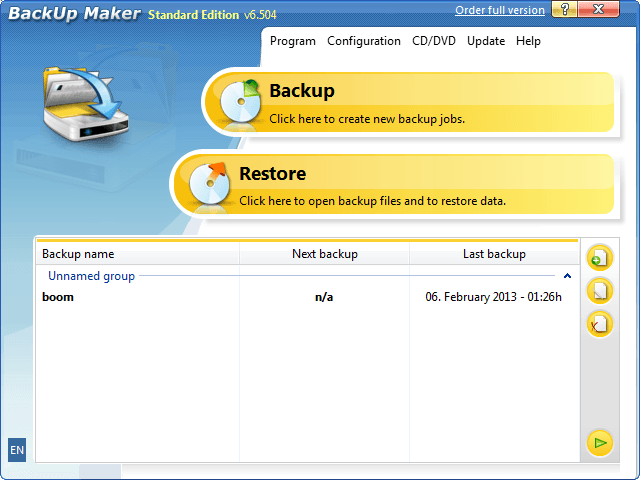
BackUp Maker has a very simple interface and is quite straightforward to use. However, it has many powerful options which allows users to customizes backups to their preferences.
When creating a backup with BackUp Maker, you can guided step-by-step in how to do it. Step 1 allows you to select the files or folders you want to back up. Here you can select any files/folders you want or make easy selections of Libraries, bookmarks, or email. Step 2 allows you to use include/exclude filters, to include/exclude specific file types, specific files or folders, and/or files that are above a certain file size (e.g. above 200 MB). Step 3 allows you to setup automatic backups. Step 4 allows you to decide what to do if automatic backups are missed. Step 5 lets you pick between doing a full or partial (differential/incremental) backup). Step 6 allows you to select how many backup archives you want to keep of this backup job. Step 7 allows you to encrypt backed up files with a password (PkZip, AES 128, AES 192, AES 256 supported). Step 8 allows you to set some pre-conditions for a backup to be run. Step 9 allows you to setup before/after backup tasks to happen (such as open a file or run a command). Step 10 allows you to pick if you want to split backed up archive into smaller pieces. Step 11 lest you pick where you want to store the backup archive(s) (locally, CD/DVD, network folder, or FTP). Step 12 allows you to set a backup name plus assign a global hotkey that allows you to make the backup run whenever you press the hotkey.
If all that is confusing to you and you won’t want to mess with it, you can uncheck the box for ‘Active expert mode’ in which case you are only shown five steps — step 1, step 3, step 5, step 11, and step 12 of what is mentioned above.
When you want to restore a backup, you must find where you saved the backed up archive and select it. You then have the ability to selectively restore specific files/folders or restore it all.
One thing I really like about BackUp Maker is that it tests backup archives for integrity, which helps serve piece of mind that your backup is not corrupted. Another thing I really like is that backups are stored in non-proprietary .ZIP format meaning you can access the backed up files (and/or restore them) without having Backup Maker installed. This is handy in the situation that Backup Maker no longer works for you or you can want to restore your files to a computer that doesn’t have it installed.
Overall, BackUp Maker is quite a solid program Backup Maker is simple but solid with plenty useful options. It will makes sure that users successfully and efficiently carry out the necessary task of backing up their files.
Runner Up
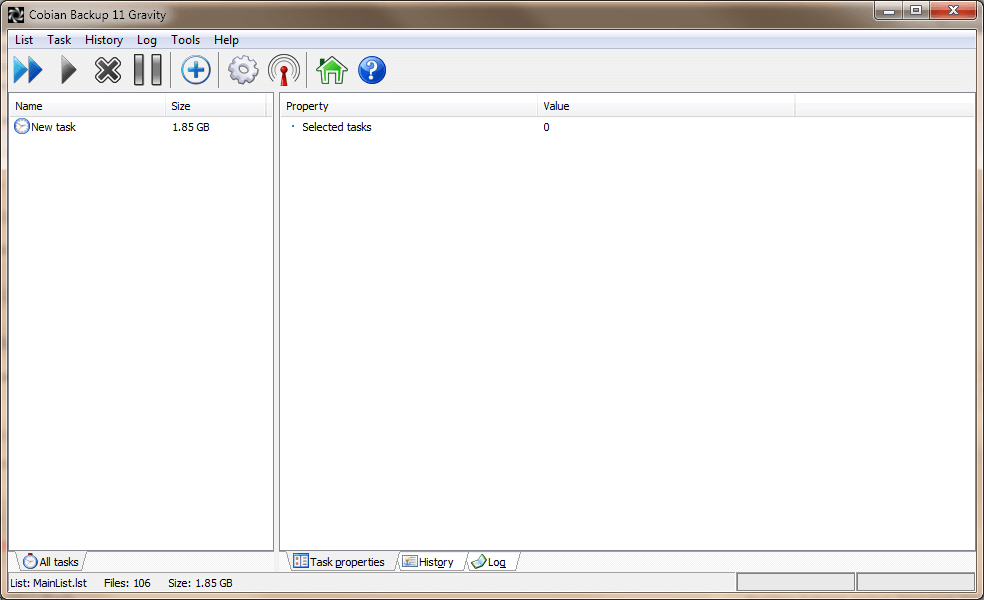 Program Name: Cobian Backup
Note: Cobian Backup is free for all
Developer: Luis Cobian
Download Size: 18.8MB
Version Reviewed: 11
Requires: Windows XP/Server 2003/Vista/Server 2008/7 (32-bit and 64-bit)
Approximate memory usage when idle: 2.04MB
Backup Time: 5 mins
Type of Backup Archive: .ZIP, .7z
Restore Successful: Yes
Ability to Password Protect Backups: Yes
Can Schedule Backups: Yes
Discussion
Cobian is a powerful file-level backup manager with plenty of features for protecting your data.
Cobian allows users to carry out full, incremental, or differential backups. Backups are easily accessible by third party software as the file formats of the backups are .ZIP and .7Z. Like BackUp Maker, Cobian Backup allows users to make backups to a network location as well as to physical storage media. Cobian Backup also allows users to select file types which are not to be included in backups. It also allows users to encrypt their backups. Additionally, users can schedule backup tasks to run at their convenience. It also gives the useful option of shutting down when a backup task is complete.
My only issue with Cobian Backup is that it gives no evidence of checking the integrity of backups made. It is quite possible that it does this in the background but the peace of mind of seeing this in action would be great if this functionality is indeed there.
Despite these issues, it should be noted that Cobian is undoubtedly one of the most versatile free file-level backup programs out there today.
Honorable Mention 1
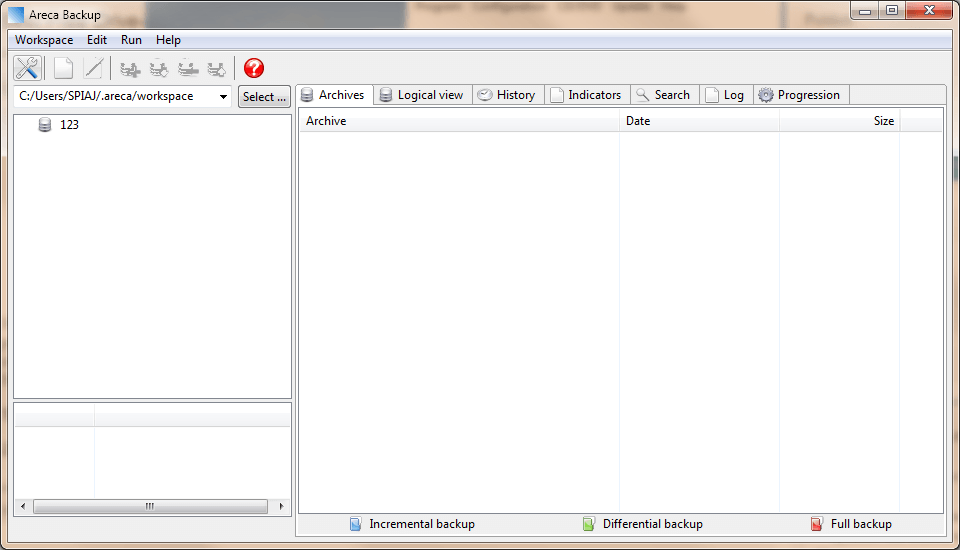 Program Name: Areca Backup
Note: Areca Backup is free for all
Developer: Olivier PETRUCCI
Download Size: 4.7MB
Version Reviewed: 7.2.17
Requires: Windows 2000/XP/Vista/7 (32-bit and 64-bit)
Approximate memory usage when idle: 44.33MB
Type of Backup Archive: .ZIP
Backup Time: 5 mins
Restore Successful: Yes
Ability to Password Protect Backups: Yes
Can Schedule Backups: Yes
Discussion
Areca Backup is one of the more powerful free file-level backup programs out there.
Areca Backup allows users to create archives in the .ZIP format and therefore the back up files created are accessible with 3rd party software. It also allows for backups created to be encrypted. Backups can be either stored locally or at a network location which is always a useful feature. As expected of a great file-level backup program, users can choose which types of files they wish to be included in their backups. Areca Backup displays very detailed log information, showing users potentially useful information about backups. Areca Backup also allows users to verify their backups. Areca Backup is capable of full, differential or incremental backups plus an interesting ‘delta’ backup feature that only backups the parts of files that have been changed.
Areca Backup is definitely powerful and contains all of the features you could want in a program of its type, however it can be slightly complex to set up at first. This however is not my main issue with the program. My main issues is with the lack of an internal scheduler. Users must rely on Windows’ scheduler to carry out scheduled tasks. You may argue that this is not particularly difficult but it would have been nice for an internal scheduler to be included. These two issues were why it was rated below BackUp Maker and Cobian Backup.
Despite the issues I had with it, Areca Backup is guaranteed to handle all of your back up tasks if you spend a little time familiarizing your self with this powerful piece of software.
Honorable Mention 2
 Program Name: FBackup
Note: FBackup is free for all
Developer: Softland
Download Size: 17.6MB
Version Reviewed: 4.8.289
Requires: Windows 2000/XP/2003/Vista/Server 2008/7/8
Approximate memory usage when idle: 19.76MB
Type of Backup Archive: .ZIP
Backup Time: 7 mins
Restore Successful: Yes
Ability to Password Protect Backups: No
Can Schedule Backups: Yes
Discussion
FBackup is both comprehensive and straightforward to use. When creating a backup, users are given the option of either operating the program in simple mode or advanced mode. Backups can be stored basically anywhere, from on the local hard drive itself, to external flash memory and hard drives and even to network locations. Users can also choose which files they want and which files they do not want to include in their backups. Also, users can choose to create a backup in which the files contained in it are compressed or uncompressed. Backups can also be encrypted and the option is given to test the integrity of the backups after the backup process is completed. Users can also schedule their backups.
A very useful feature of FBackup is to make use of ‘plugins’ which basically allow FBackup to easily backup data for specific programs.
FBackup is a solid program and the only major issue I have encountered is the lack of password protection/encryption of backups. And, it does not allow for differential or incremental backups while the other offerings do therefore it can be considered to be lacking in that aspect.
If you want a program which allows you to backup your files with as little hassle as possible, FBackup is definitely the program for you.
Other Alternatives
- Karen Replicator
- FreeFileSync
- Shadow Copy
- Yadis Backup
- …and many more




