
 Email article
 Whether we like it or not, PDF format is live and kicking used by individuals, businesses, and education institutes alike. Since PDF is still in use, it goes without saying you should have the tools required to create PDF files. BinaryNow PDF Impress is one such tool. Let’s see how well it fares.
WHAT IS IT AND WHAT DOES IT DO
Main Functionality
At its most basic core, PDF Impress is a virtual PDF printer; it allows you to create a PDF out of any document, file, website, etc. that can be printed. On top of that, however, PDF Impress allows users to create PDFs in batch (which is done through the main program interface), has basic PDF editing capabilities (extract page, add watermark, add attachment, merge PDFs, remove page, insert page, etc.), had has a unique ‘Watcher’ feature which allows you to tell PDF Impress to monitor a folder and automatically convert all existing and new files in that folder to PDF files (each file its own PDF).
Pros
- Is a virtual PDF printer, so it allows you to create a PDF out of any document, file, website, image, etc. that can be printed
- Has the ability to create PDFs in batch
- Adds an entry into the right-click context menu of files for easy conversion with PDF Impress
- Has basic PDF editing and viewing capabilities
- Has the ability to monitor select folders and automatically convert existing and new files in those folders to PDFs
- Via ‘Profiles’ allows you to control output settings of PDFs, such as compression level, DPI, page size, page orientation, and more
- Well-designed interface
Cons
- Only partly preserves links in output PDFs
Does not properly create PDFs out of PowerPoints- UPDATE: This was fixed by the developer in a subsequent update to the program after we originally wrote this review in February 2013.
- $99 is a fairly high price tag for a program that doesn’t have very unique features (aside from ‘Watchers’)
There are no output customization options when you directly use the printer (via ‘Print’ in any file or page). You can only take advantage of the ‘Profiles’ feature if you create PDFs through the main program interface.- UPDATE: This was fixed by the developer in a subsequent update to the program after we originally wrote this review in February 2013.
Default settings are not conducive to batch processing; you need to manually modify them to make them better- UPDATE: This was fixed by the developer in a subsequent update to the program after we originally wrote this review in February 2013.
Requires you to restart your computer after installation (annoying!)- UPDATE: This was fixed by the developer in a subsequent update to the program after we originally wrote this review in February 2013.
- You need specific programs installed to use the batch processing and ‘Watchers’ feature with certain file types
Discussion
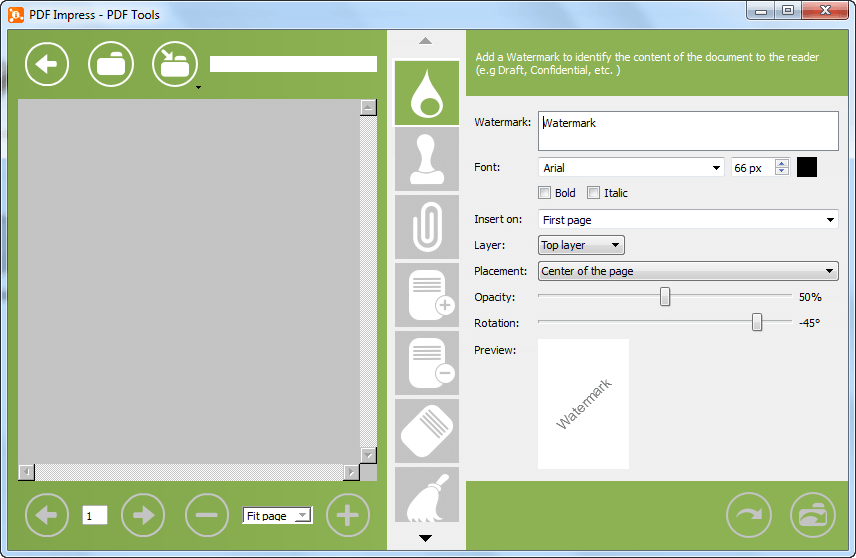 There are four ‘layers’ to PDF Impress, so to speak:
- First, there is the most basic PDF virtual printer. You can use this PDF virtual printer to turn any file, document, website, etc. that can be printed to a PDF. When using this PDF virtual printer you simply name the output PDF and select where you want to place it. There are no other customization options.
- Second, there is PDF Impress’s main program interface. Through this interface you have the ability to select various different ‘Profiles’ which have customized output PDF settings. There are five profiles that come with the program with you have the ability to customize those profiles and/or create new ones. Once you select a profile, you must select the input files you want to convert to PDF and PDF Impress will do the conversion for you. Take note that via this method you can batch create PDF files; all you have to do is load in multiple input files and each file will be converted to a PDF.
- When you customize a profile, you have the ability to change things like paper size, DPI, page orientation, font embedding, image compression, and how to save output PDFs (either prompt you every time, store them all in a specific location, use the same name, and what to do if an existing file is found). In addition, all of the functionality found in ‘Tools’ (explained in the next bullet point) you can add to profiles so that new PDFs automatically have them applied.
- An interesting feature of PDF Impress is the ability to create a shortcut on your desktop or any folder of each profile. Then you can drag + drop files onto the shortcut and PDF Impress will automatically convert the files to PDF using the settings of the profile.
- Third, PDF Impress has a ‘Tools’ section. From this section you can make basic edits to existing PDFs (one at a time — batch not supported here). Via ‘Tools’ you can: add watermark, add stamp, attach files, insert pages from another PDF file, remove pages from PDF, rotate pages in PDF, compress PDF content, remove JavaScript from PDF, remove bookmarks from PDF, remove attachments from PDF, flatten all layers in PDF, modify PDF metadata, ability to control what page shows first when someone opens the PDF and the page layout, extract pages from PDF and store in another PDF, encrypt/password protect PDF, and add digital certificate to PDF.
- Last, PDF Impress has a unique ‘Watchers’ feature. What this feature does is allows you to tell PDF Impress to watch specific folders on your computer. All existing files in the target folders are converted to PDF and all new files in the folders are automatically converted to PDF. You can create as many watchers as you want and you can customize the settings of each watcher. For example, you can control if you want a watcher to continually watch the target folder or to periodically do a scan of the folder every day at X time, to do a scan only once, or to do one scan at X time; you can also control which file types PDF Impress should automatically convert to PDF. Aside from that, all of the profile customizations (mentioned above) can be done to watchers and all of the editing you can do via ‘Tools’ you can add to each individual watcher so all output PDFs are automatically applied with those settings (e.g. you can add compression to a watcher so all output PDFs are compressed, or you can add encryption to a watcher so all output PDFs are password protected).
That said, there are a few shortcomings of this program that must be mentioned:
- First of all, output PDFs do not properly preserve hyperlinks. If the input file has a link directly shown in the file (e.g. http://dottech.org), then PDF Impress will make the link clickable in the output PDF. However, if there is a hyperlink in the input file (e.g. ‘dotTech’ is hyperlinked to http://dottech.org), then PDF Impress does not make the link clickable in output PDFs.
Secondly, Impress PDF fails at converting PowerPoints to PDF. When using Impress PDF to create a PDF out of a PowerPoint, the output PDF has jumbled text, screwed up pages, etc. It just doesn’t work with PowerPoints. While Impress PDF works fine with other files that I tested it with (images, Word documents, Excel spreadsheets, and some others), Impress PDF does not work with PowerPoints which means it potentially could not work with other file formats, too (it isn’t possible for me to test it with all formats).- UPDATE: This was fixed by the developer in a subsequent update to the program after we originally wrote this review in February 2013.
Thirdly, when you directly use the PDF printer, you have no customization options what-so-ever. As mentioned above, all you do is select the output PDF name and output location and the PDF is created; you cannot select any profile to use when using the printer directly. If you want to do any output customization (e.g. encrypt output PDF or any of the other customization mentioned above) then you need to use PDF Impress’s main program interface.- UPDATE: This was fixed by the developer in a subsequent update to the program after we originally wrote this review in February 2013.
Fourthly, PDF Impress supports batch processing, yes. However, default settings are not very batch processing conducive. As mentioned above, you need to go through the main program interface and select a profile in order to do batch processing. The issue is, by default, the profiles are set to prompt you for output PDF name and location. This means you will be prompted for every single input file you are converting, which is very annoying if you are doing batch processing. To fix this, either create a new profile or edit an existing profile and go to the output preferences (the CD icon). From there, select ‘Use folder’ for ‘Save dialog’ and in ‘Safe PDF to folder’ pick a folder on your computer. Now whenever you use that profile to do batch processing, you will not be prompted for the name and output location of each PDF; all PDFs will be stored in the location you picked with the same name as the input file. There is still a drawback here — you must modify a profile before doing any batch processing if you want to store the output PDFs in a different location — but it isn’t as bad as being prompted for each output PDF.- UPDATE: This was fixed by the developer in a subsequent update to the program after we originally wrote this review in February 2013.
- Lastly, there are still some kinks in this program. For the most part, it works well and without bugs. However, I have run into an issue with the PDF printer. Most of the time PDF Impress’s printer works perfectly fine. However, sometimes after using the ‘Print’ command to use PDF Impress to create a PDF out of the file I’m in, PDF Impress does not create the PDF and when I try to print with it again I get an error telling me “Windows cannot print due to the current printer setup”. I have to then restart my computer before PDF Impress’s printer can be used again (other printers can be used without restarting). This has happened to me twice so far; I can only speculate it will happen more often the more I use the program.
- UPDATE: I have not run into this issue in subsequent updates to the program after we originally wrote this review in February 2013. So it may or may not still be there.
One more thing I’d like to mention. When you go to the ‘System Requirements’ page on PDF Impress’s website, you will find it say the following:
Convert to PDF and Watcher Requirements
- Autodesk® Design Review 2008
- Autodesk® AutoCAD 2000 or higher
- Microsoft® Word 2002, 2003, 2007, or 2010
- Microsoft® Excel 2002, 2003, 2007, or 2010
- Microsoft® PowerPoint 2002, 2007, or 2010
- Microsoft® Visio 2002, 2003, 2007, or 2010
- Microsoft® Publisher 2002, 2003, 2007, or 2010
- Microsoft® Internet Explorer 8.0+
- OpenOffice.org 2.2+
It isn’t entirely clear what this means but it looks like it means that in order to use the ‘Profiles’, batch processing, and ‘Watchers’ features with Autodesk, Microsoft Office, Internet Explorer, and OpenOffice file formats, you need those specific programs installed. I am unable to test my theory because I don’t have any Autodesk or OpenOffice files and I have Microsoft Office installed.
CONCLUSION AND DOWNLOAD LINK
As the old saying goes, the little things will break you. For the most part, BinaryNow Impress PDF is a good program; it has a nice interface, is easy to use, and has good features. The ‘Watchers’ feature is particularly unique and potentially helpful for people who need that type of functionality. However, the program isn’t worth the price.
The biggest issue that kill the program as a recommendation is the that the program is overpriced… way too overpriced. PDF creation is no longer an art; it is a science that many freewares can do just as well as Impress PDF. In fact, the only unique feature in BinaryNow Impress PDF is ‘Watchers’; the rest can be replicated in freeware PDF tools. So, unless you really need the functionality of ‘Watchers’, there is no need to drop $99 on this program. $20 may have been a different story.
This especially holds true when you consider how you can purchase a full-featured PDF editor (e.g. Nitro) for around the same price. So why shell out so much money for BinaryNow Impress PDF — which isn’t a PDF editor — when you can get more functionality for around the same price?
So exactly what programs can do what BinaryNow Impress PDF do? PrimoPDF and BullZip PDF Printer are both excellent freeware PDF printers; you can grab either of those if you need just the ability to create PDFs by ‘printing’ documents, files, etc. PDF24 Creator is another excellent freeware PDF printer but it goes above and beyond PrimoPDf and BullZip; in particular PDF24 Creator can batch create PDFs. If you are keen on preserving hyperlinks in output PDFs, then you want to check out 7-PDF-Maker or 7-PDF Website Converter; both programs are PDF converters (not PDF virtual printers) and both programs preserve hyperlinks in output PDFs. Read dotTech’s review on best free PDF creator/converter/printer for Windows to learn more.
Price: $99 for 3-user license
Version reviewed: 2014, 31.06.115
Supported OS: Windows XP, Vista, 7, and 8
Download size: 51.1 MB
VirusTotal malware scan results: 0/48
Is it portable? No
BinaryNow Impress PDF homepage




