
 Email article
When you buy a new computer, it probably comes with one hard drive which has two partitions on it; one partition is your main, Windows C:/ partition while the second (which may be hidden) is your recovery partition. For most people, this configuration is enough; there is no desire to install other operating systems nor is there the need to have a separate partition for specific data (e.g. like how I have a D:/ partition that stores all my important files).
However, if you are one of the people that does like to install other operating systems (e.g. dual-booting Windows 7 and Windows 8, or Windows and Linux) or would like a separate partition to keep your important files or maybe a separate partition to install all your programs, then you need a partition and disk manager to help you create those extra partitions. This article looks at the best free partition and disk managers for Windows. Let’s see what they are.
[Note: Please realize that there is an inherent risk of data loss or corruption when modifying partitions on your hard drive. No matter how good a program is (and all the programs listed in this article are very good — there is very little that differentiates them), there is a chance that you may corrupt your data or screw up your partition. So use these programs at your own risk and be sure to always have a backup of your data.]
This review is part of our Best Free Windows Software section. Check out more articles on the best free Windows programs from here.
Table of Contents
- Best Free Partition and Disk Manager
- Runner Up
- Honorable Mention 1
- Honorable Mention 2
- Honorable Mention 3
- Other Alternatives
Best Free Partition and Disk Manager
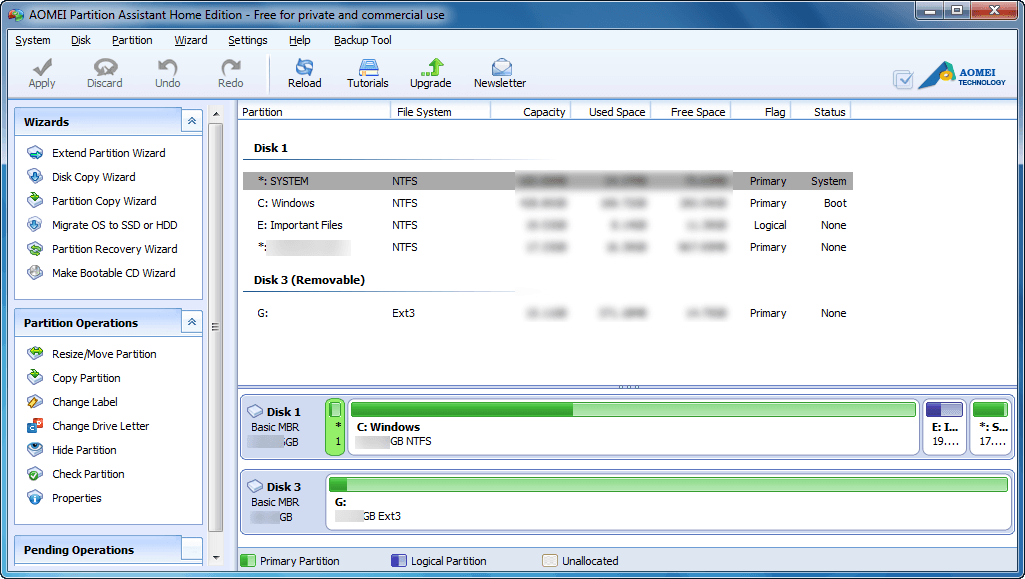 Program Name: AOMEI Partition Assistant Home
Note: AOMEI Partition Assistant Home is free for everyone, business and home users alike
Developer: AOMEI Technology Co., Ltd.
Download Size: 3.66 MB
Version Reviewed: v5.2
Requires: Windows 2000 Pro/XP/Vista/Win7/Win8 (32-bit and 64-bit)
Pros
- Can do all the basics of partition management: create, delete, format, extend, shrink, resize, move, merge, and split partitions
- In addition the basics, has the ability to:
- Allocate free space
- Copy disk or partition to different disk or new partition (sector-by-sector copy [aka clone] or just copy existing data)
- Modify partition name and/or letter
- Wipe partition or disk
- Wipe unallocated space
- Test disk for errors
- Rebuild MBR
- View properties of a disk or partition
- Hide or unhide partition
- Convert partition from logical to primary and vice versa
- Set partition as active
- Convert FAT/FAT32 partitions or drives to NTFS
- Migrate from HDD to SSD and vice versa
- Ability to recover lost partitions
- Supports NTFS, FAT, FAT32, ext2, and ext3 filesystems
- Supports MBR and GPT disks of up to 2TB and 4TB in size, respectively
- Supports all types of drives: internal, external, removable, flash, memory cards, USB 1.0/2.0, IDE, SATA, SSD, SCSI, FireWire, and SAS
- Supports hardware RAID
- Supports creation of WinPE (4.0) bootable CD/DVD/USB drive
- Can automatically shutdown computer after operation has completed
- Works in ‘virtual mode’ meaning all changes you make are not automatically applied; you need to explicitly click ‘Apply’ to apply all modifications. This helps avoid “oops did I really just do that” type mistakes
- Works with UEFI/EFI boot
- Is free for everyone — home and business users alike
Cons
- Partition alignment, modifying serial number, modifying partition type, and converting between MBR and GPT disks are only available in the paid Pro version
- (FYI: Most people have MBR disks – because it is the default way Windows is setup – and don’t need to mess with converting between MBR and GPT.)
- Free version of AOMEI Partition Assistant only supports basic disks — does not support dynamic disks. Pro version of AOMEI Partition Assistant has some functions that work with dynamic disks — such as converting dynamic disk to basic disk without losing data and copying dynamic disk to basic disk — but you need to purchase AOMEI Dynamic Disk Manager if you want to full-features that work with dynamic disks. (The freeware version of AOMEI Dynamic Disk Manager is crippleware, so don’t be fooled by that.)
- (FYI: Most people are on basic disks. If you are unsure, then you are on a basic disk because that is how Windows is by default. You would know if you changed to dynamic disk.)
Doesn’t appear to support USB 3.0 drives (I don’t have a USB 3.0 so I cannot test this, but the developer does not list support for USB 3.0 drives)
- Only has support for WinPE bootable disc/USB — no Linux-based
- Does not support Server versions of Windows. There is a separate freeware AOMEI Partition Assistant Lite that works on Windows Server but that program is fairly useless. You need to purchase AOMEI Partition Assistant Server if you want server support.
- Has an ad inside the program for AOMEI Data Backuper, a freeware backup program
- Does not have the ability to modify cluster size on partitions without formatting whole partitions
Discussion
The problem with trying to find the *best* partition manager for Windows is there are so many excellent free partition managers out there that all provide essentially the same functionality; there is very little differentiating them all. EaseUS popularized the concept of having a freeware partition manager for home users and making money off business users who purchase Pro or home users who upgrade to Pro for the bootable media. Now, however, a couple of new companies have entered the fray with excellent products and have outdone EaseUS simply by giving users what EaseUS doesn’t. AOMEI is one of these companies.
As you can see from the ‘Pros’ list above, AOMEI Partition Assistant Home is an excellent partition and disk management tool and offers pretty much all features the average user would need to manage their drives and partitions. What sets AOMEI apart from the competition is two things:
- Firstly, AOMEI Partition Assistant Home comes with the ability to create WinPE (3.0) bootable CD/DVD/USB drive. This bootable media allows users to run AOMEI Partition Assistant Home without having to boot into Windows, which is extremely useful not only when you cannot boot into Windows but if you want to mitigate the risk of data loss vis-a-vis partitioning. (Modifying partitions and data is always more safe when done without booting into Windows than while inside Windows.)
- Secondly, AOMEI Partition Assistant Home may have ‘Home’ in its name, but it is true freeware. In other words, AOMEI Partition Assistant Home is free for all types of users, home and business.
That said, however, AOMEI Partition Assistant Home’s strength is also its greatest weakness. You see having the ability to create WinPE bootable media is great (excellent, in fact). The issue, however, is there is no support to create Linux-based. Now, I know what you must be thinking: “Ashraf, why would anyone need Linux-based when the program offers WinPE-based?” The reason is Windows Automated Installation Kit.
You see you must have Windows Automated Installation Kit installed in order to create the WinPE bootable. (This isn’t an issue with AOMEI Partition Assistant Home itself but rather a requirement for WinPE in general.) Windows Automated Installation Kit is a 1.7 GB download, if you don’t have it already. If Linux-based bootable was supported in addition to WinPE, people who didn’t want to download Windows Automated Installation Kit could use Linux-based bootable instead. Sure Linux-based bootable media probably wouldn’t have been able to have all the features of AOMEI Partition Assistant Home like WinPE-based bootable does, but it could have *most* of the features which would be enough for most people.
Overall, despite the lack of Linux-based bootable, AOMEI Partition Assistant Home is an excellent partition manager.
Runner Up
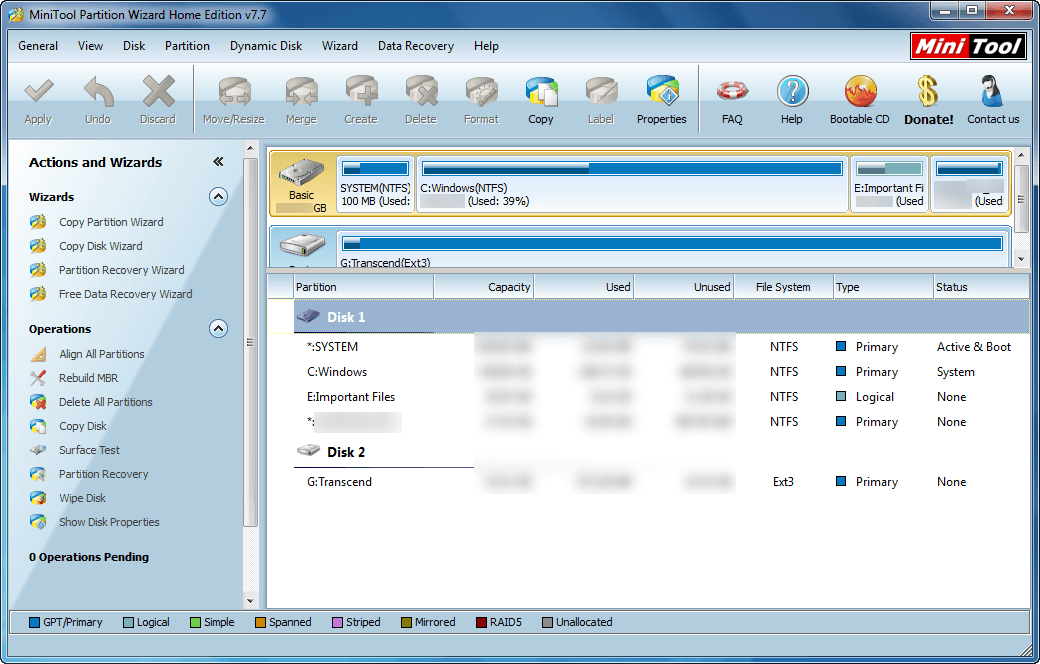 Program Name: MiniTool Partition Wizard Home Edition
Note: MiniTool Partition Wizard Home Edition is free for home-use only
Developer: MiniTool Solution Ltd.
Download Size: 14.4MB
Version Reviewed: v7.7
Requires: Windows 2000 Pro/XP/Vista/Win7/Win8 (32-bit and 64-bit)
Discussion
In my discussion of AOMEI Partition Assistant Home, I mentioned there are two new kids on the partitioning block with AOMEI being one of them. MiniTool is the second one.
By and large, MiniTool Partition Wizard Home Edition and AOMEI Partition Assistant Home have the same features (and neither support dynamic disks in the free versions). It is extremely hard to differentiate the two products and declare one better than the other. In fact, the only major differences I noticed is:
- AOMEI Partition Assistant Home can merge partitions and is free for both home and business use. MiniTool Partition Wizard Home Edition does not have the ability to merge partitions and cannot be used “within business environment”.
- AOMEI Partition Assistant Home cannot align partitions. MiniTool Partition Wizard Home Edition can align partitions.
- While it isn’t clear if AOMEI Partition Assistant Home supports UEFI/EFI boot, MiniTool Partition Wizard Home Edition does indeed support it.
I personally feel the ability to merge partitions and being free for business use too gives AOMEI and edge over MiniTool but you may disagree and prefer the ability to align partitions. There is no black and white here, the line is very fluid.
Another difference between the two comes in the area of bootable media. Both programs can create CD/DVD/USB drive bootable media, yes. However, AOMEI Partition Assistant Home supports the ability to create WinPE-based bootable media while MiniTool Partition Wizard Home Edition supports Linux-based bootable media. As already mentioned before, the advantage of WinPE-based bootable media is you can access to full functionality of the program, in this case AOMEI Partition Assistant Home. Linux-based bootable media may or may not offer access to all features of a program, in this case MiniTool Partition Wizard Home Edition. (MiniTool’s Linux-based bootable media does offer all features.) Typically issues arise with Linux-based bootable media when it comes to drivers, although most people can use Linux-based bootable media just fine without issues.
On the flip side, Linux-based bootable media does not require you to download 1.7GB Windows Automated Installation Kit whereas WinPE-based bootable media does. So, if you are unable or unwilling to download Windows Automated Installation Kit, then Linux-based is what you need. The great thing is MiniTool Partition Wizard Home Edition’s Linux-based is a separate download from the program itself. This may sound like bad news to people on slow connection who will now have to download an extra thing to build the bootable media but this is a good thing because this means if you prefer AOMEI over MiniTool but do not want to download Windows Automated Installation Kit, you can use AOMEI while inside Windows and MiniTool outside Windows since the bootable media is a separate download from the program itself.
Lastly, I’d like to point out that MiniTool Partition Wizard Home Edition also has ads in the program for other MiniTool software, just like AOMEI Partition Assistant Home. (See, I told you they are very similar.)
Overall, like AOMEI Partition Assistant Home, MiniTool Partition Wizard Home Edition is an excellent partition manager.
Honorable Mention 1
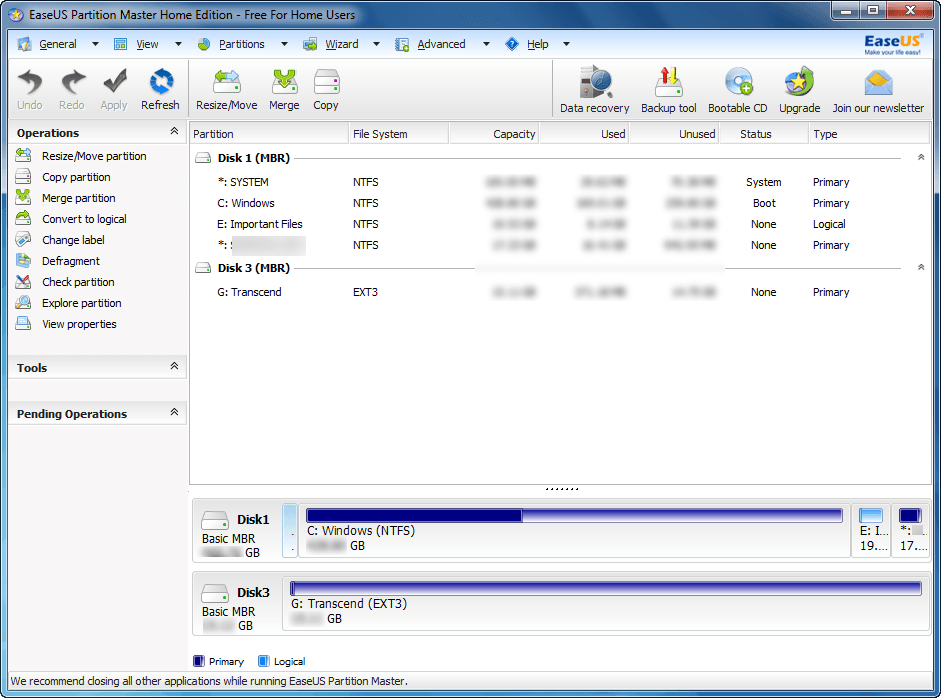 Program Name: EaseUS Partiton Master Home Edition
Note: EaseUS Partition Master Home Edition is free for home-use only
Developer: CHENGDU Yiwo Tech Development Co., Ltd
Download Size: 19.7 MB
Version Reviewed: 9.2.1
Requires: Windows 2000 Pro/XP/Vista/Win7/Win8 (32-bit and 64-bit)
Discussion
EaseUS may not be the pioneer in partition management (although it is one of the older companies in this field), but it is the pioneer when it comes to offering a free, home-use only partition manager. In fact, EaseUS has been made famous by coupling this strategy with an excellent partition manager.
Similar to how MiniTool Partition Wizard Home Edition is similar to AOMEI Partition Assistant Home in terms of features, EaseUS Partition Master Home Edition is similar to both MiniTool Partition Wizard Home Edition and AOMEI Partition Assistant Home. Indeed, all three programs have pretty much the same features with very few differentiators between them. However, EaseUS Partition Master Home Edition does have built-in defrag capability, something neither of the previous two have. EaseUS Partition Master Home Edition also has better (but not full) support for dynamic disks than the previous two programs — it is able to convert dynamic disk to basic disk. Plus there is an interesting ‘Upgrade Disk’ feature in EaseUS Partition Master Home Edition.
‘Upgrade Disk’ feature allows you to copy your existing hard drive to a larger hard drive and make that hard drive bootable. (The larger drive must be of the same computer — this feature won’t allow you to migrate data to a computer with different hardware.) I believe the previous two program’s copy hard drive features should allow you to do the same thing; however, I have not personally tested this theory so don’t take my word for it.
It should be noted EaseUS Partition Master Home Edition cannot align partitions like MiniTool Partition Wizard Home Edition can but EaseUS can merge partitions, similar to AOMEI Partition Assistant Home. It should also be noted EaseUS Partition Master Home Edition supports UEFI/EFI boot.
What takes away from EaseUS Partition Master Home Edition is not necessarily the program’s functionality but rather business decisions made by the developer, CHENGDU Yiwo Tech Development Co. CHENGDU does not allow EaseUS Partition Master Home Edition to be used for business purposes (whereas AOMEI Partition Assistant Home can be used for business) and EaseUS Partition Master Home Edition comes with no bootable media what-so-ever (not WinPE-based or Linux-based, something AOMEI and MiniTool have, respectively).
Another issue I have witb EaseUS Partition Master Home Edition is it now comes bundled with the free version of EaseUS Data Recovery, separate program offered by EaseUS. You have no ability to download EaseUS Partition Master Home Edition without EaseUS Data Recovery. What makes it worse is the free version of EaseUS Data Recovery is crippleware, so you can’t even use it to recover much data — you are limited to recovering a total of 1 GB before you have to purchase the program. On top of that, EaseUS Partition Master Home Edition comes with an ad for EaseUS Todo Backup, a free for home use backup program.
Overall, despite its shortcomings, EaseUS Partition Master Home Edition is yet another excellent partition manager. Really there is very little differentiating EaseUS Partition Maaster Home Edition from AOMEI Partition Assistant Home and MiniTool Partition Wizard Home Edition.
Honorable Mention 2
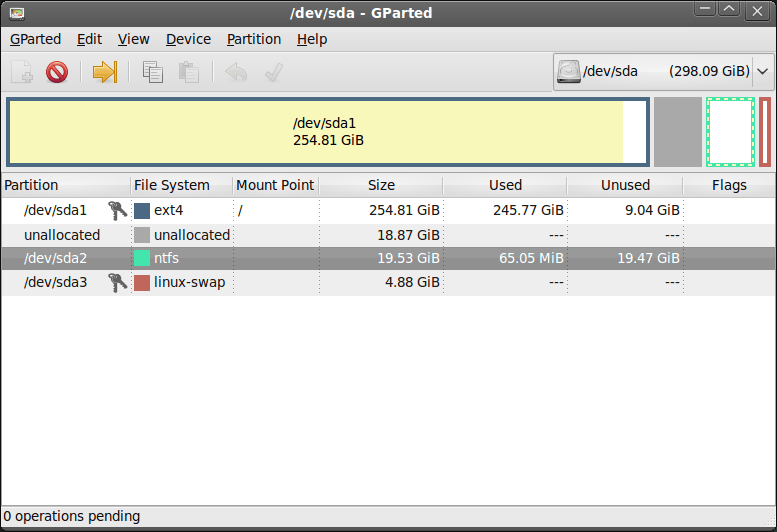 Program Name: GParted
Note: GParted is free for everyone, home and business users alike
Developer: There is no one developer — GParted is an open-source project which has multiple developers
Download Size: 133 MB
Version Reviewed: 0.14.1-6
Requires: N/A — works off a bootable LiveCD, so works with all operating systems
Discussion
GParted is another excellent partition manager. The following are its features, the file systems it supports, and the type of drives it works with:
Features
- Create partition tables, (e.g., msdos or gpt)
- Create, move, copy, resize, check, label, set new UUID, and delete partitions
- Enable and disable partition flags, (e.g., boot or hidden)
- Align partitions to mebibyte (MiB) or traditional cylinder boundaries
- Attempt data rescue from lost partitions
Supported file systems
- btrfs
- ext2 / ext3 / ext4
- fat16 / fat32
- hfs / hfs+
- linux-swap
- lvm2 pv
- nilfs2
- ntfs
- reiserfs / reiser4
- ufs
- xfs
Supported drives
- Hard disk drives (e.g., SATA, IDE, and SCSI)
- Flash memory devices, such as USB memory sticks and Solid State Drives (SSD’s)
- RAID Devices (hardware RAID, motherboard BIOS RAID, and Linux software RAID)
- All sector sizes (e.g., devices with 512, 1024, 2048, 4096 byte sectors and more)
Looking at just the features, you may notice GParted doesn’t have all the features found in the previously three mentioned programs, AOMEI Partition Assistant Home, MiniTool Partition Wizard Home Edition, and EaseUS Partition Master Home. However, if you look at the amount of file systems supported by GParted, you will immediately realize the case-use of GParted: it is for people who have computers with multiple different operating systems (e.g. Windows, Linux, and Mac OS X).
Take note that GParted is, by design, a program that runs outside Windows (and any other operating system). In fact, you cannot run it inside Windows. The reason why GParted is 133 MB is because you are directly downloading the ISO that you must burn to CD/DVD/USB drive to run GParted from a ‘LiveCD’, which is essentially bootable media. In other words, by default you run GParted from outside Windows which is a really good thing because that is the safest way to manage partition. Of course it can get annoying to boot outside of Windows when you only want to do some basic partition management, but better safe than sorry.
Honorable Mention 3
 Program Name: Paragon Partition Manager Free Edition
Note: Paragon Partition Manager Free Edition is free for home-use only
Developer: Paragon Software
Download Size: 43.37 MB
Version Reviewed: 12.0
Requires: Windows XP/Vista/Win7/Win8 (32-bit and 64-bit)
Discussion
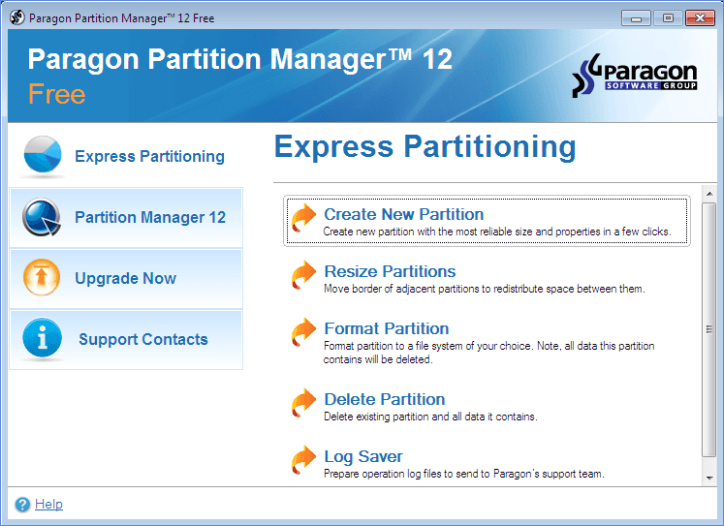
Paragon Software is one of the best companies when it comes to data and drive management. They are a pioneering company who are famous for their partition and drive management programs. Unfortunately, their free partition manager is very limited only being able to create, format, delete, move, and resize partitions plus convert FAT to NTFS.
Really Paragon Partition Manager Free Edition can’t even hold a candle to AOMEI Partition Assistant Home, MiniTool Partition Wizard Home Edition, EaseUS Partition Maaster Home, and GParted. In fact, the only reason it is mentioned here is because a) I feel Paragon deserves some sort of recognition for their top-quality programs, even if their free version is very limited and b) I know people will ask be “how does Paragon Partition Manager Free Edition compare to the others”, so I decided to answer the question before it even came out of your mouth.
Other Alternatives
- Windows Vista, Win7, and Win8 built-in partition manager
- Partition Logic
- Ranish Partition Manager
- … and more
This review is part of our Best Free Windows Software section. Check out more articles on the best free Windows programs from here.




