
 Email article
PDFs are one of the most common document formats. To read PDFs, you need a PDF reader. There are tons of PDF readers out there. What to know the best free one? You have come to the right place!
All of the programs reviewed here are capable of rendering the actual text in a PDF file quite well, but what sets a PDF reader apart from the competition are additional features such as tabbed browsing and annotations in addition to basic features such as searching for words, magnifying text and different types of navigation tools such as the hand tool and the select tool. Consequently these additional features are what will be mainly focused on in this review.
Most of you out there will only require a PDF reader to simply display text and might even question some of the extra (maybe even extravagant) features reviewed here today but for those of us who will do everything from replace text, fill out forms and sign documents digitally, take note! Below are the best free PDF readers out there for Windows. All of these programs are great as you will see and each one of them has its strengths hence why I have more than one of them installed on my PC.
[Note: The sections labelled “Approximate Memory Usage When Idle” are just as they suggest — estimates — and usage WILL vary from user to user and PDF to PDF.]
Table of Contents
- Best Free PDF Reader
- Runner Up
- Honorable Mention 1
- Honorable Mention 2
- Honorable Mention 3
- Other Alternatives
Best Free PDF Reader
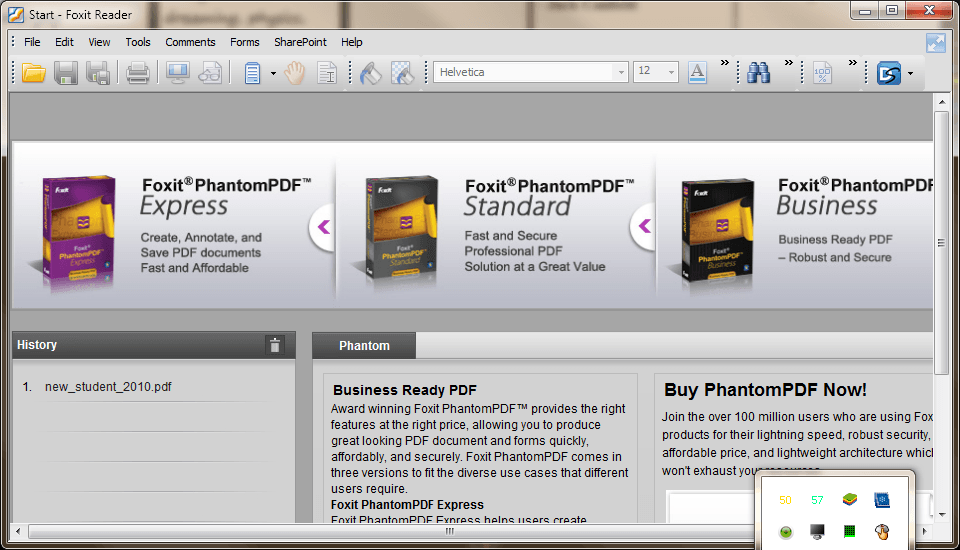 Program Name: Foxit Reader
Developer: Foxit Corporation
Download Size: 15.0MB
Version Reviewed: 5.4.5.0124
Requires: Windows XP/Vista/7
Approximate Memory Usage When Idle: 9.76MB
Pros
- Read out loud option (allows you to have text read to you if for some reason you have to be away from the computer screen or if you are just multi-tasking)
- Multiple ways of displaying documents:
- Multi-tab browsing (allows for the opening of several files in a single instance of the program)
- Single document interface mode (each opened file is opened in a new window)
- Multiple document interface (multiple documents are opened using multiple windows which are grouped under a single parent window)
- DocuSign® integration
- Social media integration (Foxit allows users to login to their Facebook or Twitter accounts and then select text from a PDF document and share it on either network. Users can also share PDF documents via links on these networks.)
- Both interactive and non interactive form filling supported
- Documents can be emailed from directly within Foxit Reader
- Highly customizable user interface (change skins and customize toolbars)
- Easily add comments or additional text
- Spell checker for text added
Cons
- Does not allow for the creation of PDFs
- Comes bundled with crapware (Ask Toolbar) during installation. Be sure to uncheck the relevant boxes to avoid installing Ask Toolbar.
- Has some nagging messages in the program to install/upgrade to other components
Discussion
Foxit Reader is both lightweight and powerful. Seriously, it loads in a jiffy.
The first thing you will notice is the well laid out user interface of Foxit reader. Added to that, you can also customize the program to further suit your liking. The options available for customization are as follows:
- Ability to change between tabbed and classic toolbar mode. (With the tabbed toolbar mode the menu categories are laid out in a segmented fashion. You will find the relevant icons under tabs such as ‘Basic’, ‘View’ and ‘Edit’. With the classic toolbar mode the menus are in the classic list form where you just click a menu and see a list of available options.)
- Ability to change skins and customize toolbars. (Changing skins basically allows for the changing of the colour scheme of the program. Customizing toolbars allow users to rearrange menu items such as the ‘open’ and ‘save as’ options.)
Several methods for displaying text (continuous, single page, facing or continuous-facing) are available with Foxit Reader. With the continuous and single page options, pages are displayed vertically while with the facing options pages are displayed side by side as well as vertically. There are also options for both replacing text and even adding text. Users can use the replace text option or the insert text option or even add a text box or use the typewriter option in order to carry out any needed additions or corrections. Users also have the facility of striking out text, highlighting it and underlining it. Conveniently users can also draw free hand shapes or choose from a list of predetermined shapes such as simple lines or ovals and polygons to name a few. If it is required, users can also user Foxit Reader to take a snapshot of a body of text in a PDF document which can then be copied from the clipboard to any desired location.
Along with bookmarks, several other powerful options are available:
- Insertion of media such as images and even video
- Links can be inserted
- Ability to share via facebook or twitter (You can add a suitable message or post to your wall or a group wall with Facebook. With twitter you can choose to share the link publicly or send it as a direct message. With both services you can login directly from the program.)
- Share via email
- Javascript actions
- Users can replace document colors (both background and text)
- Addition of notes/comments
- Attach any file type to the document
- Sign documents using the DocuSign® service
- Measuring tools are also available for the measuring of the distance, perimeter or area of objects in a document
- Hyperlinks can also be easily added
The feature set available with Foxit Reader was definitely surprising the first time I ever used it and users have access to the most advanced features without paying a dime. The only issue I had with this program is that it did not allow for the creation of PDF files.
If you need to make use of powerful PDF editing capabilities, you should definitely consider Foxit reader as it offers a ton of features but yet it is still easy to understand how to use it.
Runner Up
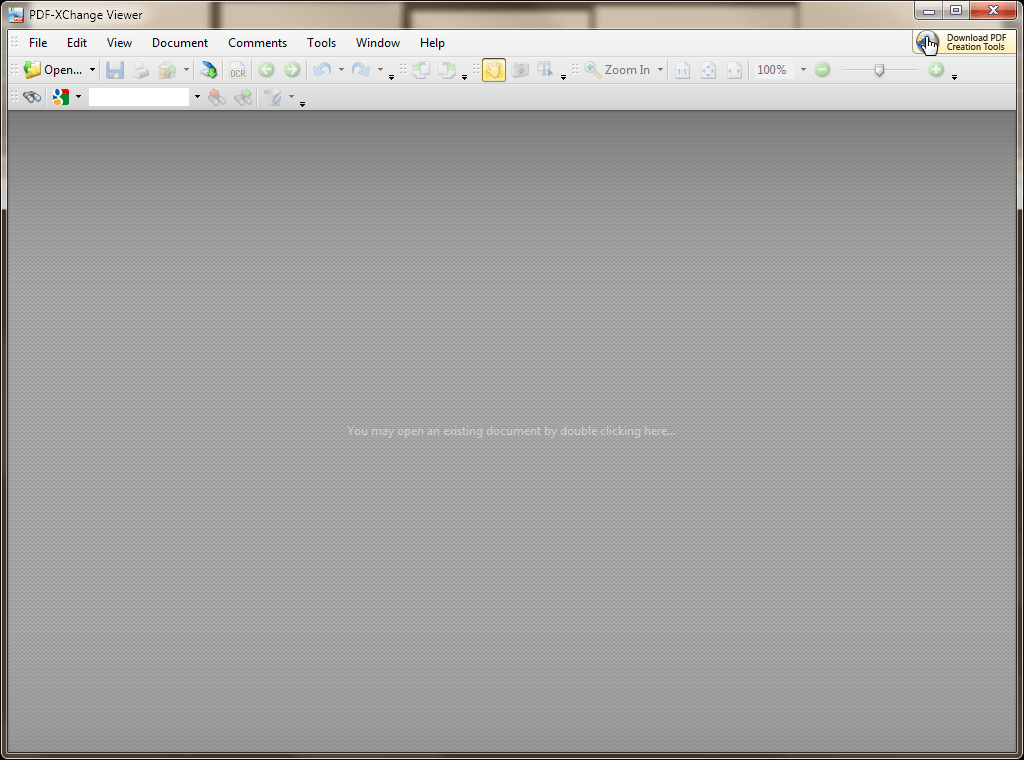 Program Name: PDF-XChange Viewer Free
Developer: Tracker Software Products
Download Size: 18.6MB
Version Reviewed: 2.5
Requires: Windows 7/2000/Vista/XP/Server 2008
Approximate Memory Usage When Idle: 3.41MB
Discussion
PDF-XChange Viewer is another free powerhouse and it was honestly a close tossup in choosing between it and Foxit Reader for the number one spot.
XChange Viewer’s GUI is quite similar to that found in Foxit Reader when it is used in the classic toolbar mode, so users (like me) using both programs should have no problems switching between the 2 programs. XChange Viewer allows for tabbed browsing; this is practically a hallmark of a great PDF reader and provides several options for customising the user interface:
- The font of the menu and toolbars can be customised
- The common UI-font can be customised
- The colors of the text used in documents can be changed
- The background color can be altered
- The color used to highlight and select text can also be altered
Also expected of a great PDF reader, users can make their own adjustments to the text already found in their PDFs. Users can add comments and sticky notes to files as well as highlight, strike out or underline text. You can even add your own text to documents directly or through some form of text box. Various shapes such as ovals or rectangles can be added to documents as well. Just as in Foxit Reader, measuring tools are also available allowing for the measurement the distance, perimeter or area of objects in a document. There is also a snapshot tool, allowing users to take a snapshot of a desired body of text. Conveniently, documents can also be emailed from directly within the program.
Below are some neat additional features:
- OCR functionality allows users to convert images of text inside a PDF into an editable text format
- Searches can be carried out through a search provider of your choice such as Google or Bing from directly with the program
- Easily add hyperlinks to documents
- Allows for the filling out of non-interative forms with they typewriter function but I am not quite sure if interactive forms are supported
I know what you are thinking already! How can this brilliant program be number two! Firstly, just let me say that it can not create PDFs (“But neither can Foxit Reader William!” is what I can hear you saying). However, there is also the lack of support for digital signatures without having the Pro version. This is becoming increasingly important in today’s world and in fact major contracts are signed using digital signatures. Moreover, the support for adding media such as images and video found in Foxit Reader is not present with this offering.
Honestly most of us will not even use the digital signature functionality or even add images or videos to our PDFs but the fact remains that Foxit Reader supports it while PDF-XChange Viewer does not. Neglecting this, both are excellent programs and are highly recommended.
Honorable Mention 1
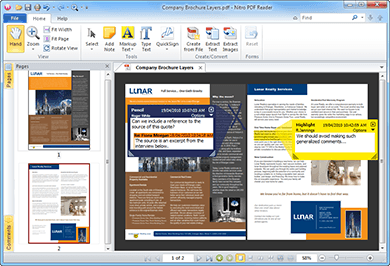 Program Name: Nitro PDF Reader
Developer: Nitro PDF Pty. Ltd.
Download Size: 1.60MB
Version Reviewed: 3.5.0.25
Requires: Windows Server 2003/Server 2008/Server 2008 R2/Xp/Vista/7/8
Approximate Memory Usage When Idle: 41.09MB
Discussion
Nitro PDF is a simple, well laid out program which should satisfy the needs of most users.
The interface of Nitro PDF is similar to that of Foxit Reader when it (Foxit) is used in toolbar mode. It also allows for tabbed browsing. Nitro PDF’s strength comes in its conversion capabilities. Users can create a PDF document from a file, drag and drop a document which is desired to be converted to a PDF into the main window of the program or onto the desktop icon or just use the print option from any already installed program as on installation of Nitro PDF Reader, the program is installed as a virtual printer allowing for example a .DOC file to be ‘printed’ to PDF format. Conversely, users can choose to convert a PDF file to an easily editable plain text file or extract images found in a PDF file and save them as individual files.
Users are also given a choice of how to select text for copying to the clipboard. Users can either copy the text characters or simply take a snapshot of a selected body of text. Users can highlight text, crossout text or underline text. Provision is also made for the addition of text. Comments can be added as well as sticky notes.
Additionally users can sign and return documents quickly using QuickSign™. Documents can be returned to the sender using the default mail client. This functionality can be accessed directly from the File menu. Users can also “fill, save, and submit any PDF form, including AcroForms™, and static or scanned forms, using Type Text”.
This may sound lame but Nitro PDF Reader has quite the extensive help database. Users have several options for improving their experience of using Nitro in one form or the other. Access is given to:
- A user guide
- A learning center
- A knowledge base
Users can also:
- Ask a question
- Share an idea
- Report a problem
- Access support tools
- Check for updates
- View information about the program or find out about upgrading to the Pro version of Nitro PDF
If you are having any difficulties using this already simple program, it is clear that your questions will be easily answered.
Take note that this program is not capable of adding media such as images and video to PDF files. Also document signing is allowed through QuickSign™ system but this is not the global standard for electronic signature while ‘Docusign’ is. Additionally users must physically write out their signature with Quicksign™ while DocuSign® allows for signatures to be digitally made. Generally an excellent program especially because of it’s PDF creation capabilities, Nitro PDF reader simply does not allow users to edit text to the degree that the previous two offerings do.
This program however, is still highly recommended as it is one of the best out there for reading and creating PDF files.
Honorable Mention 2
 Program Name: Sumatra PDF
Developer: Krzysztof Kowalczyk
Download Size: 4.8MB
Version Reviewed: 2.2.1
Requires: Windows XP/Vista/7
Approximate Memory Usage When Idle: 44MB
Discussion
Sumatra PDF’s strength is in its simplicity.
It is very straightforward to use and gives users just the bare minimum needed to view files minus features such as adding comments or adding and replacing text. Also Sumatra PDF is capable of viewing the following file formats: PDF, ePub, MOBI, CHM, XPS, DjVu, CBZ, CBR.
Sumatra PDF is the program to use if you just want to read a PDF so it may come in handy for reading literature such as novels. It also allows for the viewing of more exotic formats which the other offerings don’t allow. (I know this review is about PDF readers, but I’m just saying…) Plus it has a totally portable version, so you don’t even have to install it.
While ranking Sumatra PDF as #4 may make it sound like a bad program, the reality is Sumatra PDF is still a very good and viable PDF reader. Some may even consider it better than others.
Honorable Mention 3
 Program Name: Adobe Reader
Developer: Adobe Systems Incorporated
Download Size: 135MB
Version Reviewed: 11.0
Requires: Windows
Approximate Memory Usage When Idle: N/A
Discussion
Adobe Reader is the pioneer when it comes to PDF reading simply because its developer, Adobe Systems, is the inventor of the PDF format. However, over the years Adobe Reader has gotten more bloated and bloated and has many security holes (due to a combination of poor Adobe programming and the fact that it is a frequent target of attacks due to its popularity).
As a PDF reader, Adobe Reader is still a viable option and is used by many. However, it is slower and more bloated than all the previous programs we have mentioned. We are only featuring Adobe Reader here as a shout out to the pioneer… and to answer questions of “how does Adobe Reader rank?”
Other Alternatives
- SlimPDF
- STDU Viewer
- Nuance Reader
- …and many more




