
 Email article
Do you use Microsoft Office? There’s a good chance you do. There’s also a pretty good chance you have heard about the new and upcoming Microsoft Office 2010. However, you probably didn’t know about the public beta Microsoft is running for Office 2010; anyone and everyone can use Microsoft Office 2010 Beta for free until October 2010.
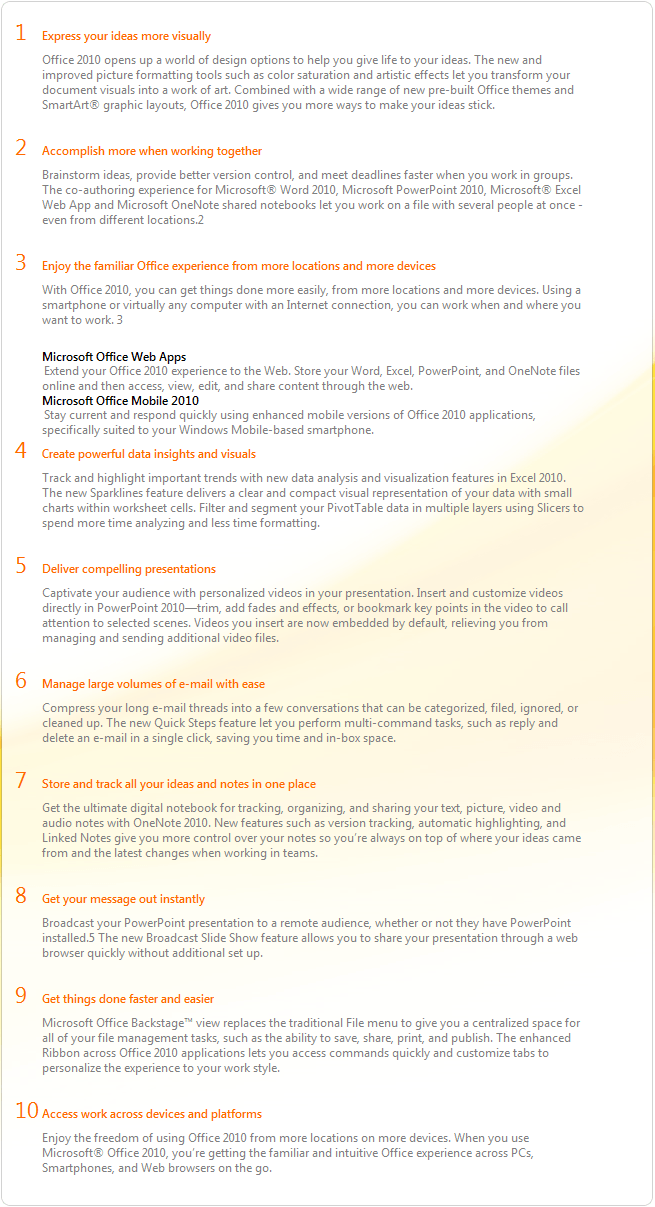
Before I tell you how to get the Beta, why should you use Microsoft Office 2010? Microsoft gives you ten reasons why (warning: a great amount of corporate cheerleading is involved in the following list):
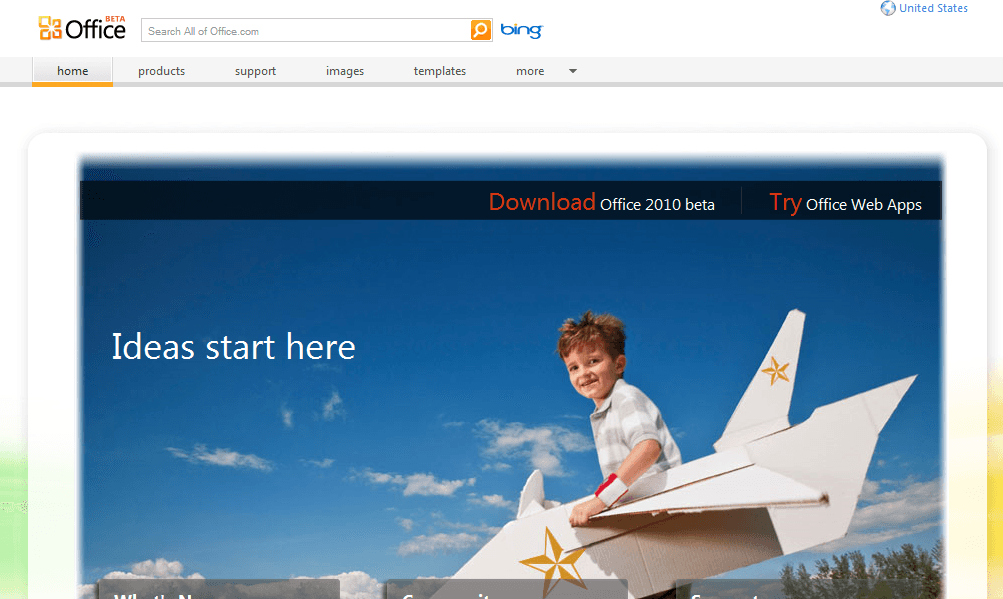
Anyway, to get started with Office 2010 Beta, just visit Officebeta.microsoft.com:
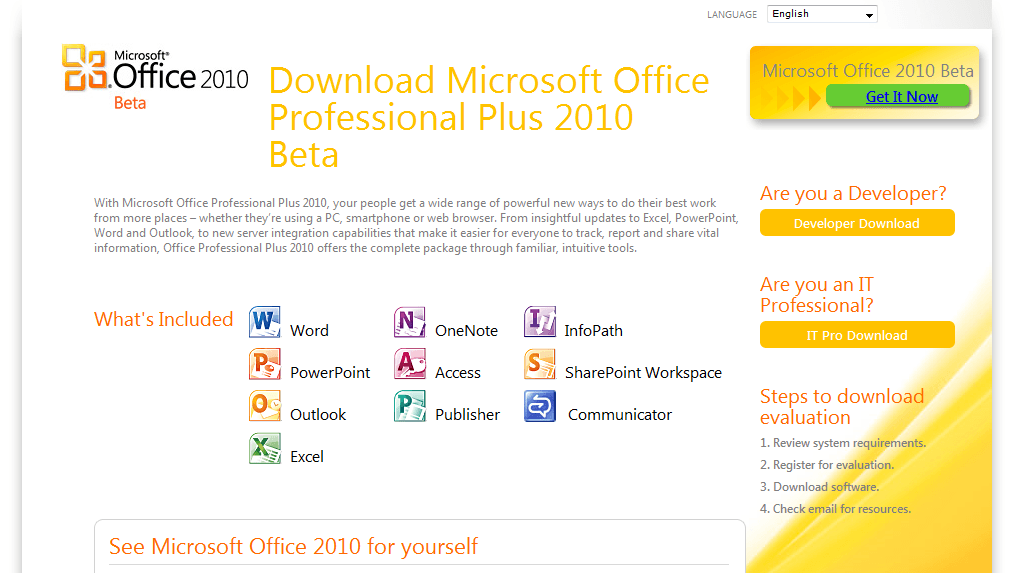
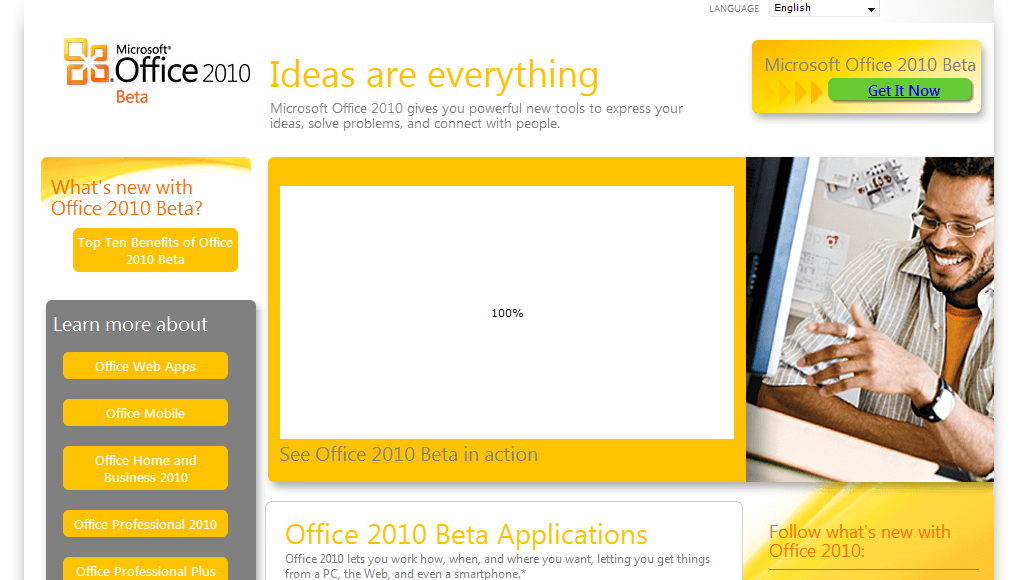
From there, just follow the links that say things like “Download” or”Get it Now”:
After two or three clicks you’ll reach the Windows Live sign in page:
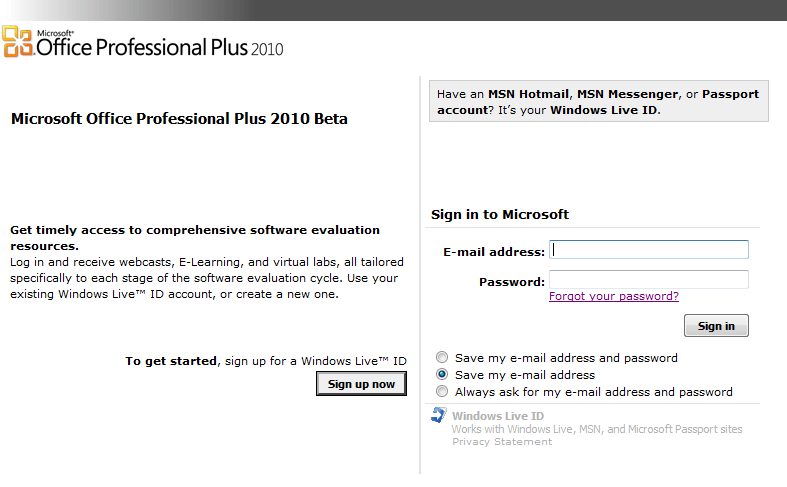
Just enter your credentials and click “Sign In” (if you don’t already have an account you will have to register – registration is free). You’ll be redirected to a page featuring your activation code, and at the very bottom, a “Download” button:
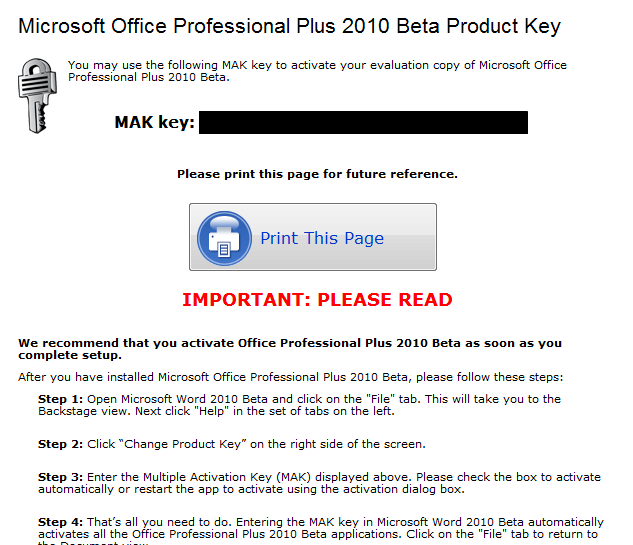
Be sure to read the “Important: Read This” section: It’s, well, important. Down at the bottom of the page is a download section; in it, they offer two downloads: One for 32bit, one for 64bit. If you don’t know which one to get, use the 32bit version. Click on the “Select Language” dropdown and select your language. Then just click the large blue “Download” button.
A window like this should pop up:
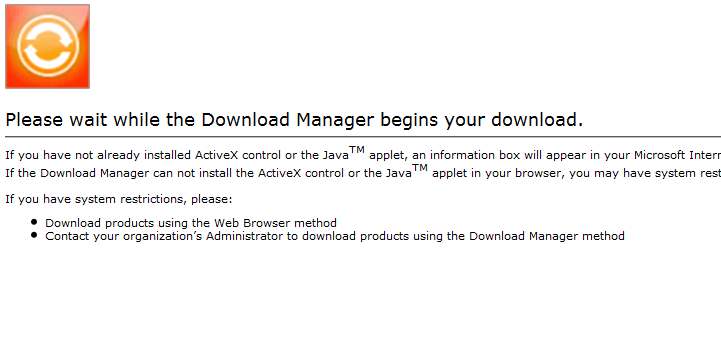 Just wait until it turns into this (but if boxes pop up click Allow or Yes):
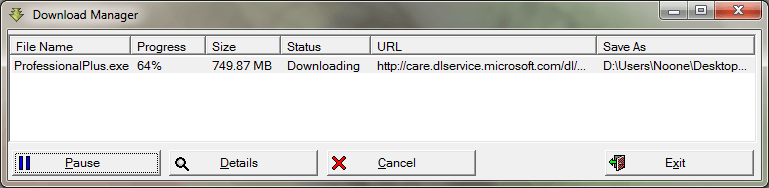
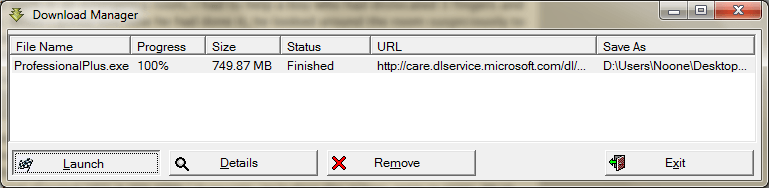
Allow it to download the ~750 MB file. This may take some time! When it is done, click Launch: it takes the place of the Pause button:
Then let it extract the files:

Then, it’s on to the install! Accept the EULA and click whichever type of install you please:

I selected Custom and then selected everything there was to install:
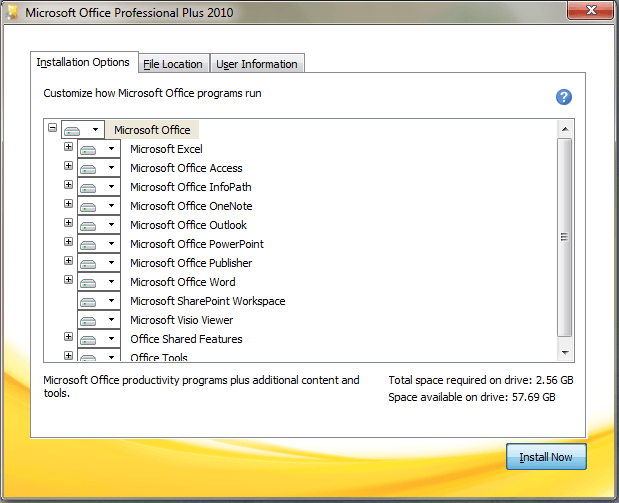
Click Install Now and wait; it may take some time:

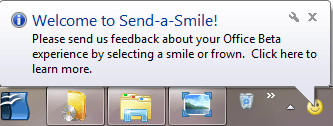
After it installs it will add a smile and a frown to your status bar: to show that you’re happy with a feature, click a smile. To show you dislike something, click a frown:
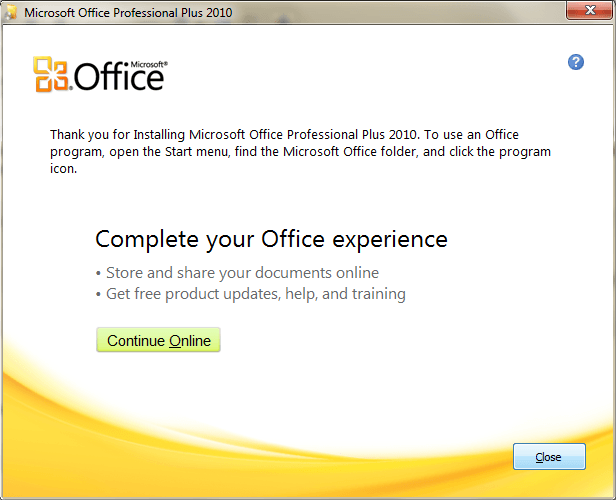
You will also be prompted register online; you don’t need to do it so click close. Then open the main window from the start menu; I will open Word for the purposes of this article:
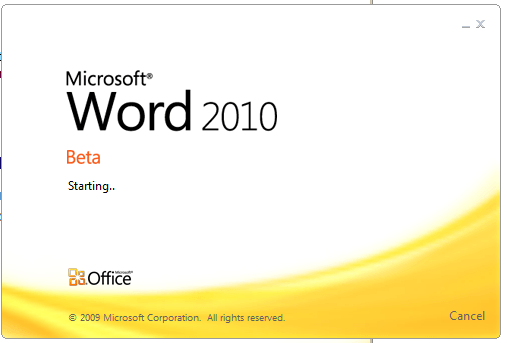
(Looks nice doesn’t it? They even have a cancel button! I’ve always wanted that.)

Click on the “File” tab and from there the “Help” tab on the left. Click on “Change Product Key”.

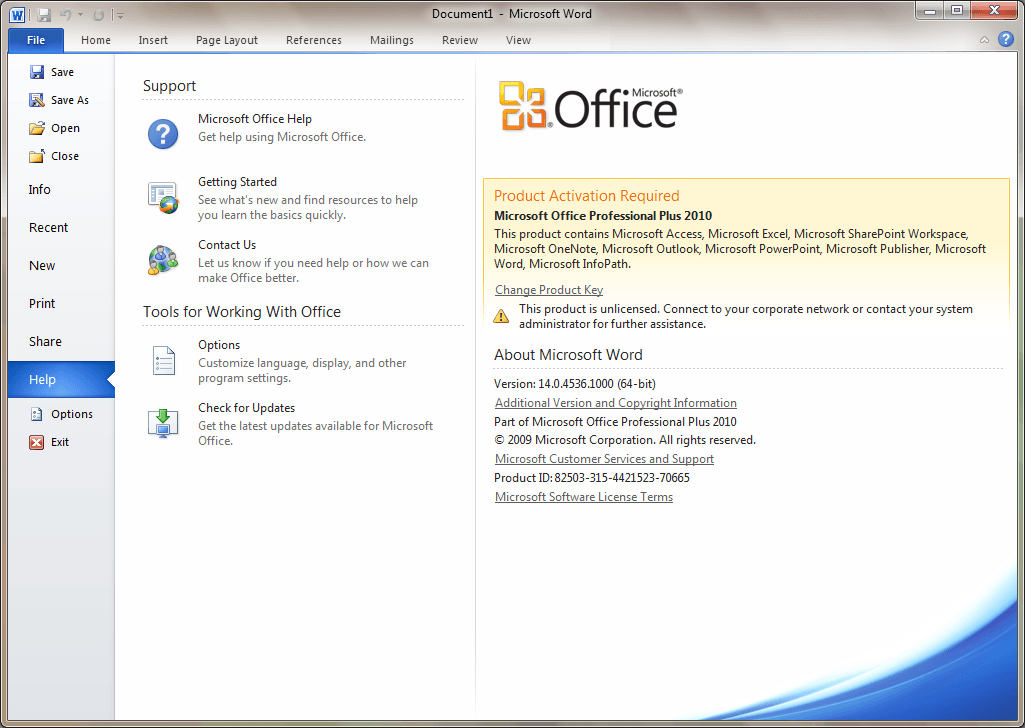
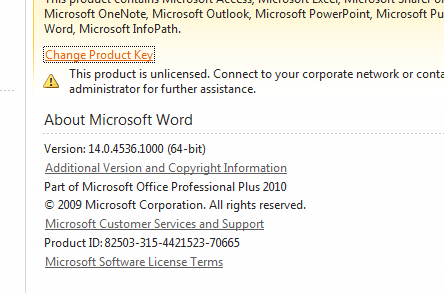
A box will pop up. Type in the product key you received earlier (or paste it in if you have it copied) and click Continue:
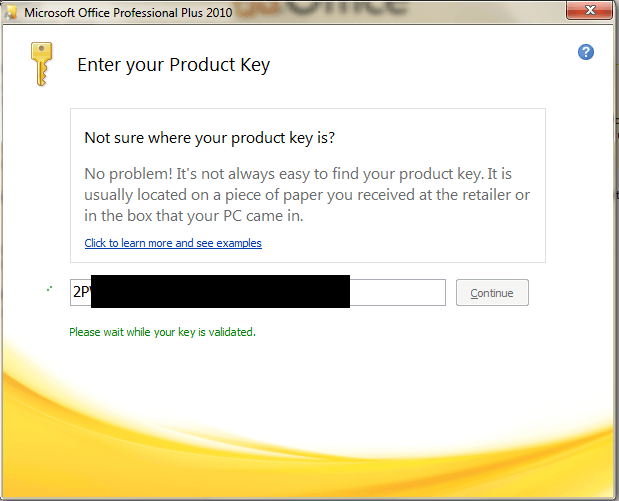
It will prompt you to do an “Install” or a “Custom Install”. Click install and it will register the Office programs:
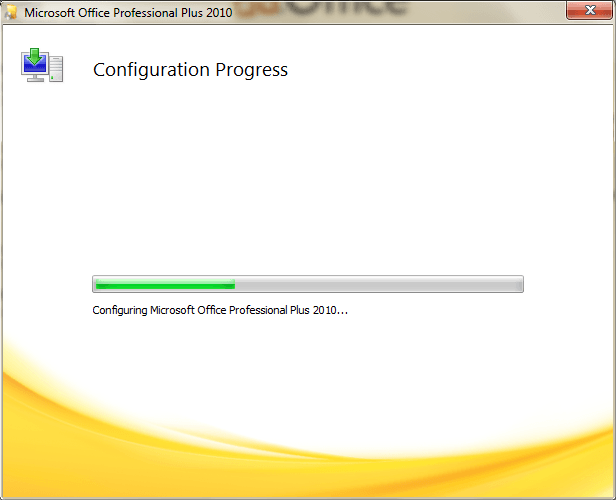
And then you’re set: MSOffice 2010 is yours (for free) until Ocotober of 2010. At October 2010 the beta will expire and you’ll be left with a cold dark feeling as though you should pay Microsoft to permanently keep the software you’re so familiar with.
Version reviewed: 14.0.4536.1000
Supported OS: Windows XP(SP3)/Vista(SP1)/Windows Server 2003 R2/Windows Server 2008 (SP2)/Win7




