Wubi: Get a taste of Linux without the pain – install Ubuntu like a program in Windows

September 7, 2011 75 Email article | Print article

Windows is a great operating system, but want to know just how green the grass is on the other side? Try Wubi, a Ubuntu installer for Windows.

The cool thing about Wubi is it installs Ubuntu like a program onto your computer, requiring you to perform no dual-booting or partitioning; just like how you would install Photoshop or Firefox. (And it uninstalls just like how you would uninstall Photoshop or Firefox.) Rather, Wubi fools your computer into thinking you are dual-booting and have a separate partition for Ubuntu: When you boot your computer, you have the option to boot into Windows or Ubuntu. Wubi makes a virtual partition that your computer can boot off of, allowing you to enjoy the wonders of Ubuntu without the pain.

With Wubi one can have Ubuntu up and running within minutes. When you first start the program, it’ll ask you for several things:
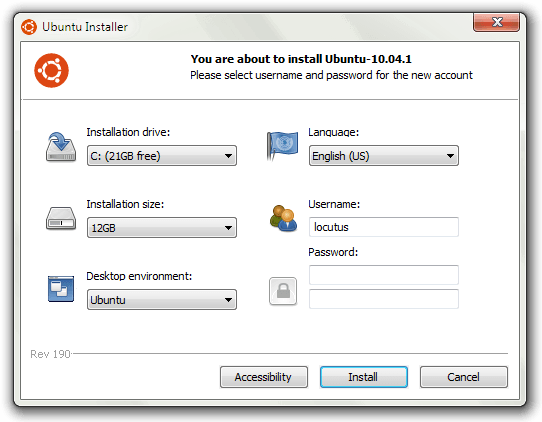
The first option is where you want to install Ubuntu. Normally, you should just choose C: unless you don’t have enough space on it. (Wubi won’t let you install Ubuntu unless you have at least 3GB of free space.)

The next setting you’ll want to choose is the size of your fake partition; you can give it as little as 3GB or as much as 30GB. When picking a size keep in mind that how much ever you pick now is how much space Ubuntu will have to use (for its programs, files, etc.). If you plan on using Ubuntu a lot, I recommend choosing a large size, but if you don’t see yourself using Ubuntu too much you can choose a small size.  Just be sure to strike a balance between free C: space and installation size space, because you don’t want Ubuntu to take up all your hard drive space with Windows getting none; I used 8GB.

The third important setting is the desktop environments. In the most crud definition of the word, you can think of desktop environments as different versions of Ubuntu; you can select from Ubuntu, Ubuntu Netbook, Kubuntu, Kubuntu Netbook, Xubuntu, and Mythbuntu. If all the previous names mean absolutely nothing to you, you are better off leaving desktop environments to Ubuntu.

(If you are a non-native English speaker, Ubuntu comes in many, many different languages and you can pick what language you want to install Ubuntu in from Wubi – that is the fourth setting.)

Lastly, pick the username and password you for Ubuntu. Make sure you remember the password because the password is extra critical in Linux – you need to type in your password every time you want sudo/administrator access; and you need sudo access pretty much to do anything.

Once you are ready, hit the Install button and Wubi will start doing its thing:
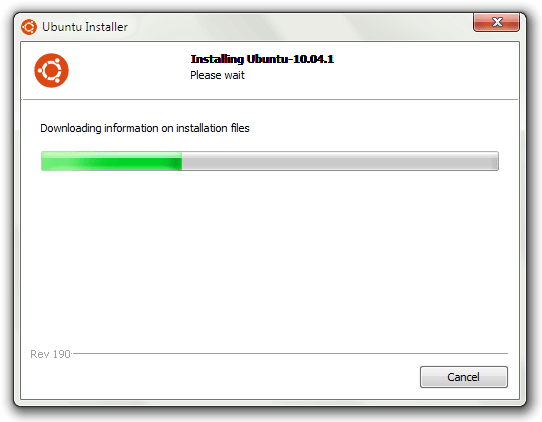
Take note that Wubi downloads and installs Ubuntu for you, a 700 MB download, so it may take a while. Also Wubi automatically selects 32-bit or 64-bit Ubuntu based on your computer specifications.

Once Wubi is done doing its thing, you will need to reboot your computer:

After your computer reboots and gets pass the BIOS screen, you will be prompted with by Windows bootloader that asks you to pick if you want to load into Ubuntu or Windows:
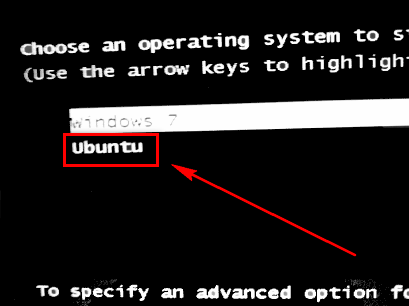
Select Ubuntu and hit enter to load into Ubuntu. Once Ubuntu loads, it’ll finish the installation, while showing off its features.  The installation takes about 10 minutes depending on your computer; it took me around 7 minutes. When Ubuntu is done being installed, your computer will reboot.

Upon reboot you will once again be asked if you want to load into Windows or Ubuntu (you will be asked this on every reboot from now on, until you uninstall Ubuntu). This time, however, after you select Ubuntu from the Windows bootloader like previously discussed you will be taken to the GRUB bootloader screen where you must select Ubuntu again:
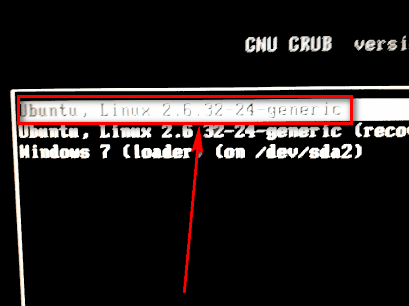
(You will be taken from Windows bootloader -> GRUB bootloader every time you want to load up Ubuntu.)

Once you select Ubuntu, Ubuntu will load up and if you see a screen similar to the following, you are good to go:
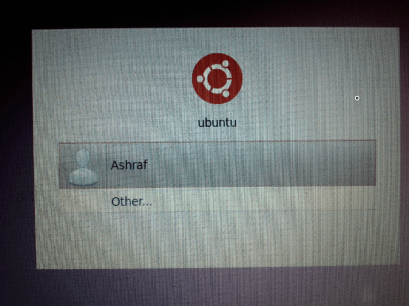
Log into Ubuntu using the password you set in Wubi earlier. Once you’re logged, you can start playing around with Ubuntu, setting up your Internet connection, playing with the applications, the interface, etc. Learning to use Ubuntu is a fun and daunting task – have fun while learning how to operate your new operating system!

Whenever you want to get out of Ubuntu and load back into Windows, reboot your computer and select Windows from the Windows bootloader screen. And, if you ever want to get rid of Ubuntu, you can just uninstall it from within Windows’ Add/Remove Programs like you would uninstall any other program.

So, to conclude, Wubi is a safe, easy way to get past Microsoft’s cage and into the *nix world. Give it a try, who knows you may end up liking it. You can grab Wubi from the following links:

Version reviewed: The one that installs Ubuntu 10.04.1

Supported OS: Windows 98 and higher, except Windows ME

Download size: Wubi is only 1.4 MB but it downloads Ubuntu, which is 700 MB

Wubi homepage [direct download]

75 Comments »

  1. Dan December 20, 2010 at 6:27 PM (comment permalink) -

    ..and it’s kind of heading that way anyhow, what with Windows becoming graphically more like Linux and Linux kind of straddled between Windows and the Max interface right now..maybe a time will come..sooner than we think..when somebody come up with an OS that appeals to all camps..with little enough difference between them all to make it a viable option.

    Just my thoughts on this.

    Dan

    51
  2. Dan December 20, 2010 at 6:28 PM (comment permalink) -
  3. Robert from Boston December 21, 2010 at 1:57 AM (comment permalink) -

    I must be up WAYYY too late (allmost 5am here now) — some of this is not making sense to me….

    For instance…. aside from not having to create a separate Linux partition to install Ubuntu on, it seems that there really isn’t any other particular advantage to using Wubi as opposed to just installing the regular Ubuntu distribution, is there?? A person still has to re-boot to switch from using Windows to using Ubuntu and vice versa, right??

    A second question: after you install Ubuntu via Wubi, and your Windows boot screen presents you with the choice of booting Windows or Ubuntu, are any OTHER choices that were previously on the boot screen still present, or does the Wubi installation wipe them off?? I’m thinking here of the “Recovery Console” choice that is on my particular Windows boot menu in addition to my regular Win XP OS, but perhaps someone else has some additional Windows OS’s listed on their boot menu also. Do those choices get wiped off, or do they remain after Ubuntu installation??

    Third question: in the discussion between Locutus and Dan about the possibility of running Linux inside a Windows virtual machine (and thus run both Window and Linux “at the same time”)….. I have NOT run any virtual OS’s, ever, but just from what I have read in various places, I had the (very strong) impression that a person could run Linux inside a host Windows OS using VMWare with no problem. Am I imagining things here?? As I said, at this point I easily could be imagining this, but I don’t think I am….

    53
  4. Ritchie December 21, 2010 at 9:50 AM (comment permalink) -

    running Linux on Win using VMWare means: your harware has to feed them both. (RAM, CPU,..)
    As far as i understand Wubi uses the Win-bootmanager? Just makes one more entry there? Does not delete others? Means: GRUB is “behind” Win-bootmanager? This may be a small advantage.
    I am using Linux Mint as second OS on my HDD. Very fond of it.

    54
  5. lol768 December 22, 2010 at 8:39 AM (comment permalink) -

    @The Living Spirit: I’ve never tried Linux Mint but I might try it sometime, it sounds quite good. Unetbootin will make live usb sticks from an ISO file, but it also gives you a list box so you can choose the distro and it will download the iso.

    55
  6. Locutus December 22, 2010 at 1:01 PM (comment permalink) -

    @lol768: I’m going to cover Unetbootin too. Don’t give anything away! :P

    56
  7. Jim Van Damme December 23, 2010 at 6:58 AM (comment permalink) -

    Re: running both Windoze and Linux… the options are a virtual machine, or two computers. Well, option B is what I’m doing right now; I’m in a small office with a XP pizza box (doesn’t even have a monitor or keyboard) as a server/backup for everybody. I use the Terminal Server Client in Ubuntu (under “Internet”) to log in to the server with 2 clicks, and then I’m running XP in a window so I can do Windows things. Mainly, there’s one place I have to go on the net that needs Internet Explorer. I also run a Matlab Windows version, and Visio.

    57
  8. Himagain January 12, 2011 at 5:02 PM (comment permalink) -

    Hi guys,
    Just got here from the Eletter and found this topic on the way….. :-)
    Running the two systems is dead simple if you have a licensed Windows.
    You simply go to virtual machine for one.
    I use Ubuntu for general Netting and don’t need ANY security as it cleans itself as you come out of it.
    Same with Windows – you can install your beloved XP with no security and chase all the porn…. scientific sites you like and again, the miracle of Virtual Machines is that it cleans itself absolutely as you quit.

    The best part is that your VM is current all the time -you don’t reboot, you just hit the vm switch and away you go!
    There ARE tricks to best utilisation of a VM, but you can bypass Wubi et al and simply – it is simple – install a VM and put anything you like inside the Virtual “Box”.
    AND you can have multiple operating systems inside your VM available at a click.
    Here it is:
    http://www.virtualbox.org/

    It’s a better kept secret than how to cure cancer.

    Cheers!

    58
  9. PCbasics September 7, 2011 at 6:10 PM (comment permalink) -

    I think im finally going to give Ubuntu a try. Been hearing alot about it…….especially from Locu

    59
  10. Locutus September 7, 2011 at 6:41 PM (comment permalink) -

    @PCbasics: It’s my primary OS since my main computer croaked. It’s pretty dang awesome :D

    60
  11. Red September 7, 2011 at 7:36 PM (comment permalink) -

    IMHO, Xubuntu is the flavor to select…faster than Gnome (Ubuntu), it has almost the same look. Combine that with VirtualBox running XP (to handle programs that Linux cannot) and you have a *very* good alternative.

    So, why choose Wubi? Ease of use for one…you install it and it takes care of everything. Safety for another; it will NOT damage your Windows installation which can easily happen if you choose a dual-boot Linux/Windows (believe me, I’ve done it, multiple times). Compatability for another: Wubi will recognize all your windows drives…no Samba/networking to worry about.

    Why choose Wubi and VirtualBox running Windows rather than the other way (Windows and VirtualBox running Linux)? VirtualBox works *much* better as a Linux host and Windows guest, especially when accessing shared folders.

    Finally, there’s another alternative: running linux under windows using Collinear (or a Linux distro based upon it). One word: Don’t. The linxu apps are much more limited and the whole thing is waaay too complicated and kludgy.

    Why use Linux at all? There’s nothing you can do in Linux that you can’t do in Windows BUT Linux is a *very* cool environment; perhaps cooler than Win 7. If you haven’t used Linux at all or it’s been awhile (they’ve dramatically improved it in the last several years) give it a try; Wubi makes it very easy. Don’t like it? Just run the uninstall and in about 5 seconds, the whole thing is gone…fully and completely.

    61
  12. Jyo September 8, 2011 at 10:35 AM (comment permalink) -

    @Red: I dual-boot Win7 and Xubuntu. It is great! I’ve recently tried out Lubuntu and it is just as lightweight and attractive. I just might replace Xubuntu with Lubuntu in the near future…

    62
  13. PCbasics September 8, 2011 at 1:21 PM (comment permalink) -

    Thanks for the tutorial!

    -Sent from Ubuntu :D

    63
  14. Todd September 9, 2011 at 8:06 AM (comment permalink) -

    I want to make sure that when (or IF) I remove Linux from my Vista machine, NO files are left over ANYWHERE on my machine, this includes the registry. How would be the best way to do this? I’m fanatical about keeping all Windows files clean and in order. Wouldn’t it be better for me to make a partition and install Linux in the partition? Thereby, having Windows in “C drive” and Ubuntu in “U drive”? I just wipe U drive if for some reason I’m not wanting Ubuntu (which I am sure I will want to keep anyway, I know Linux is a great OS) Wouldn’t this be the best way, over say VM though?

    64
  15. Peter Stern September 9, 2011 at 9:04 AM (comment permalink) -

    I can run Ubuntu in a VirtualBox and it works fine, although a little slow since I have only 2 GB RAM, which has to be shared between Linux and Vista. Using Dexpot, I can even run them simultaneously, with 1 OS on each desktop. Having Linux available is good to test applications for cross-platform capability, as some Windows applications can be run under Wine, and most Java applications should be cross-platform.

    65
  16. Jeffinprov September 9, 2011 at 5:31 PM (comment permalink) -

    This thing has seriously screwed up my computer’s boot process. I am hoping that I can remove all traces of it and that I can get my system fully reverted to normality. Scru Ubuntu.

    66
  17. Injeun September 9, 2011 at 7:40 PM (comment permalink) -

    @Jeffinprov: I think if you type fixmasterboot in the repair console it will rewrite your boot.

    67
  18. Injeun September 9, 2011 at 9:03 PM (comment permalink) -

    Edit to above post. Make that the windows recovery console. And first try typing the fixboot command. If that doesn’t work, then try the fixmasterboot command. It has worked for me in the past when I’ve messed up my windows boot trying to install different linux distros.

    http://support.microsoft.com/kb/314058

    68
  19. Kevin Larrs September 10, 2011 at 6:19 AM (comment permalink) -

    Like Todd said above, how do you do this so it wont add any traces of itself to my windows install? I don’t want my registry screwed with either! Is the partition deal the way to go?? Put this Ubuntu in a partition? How would a guy boot then?

    69
  20. Locutus September 10, 2011 at 10:47 AM (comment permalink) -

    @Todd: @Kevin Larrs: This makes two sets of changes.
    1) A special folder in your computer, C:/Ubuntu. This is where all of your data is stored, including the new operating system. (Another folder, C:\wubuilder, is also created.)

    2) A small change is written to your master boot record telling it that, in addition to booting Windows on C:\, you can also boot Ubuntu at C:\Ubuntu. (A little trickery is probably involved that some smart people had to think up.) (On XP, this boot record is stored in C:\boot.ini, in Vista+, it’s stored in an even more confusing place. This is Microsoft’s doing, not Canonical’s.)

    3) Changes written to the registry include:
    –The one for adding Ubuntu to Add/Remove programs (HKLM\Software\Microsoft\Windows\CurrentVersion\Uninstall\Wubi)
    –That’s all I know of.

    After that, when you start your computer, it will automatically boot Windows… after showing you an operating system selection screen. This screen, which shows for ~15 seconds, lets you choose (using the keyboard) which OS you wish to run.

    70
  21. Chet Morton September 11, 2011 at 10:00 AM (comment permalink) -

    I’m wondering if the Wubi partition can be resized later on?

    If you want to copy the Wubi installation over to a traditional partition, is there a procedure to do so?

    71
  22. Chet Morton September 11, 2011 at 11:12 AM (comment permalink) -

    Installed using Wubi/Ubuntu on my XP machine. Wubi installed fine until it got to the Ubuntu desktop where it just froze. Rebooting and selecting to boot to Ubuntu is stuck in a logic loop. Fortunately, I was able to boot to XP. Glad I backed up before installing.

    What could be wrong with the install? I ran Ubuntu v8 on the computer using the live CD fine….

    72
  23. Chet Morton September 11, 2011 at 3:15 PM (comment permalink) -

    I’m not sure how I fix it, but I uninstalled Wubi, then reinstalled. It hung in the same place. Rebooted and this time is offered a recover console for Ubuntu. Run the package repair, rebooted and then was able to get it Ubuntu to fully boot up… A little hiccup but it’s running now.

    73
  24. Col. Panek September 13, 2011 at 2:11 PM (comment permalink) -

    @Chet Morton: You should find an icon that says “Install Ubuntu” that will go through the normal install process. I suggest going to the Ubuntu forums and reading up on dual booting. There are several good guides like https://help.ubuntu.com/community/WindowsDualBoot.

    74
  25. Ozone November 24, 2011 at 12:07 PM (comment permalink) -

    @Red: The reason I want ubuntu hosted in windows is that in the last year they have managed to break my dual external display, my sprint air card(reboot required after single use), and suspend. But I want the five times faster compile times I get from linux. Linux hosted in windows gives me the best of both. And if they ever start focusing on stability again and resolve some of my issues I would love to go back. When everything worked in linux life was better.

    75

Leave A Response »