
How to automatically go to Windows 8 desktop (skip Start/Metro screen) on Windows boot [Guide]

August 19, 2012 18 Email article | Print article

Windows 8 has a new ‘Start’ screen (also referred to as Metro UI). If you ever want to access the traditional Windows desktop, you need to click on/tap a tile at this Start screen which takes you to the desktop. Whenever turning on or booting Windows 8, Windows 8 opens the Start screen automatically, forcing you to manually click on the desktop tile if you want to access that. If you are sick of this behavior and would like to force Windows 8 to automatically go to the desktop upon boot, you can do that. This guide shows you how.

Update: If anyone doesn’t want to go through the registry tweaks shown below, you can download Classic Shell which not only adds a Start Menu to Windows 8 but also makes Windows 8 skip the Start/Metro screen and go automatically to Windows 8 desktop on boot.

How To Skip Start Screen And Go To Windows 8 Desktop

To boot past Windows 8′s Start screen and go directly to Windows 8 desktop, you need to make a simple registry tweak. Do the following:

  • While in Windows 8 (desktop or Start screen, it doesn’t matter), open regedit. If you don’t know how to run regedit, read dotTech’s How to run Register Editor in Windows 8 guide.
  • When you have regedit open, navigate to HKEY_LOCAL_MACHINE\Software\Microsoft\Windows NT\Current Version\Winlogin:
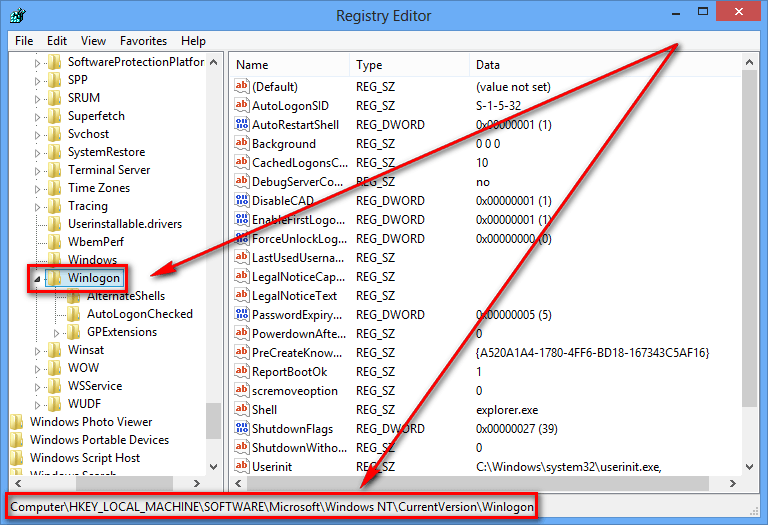
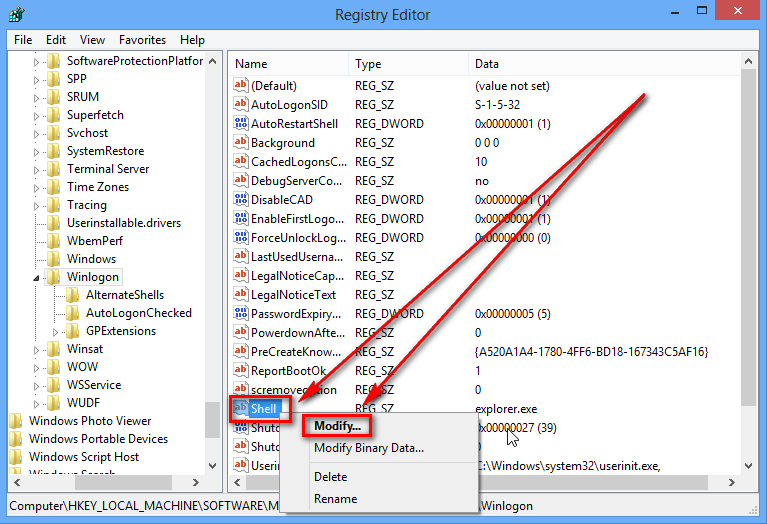
  • At the Winlogon registry folder, look for the registry entry named Shell, right-click it, and hit modify:
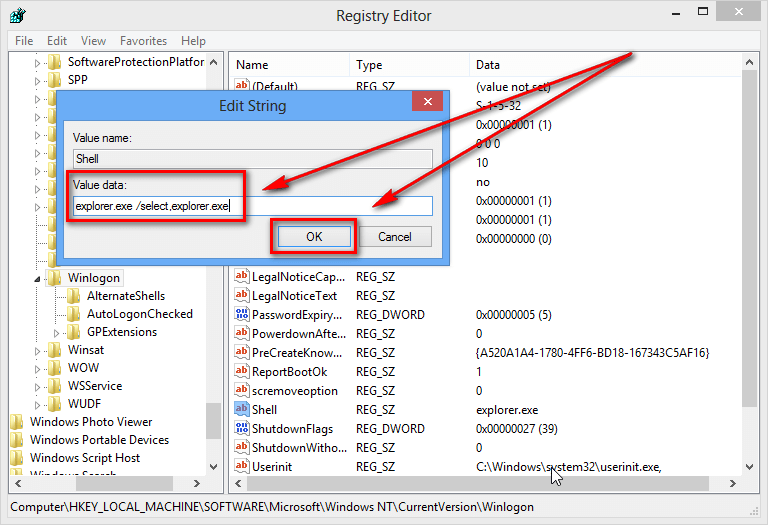
  • Once you right-click Shell and hit modify, a dialog box will pop open. In that box, there will be a Value data field which will say explorer.exe. Change explorer.exe to “explorer.exe /select,explorer.exe” (without the quotes) and hit OK:
  • Close Registry Editor.
  • Done! Restart your computer (click here to learn how to restart Windows 8, if you don’t know how) and upon boot you should see Start screen appear for a split second after which you are taken to Windows 8 desktop automatically:
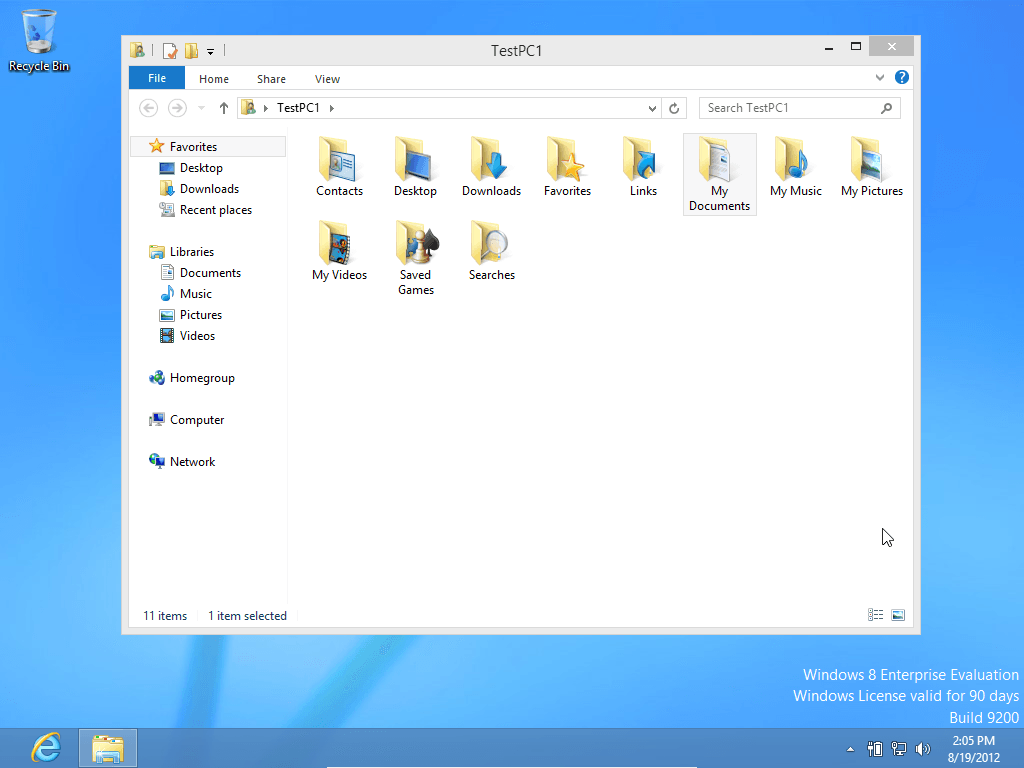
Take note if on boot the libraries window is open on your desktop (as shown in the above screenshot), that is not a bug. This is how it is supposed to work.

Conclusion

While this tip doesn’t solve all of Windows 8 woes, it does help. Not having to manually click to Windows 8 desktop may be a huge time saver but it does remove an annoyance.

[Thanks zinc!]

18 Comments »

  1. HAL August 20, 2012 at 11:41 AM (comment permalink) -

    I followed your to skip the start metro screen in windows 8. Now I go straight to a black screen with no task bar.

    How do I reverse this?

    1
  2. Ashraf August 20, 2012 at 11:43 AM (comment permalink) -
    Mr. Boss

    @HAL: Are you sure you did it properly? It works perfect for me. Make sure you inputted “explorer.exe /select,explorer.exe” — there is a space between explorer.exe and /select,explorer.exe.
    To reverse it go back and change the WinLogon -> Shell key to just explorer.exe.

    2
  3. HAL August 20, 2012 at 11:48 AM (comment permalink) -

    I went back in and it said explorer.exe and did not have the info I had added.

    I am pretty sure that I did it right the first time, but maybe I should try it all over.

    3
  4. HAL August 20, 2012 at 4:33 PM (comment permalink) -

    I went back and have tried it twice more with the same result. the only window that pops up now is computer with my drives listed.

    How do I get back to where it was before I tried this? I removed the /select,explorer.exe and still end up with the same window and no task bar?

    4
  5. Ashraf August 20, 2012 at 5:09 PM (comment permalink) -
    Mr. Boss

    @HAL: HAL if you are seeing the My Computer libraries window at desktop upon reboot then it is working as intended. This trick skips past the Start screen and takes you to the desktop with the My Computer libraries window open (see my screenshot above). I apologize for not making this more clear. I’ll update the post to reflect that.
    And in regards to undoing it, as far as I know all you do is undo what you did. I’m not sure why it isn’t working for you. What version of Win8 are you on?

    5
  6. HAL August 20, 2012 at 5:26 PM (comment permalink) -

    It is an evaluation copy.

    OK, I do get the same window as above.

    So, no task bar with it, right?

    I will try to undo it again.

    Thank you again for all you do!

    Hal

    6
  7. Ashraf August 20, 2012 at 5:52 PM (comment permalink) -
    Mr. Boss

    @HAL: No, I still have a taskbar. Are you running it in VirtualBox? For me I couldn’t see the taskbar until I went full screen in VirtualBox.

    You are welcome!

    7
  8. HAL August 20, 2012 at 7:24 PM (comment permalink) -

    Unfortunately, I tried to load it (VirtualBox) back on May 29th, but it just kept rolling back for some reason.

    When I downloaded Win 8 to my 16gb sd drive I thought I was ok. When all was said and done it did the setup to my hard drive.

    8
  9. Ashraf August 20, 2012 at 10:41 PM (comment permalink) -
    Mr. Boss

    @HAL: Well I’m not sure why this trick isn’t working for you — it works fine for me.
    As an alternative, you can try using Classic Shell which has the ability to skip past Start screen and go straight to Windows 8 desktop.

    9
  10. Mark September 28, 2012 at 6:30 PM (comment permalink) -

    Hi. Thankfully it works fine for me. However is it possible to not have the windows explorer(libraries) come up?
    i.e – straight to the desktop?

    10
  11. Ashraf November 12, 2012 at 11:59 PM (comment permalink) -
    Mr. Boss

    @Mark: Without downloading a third-party program, I don’t think so.

    11
  12. Matt November 19, 2012 at 1:06 AM (comment permalink) -

    @Mark:

    There is a way to a not have windows library pop up at start up.

    “explorer.exe /select,explorer.exe”

    Remove everything after the /

    So the key entry should be

    “explorer.exe”

    obviously without the quotes. But I am also using start8 for the start menu and it has it built it but I am unsure whether it adds that entry itself or what. Either way, when I remove that part. The library doesn’t pop up at start up now.

    Enjoy!

    12
  13. Blair November 26, 2012 at 8:46 AM (comment permalink) -

    Hey I tried this and I accidentally modified the binary data
    Now when I login to my pc the screen just goes black and
    Only the mouse cursor appears to show and work

    13
  14. CovertOddity2 November 30, 2012 at 2:32 AM (comment permalink) -

    just tried this,it doens’t work on a dualscreen.

    the windows desktop shows with the binaries op, but then the metro screen opens on the main monitor…

    14
  15. USER December 3, 2012 at 9:38 PM (comment permalink) -

    This is useless. Use Stardock Start8. May be You should help in activating Windows pre-release versions in converting to full versions through add features to Windows 8 option…….. That will be your real challenge!!!!!!!

    15
  16. wan January 28, 2013 at 2:07 PM (comment permalink) -

    This is not work On Windows 8 retail… i try to reverse nothing happen… explorer.exe. better delete this tutorial.

    16
  17. ohsnap April 3, 2013 at 12:15 AM (comment permalink) -

    [@Matt] how do you get to the point where you can edit this?

    17
  18. MauricioGraciaG April 25, 2013 at 12:48 PM (comment permalink) -

    The complete steps to make Windows 8 go directly to the desktop (disable the smart screen when loggin) can be found here
    http://mauriciogracia.com/win8desktop/

    no need used REGEDIT

    18

Leave A Response »



