
 Email article
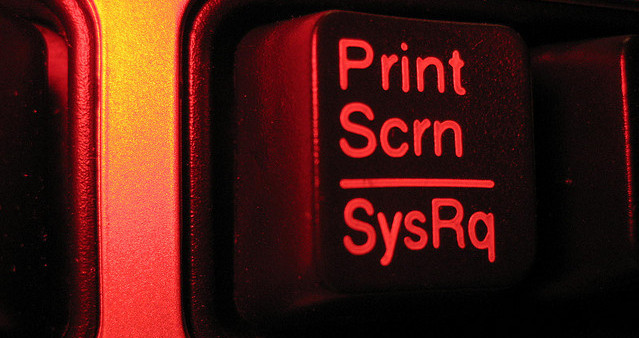
dotTech has reviewed the best free screenshot programs for Windows. However, screenshot programs aren’t for everyone and some people like to stick with the ole fashion Print Screen -> paste in Microsoft Paint method. The issue with tapping Print Screen to take a screenshot is it takes a screenshot of your whole screen. Sometimes this is desirable while other times it is not. The good news is Windows has the ability to take a screenshot of just your active window or program, too — so you don’t have to be forced to take a snapshot of your whole screen. This article shows you how to do just that
WHAT IS ‘ACTIVE WINDOW’?
Before you learn a trick on how to take a screenshot of the active window, it is a good idea to actually know what ‘active window’ means.
It is actually pretty simple. ‘Active window’ is simply the window or program that you are currently in — the window or program that you are actively using. For example, let’s say you have three windows open — Firefox, Internet Explorer, and My Documents. Then let’s say you are currently using Firefox. The active window, therefore, is Firefox. If you switch to Internet Explorer and start using it, Internet Explorer becomes the active window. Same holds true for My Documents or any other window or program that you have open.
HOW TO TAKE SCREENSHOT OF ACTIVE WINDOW ONLY
As already mentioned, tapping Print Screen (or PRT SC, as some keyboards call it) takes a screenshot of your whole screen. If you want to take a screenshot of your active window only, you need to hold ALT while pressing Print Screen. In other words, pressing ALT + Print Screen takes a screenshot of only the active window.
Once you press ALT + Print Screen, a screenshot of the active window is copied to Windows Clipboard; you need to open up your favorite image editor (e.g. Microsoft Paint), paste the screenshot, and save it — just like you would do if you used just Print Screen.
CONCLUSION
People that use screenshot tools have no issue capturing active window only. However, people that prefer to stick to Print Screen will definitely enjoy the added capability of active window only. Enjoy!
[Thanks Grantwhy, image via Phil Sexton]




