
How To: Restore the “Show Desktop” in your Quick Launch bar

March 3, 2010 19 Email article | Print article

Have you ever accidentally deleted, or somehow lost the “Show Desktop” icon in your Quick Launch bar (just next to your Start button)? The icon is quite useful, so the problem is, how do you restore it? It’s very easy actually, just follow these quick steps:

  • Open Notepad. [Start -> All programs -> Notepad]
  • Enter the following code:

[Shell]
Command=2
IconFile=explorer.exe,3
[Taskbar]
Command=ToggleDesktop

  • Now save the file as Show Desktop.scf in the directory C:\WINDOWS\system32.
  • Navigate to C:\WINDOWS\system32 in Windows Explorer.
  • Drag the Show Desktop.scf file to your Quick Launch bar:
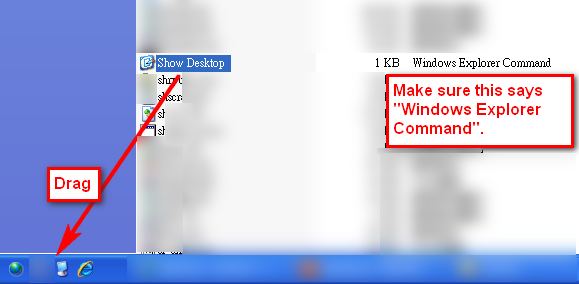
Done – enjoy!

NOTE: This trick does not apply to Windows 7 users. Windows 7 users don’t have the “Show Desktop” icon because Windows 7 does not have the Quick Launch bar anymore (by default anyway). Rather, Windows 7 users have a different method that performs the same function as the “Show Desktop” icon (see the very right of your Windows Taskbar if you are on Windows 7).


19 Comments »

  1. Ashraf March 3, 2010 at 11:39 PM (comment permalink) -
    Mr. Boss

    Adrian! I wish you wrote this article back when I was still on Vista =P.

    1
  2. Liam K March 3, 2010 at 11:46 PM (comment permalink) -

    Haha, would’ve saved me some Googling a few months ago when I accidentally deleted it :P

    2
  3. Adrian March 3, 2010 at 11:50 PM (comment permalink) -

    @Ashraf: Why? Had you deleted the Show Desktop on your Vista?

    (Actually I had written this article already a few months ago)

    3
  4. Ashraf March 3, 2010 at 11:53 PM (comment permalink) -
    Mr. Boss

    @Adrian: Because I had accidentally removed my icon so many times. Never really bothered to Google to find out how to put it back… too lazy =P.

    4
  5. Mike March 4, 2010 at 12:37 AM (comment permalink) -

    For those on Win7 who miss having the icon, you can add it back by creating a “Quick Launch” taskbar with the icon on it, plus any others you might want. Although in my humble opinion, it’s easier just using the unlabeled button to the right of the system tray area–just takes getting used to.

    5
  6. RobCr March 4, 2010 at 12:45 AM (comment permalink) -

    I am using XP.
    Doesn’t the keyboard shortcut
    Windows key D
    do the same thing ?

    6
  7. Ramesh Kumar March 4, 2010 at 1:49 AM (comment permalink) -

    @RobCr:

    Wow it does! I just tried it immediately after reading your comment. Just making a proactive Xp request. Can you provide an Xp cheat sheet? There may be so many other goodies besides this? :D
    Ramesh :)

    7
  8. Ramesh Kumar March 4, 2010 at 2:00 AM (comment permalink) -

    @ Adrian
    You write articles which are wonderful & also simple. Please keep writing.

    Could you write a series of such “notepad tricks” – including but not restricted to how to configure “new right mouse clicks” should that be possible?

    Were Samuel (another talented person like you) to write one on the same subject – “configure new right mouse clicks by doing that inside registry” & you Adrian to write one on the same subject – “configure new right mouse clicks using notepad” I guess dottechies would gasp in admiration because both “types” of techniques would get covered.

    It would be awesome………………and unique as well for http://www.dottech.org too. Dottechies would actually get goosebumps. :)
    Ramesh :)

    8
  9. Adrian March 4, 2010 at 2:50 AM (comment permalink) -

    @Ramesh Kumar: Man, I don’t know much about programming. The trick above mentioned was a bit of advice from a schoolmate (who studies IT).

    Samuel is a LOT MORE advanced in the field of programming.

    @RobCr: Yeah I know it does. But some people don’t and there are also those who are accustomed to clicking the icon.

    9
  10. RobCr March 4, 2010 at 3:57 AM (comment permalink) -

    Forgive me for this comment.
    I believe it is the only way I can subscribe to this topic ? ? ?
    I would have ticked it earlier, but I KEEP forgetting to tick it (hint).

    Rob
    PS Ramesh,
    Win E gets you Windows Explorer (but you should not use Windows Explorer).
    Win F gets you XP’s Search dialog (but you should not use Windows Search).
    With very little prompting, I could be talked into describing alternatives.

    10
  11. Joji March 4, 2010 at 6:38 AM (comment permalink) -

    Quick launch bar is my best friend… really useful tool for opening up programs I use most. :D

    ~Joji~

    11
  12. donna dawson March 4, 2010 at 7:28 AM (comment permalink) -

    @Ashraf:
    Hello, this post leaves me confused. I simple right click on my status bar at the bottom of my browser and click on “toolbars” and then “quick launch”. Simple to do and much easier than the above post. I have Windows XP Pro. Make it a great day.

    12
  13. Mike March 4, 2010 at 7:34 AM (comment permalink) -

    A nice list of Windows 7 keyboard shortcuts:

    http://windows.microsoft.com/en-US/Windows7/Keyboard-shortcuts.

    (Similar lists exist for other Windows versions; just do a search engine search for Windows [Windows version] keyboard shortcuts.)

    13
  14. Samuel March 4, 2010 at 11:59 AM (comment permalink) -

    @donna dawson: This article is for people who delete the “Show Desktop” shortcut from the Quick Launch

    @Ramesh Kumar: Another cool Key trick is Windows+Number which on XP and Vista launchs that number program from the Quick Launch counting from the left, so if you have Firefox as the second shortcut Windows+2 launchs it. On 7 it launchs that number pinned icon if it’s not open, if it does it switchs to that program.

    @Adrian: Between you and Ramesh I’m going to get a permenent blush!

    14
  15. Ramesh Kumar March 5, 2010 at 12:32 AM (comment permalink) -

    @RobCr:

    Dear friend RobCr – do consider yourself persuaded. I’d love to learn. Seems like today is my lucky day!
    Ramesh :)

    15
  16. Ramesh Kumar March 5, 2010 at 12:34 AM (comment permalink) -

    @Mike:
    Thanks! Will do
    Ramesh :)

    16
  17. Ramesh Kumar March 5, 2010 at 12:41 AM (comment permalink) -

    @Samuel:

    Thanks for the tips! I’ll try them out. Nice to see you back! Missed you. :)

    I’d love to see Adrian and Samuel blush permanently always………all over. :) Blush is a sign of good blood circulation & great health. People like you are great assets. We therefore wish you both are always in great health & spirits aka “be in the pink of health…..always”
    Ramesh :)

    17
  18. RobCr March 5, 2010 at 12:56 AM (comment permalink) -

    @Ramesh Kumar:
    There was a recent topic discussing Windows Search(Indexing) settings.
    I wrote advising about two programs.
    One of them is called ‘Everything’ and it is brilliant for file name searches, and uses few resources.
    The other program I mention, is a replacement for Windows Explorer. (which has tabs etc, and provides a great search facility as well.)
    Here is a link to my post -
    http://techrepublic.com.com/5208-12843-0.html?forumID=102&threadID=326740&messageID=3253934&tag=content;leftCol

    18
  19. Ramesh Kumar March 5, 2010 at 5:35 AM (comment permalink) -

    @RobCr:

    Thanks; you are absolutely right. Indeed “Everything” is brilliant & I had already tried it. Sadly it works only on drives whose file systems are NTFS. In my case one drive is NTFS & the other two are FAT 32 :(

    I’ll check XYPlorer asap.

    One last thing – Australia & Melbourne are sure lucky to have one such as you :) Thanks.
    Ramesh :)

    19

Leave A Response »


