
 Email article
 Yesterday Jeremy posted about Screenshot Captor, a feature-filled screenshot tool. If you were turned off by Screenshot Captor’s learning curve but still desire an excellent screenshotting tool, then PicPick may be for you.
WHAT IT DOES AND HOW TO USE IT
PicPick is described by the developer as “an all-in-one program” for “graphic design”. Calling PicPick a graphic design tool may be stretching the truth a little bit, but the point of the developer is to say PicPick is not your average screenshot tool. In addition to being able to take screenshots, PicPick has other useful features. However, screenshotting is PicPick’s main focus so let’s talk about that first.
Screenshots
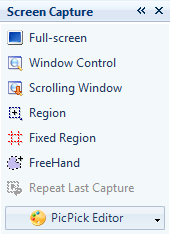
PicPick has the ability to take the following types of screenshots:
- Full-screen: This takes a screenshot of your whole screen.
- Active Window: When you select this, the program tells you to press Alt + Print Screen to take a screenshot of the program window you are in and ignore the rest.
- Window Control: This one will put a box around anything you put your mouse on and take a screenshot of that. It could be a desktop icon or an entire window.
- Scrolling Window: It will show you a box, but if there’s a window on top of what you are selecting it will select what is in the background with what is in the foreground within that same box selection.
- Region: With this tool you see cross hairs that all you need to do is draw your own box to capture part of what you want to capture.
- Fixed Region: Like region you capture part of what you want, but you have to set the pixel size to what you want to capture. If you don’t have the proper size, you can always resize it later in the program.
- Freehand: This screenshot is one of the most unique of options. Similar to Region you draw the area you want, but this time you are drawing the region like the tool is called by freehand. As with most images they are in a four corner shape. You still get that, but the image is something you’ve never seen before.
- Repeat Last Capture: This function will repeat the exact same thing you captured last. The only function it doesn’t work with is Freehand. This function will not even highlight for you to do the last capture.
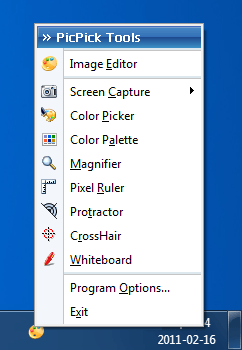
Taking screenshots is as easy as right-clicking PicPick’s system tray icon, selecting the type of screenshot you want…

…and taking the screenshot. If you prefer to use hotkeys, each type of screenshot has a hotkey assigned to it (hotkeys are customizable from Program Options -> HotKeys). If you don’t like the system tray icon or hotkeys method, you can use a the floating widget Capture Bar instead:
Regardless of how you take a screenshot, once you snap a screenshot it automatically gets sent to the PicPick Editor from where you can edit the screenshot and save it. If you don’t want to send screenshots to the PicPick Editor, you can make PicPick send screenshots else where:

 PicPick Editor
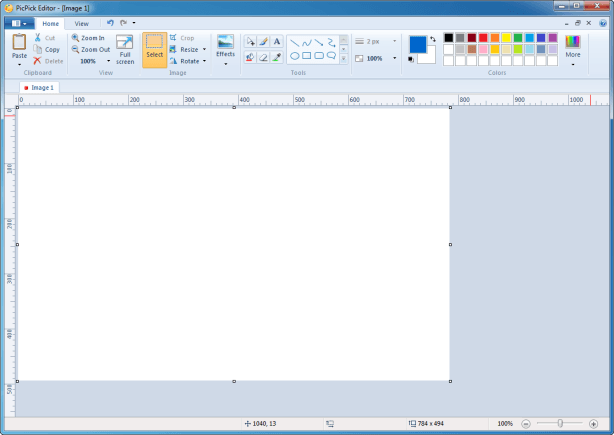
PicPick Editor is a neat little image editor that can used to edit screenshots you take with PicPick or any images you have saved on your computer. It is so easy to use it can make anyone into an editing wizard. The menu selections have a similar feel to Microsoft Office 2007 and very easy to maneuver with whatever you need to do with your photos.
With PicPick Editor you can do things like crop images, rotate images, add effects, adjust image properties (brightness, hue, saturation, etc.), annotate images with arrows, place arrows and text on your images, and even put comic book balloons on your images. Text and objects placement with PicPick editor is very precise thanks to grid lines, allowing your image to have a professional look.
Once you are happy with images you can save them as PNG, JPG, GIF, BMP, or PDF; or you can print; or you can send to Microsoft PowerPoint, Microsoft Word, Microsoft Excel, or a custom program you define; or you can share by via ImageShack, Facebook, Twitter, FTP, or e-mail (Outlook).
One cool thing about PicPick Editor is if you don’t like the screenshot you took, PicPick Editor allows you to re-take screenshots:

If you prefer to use hotkeys, you can continue to use PicPick screenshot hotkeys while PicPick Editor is open — it will automatically minimize when you press a screenshot hotkey.
OTHER TOOLS IN PICPICK
There are some other tools you can use in the program that will help out in editing anything you might capture or open:
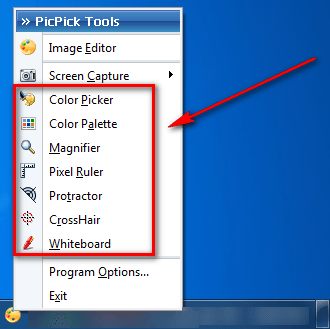
- Color Picker: When using this tool you will get a magnified box that pinpoints what color you need to pick. This is one of the most helpful tools out there because you can get a better idea what color you pick without second guessing in a normal view.
- Color Palette: This is standard in many editing programs. It’s fine tuning the exact color you want to use in the editor. Usually when you use the Color Picker tool, this tool will show up afterwards so you can fine tune the color you want.
- Magnifier: A helpful tool that will show another window and you hover over areas to get a better look at what you have open at the time. This could be used to fine tune a image that was captured.
- Pixel Ruler: If you need to know the measurement in pixels, this tool will come up to help you measure the size of what you need to inspect to fine tune the image. You don’t have to have the ruler where it lands, you can move it around so you can measure anything on the screen.
- Crosshair: You will get the crosshairs to have you select something by clicking the mouse button. It will lock in to place and instead of the staring numbers of something like 523, 289 and reset the location to 0,0 which would help you measure to see how far left or right it is from say the center of the screen.
- Whiteboard: This will have you draw things if you get in the mood for a doodle. Of course if you wanted to save it just use the screen capture, and that sounds like a pretty neat idea just drawing away on your desktop for no reason.
PICPICK LIMITATIONS
PicPick can’t record video — it only does screenshots. Also, the scrolling window screenshot does not always work properly although this isn’t unique to PicPick — most screenshotting tools suffer from this. Furthermore, PicPick Editor is definitely one the simplistic side compared to other image editors. For example, PicPick Editor cannot change change the number of colors or have a digitized black signature.
That said, by far the biggest limitation to PicPick is that this program is free for personal (non-business) use only — companies have to pay to use PicPick. If a company really needed a screenshot program, there are plenty of free ones out there and even cheaper alternatives like FastStone Capture.
CONCLUSION
PicPick is a simple and easy to use – yet powerful – screenshot tool with plenty of extras with an editor and other tools. For the average and advanced user alike, PicPick has features for the picking. Simply put, PicPick is an excellent screenshotting utility.
You can grab PicPick from the links below. Take note PicPick comes bundled with Bing Toolbar — be sure to hit Decline when Bing Toolbar’s installer pops open if you don’t want to install Bing Toolbar.
Version reviewed: v3.1.2
Supported OS: Windows XP/Vista/Win7
Download size: 6.38 MB
Malware status: VirusTotal scan results (1/43)
Note: PicPick is free for personal (non-business) use only. Commercial users must purchase a license.
PicPick homepage [direct download]




