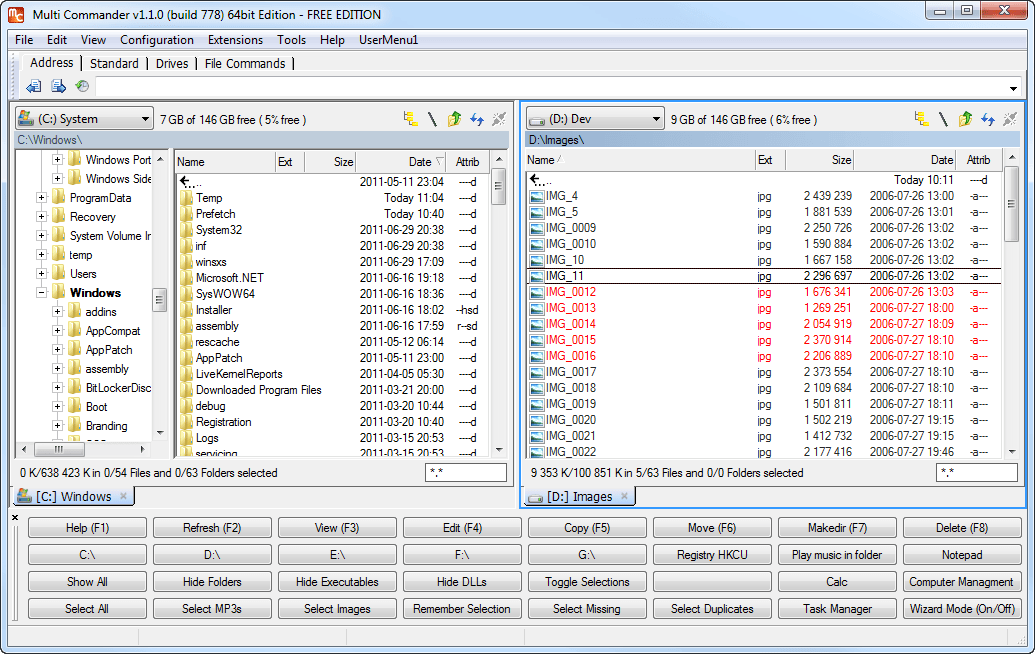
[Windows] Multi Commander is feature-filled, multi-tabbed file manager — an alternative to Windows Explorer
October 7, 2012 60
Email article | Print article
Multi Commander is a file manager that is an alternative to the standard, default Windows Explorer. With this program users can potentially get work done faster by using advanced features compared to using Windows Explorer.
What is it and what does it do
Main Functionality
Windows Explorer is good; one cannot deny that fact. However, when it comes to doing things more effectively when exploring files on your computer, Multi Commander does the job a lot better.
Pros
- Auto unpacking
- Auto sorting
- Browse inside archives
- Workspace support
- Multi-tabbed
- …and a lot more
Cons
- Dreadful user interface
- Difficult learning curve
- Help documentation is online, as opposed to coming with the program
Discussion
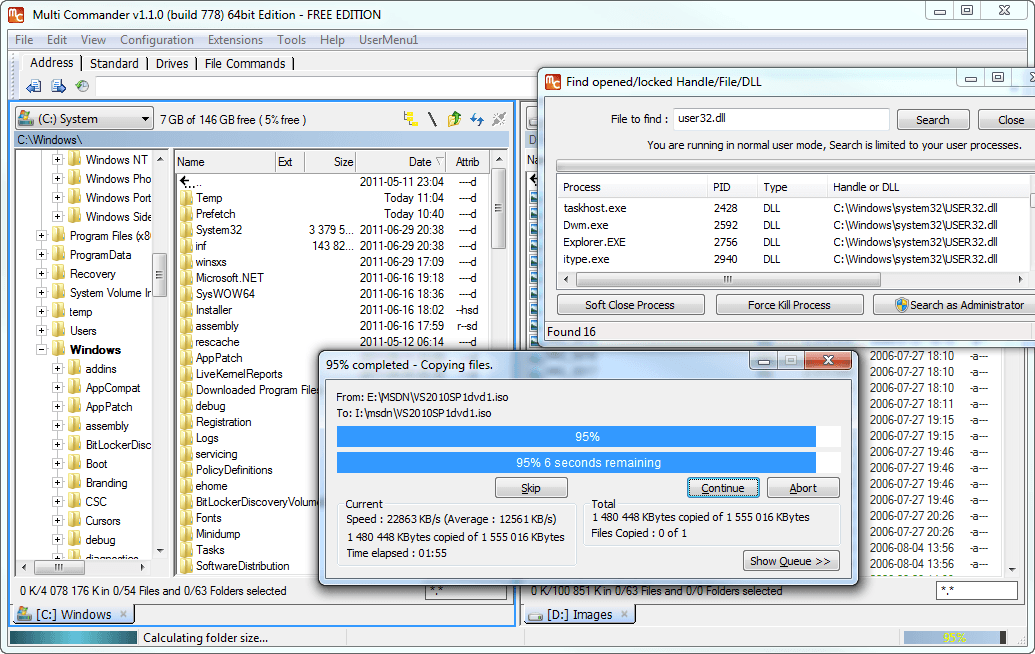
From the get go, the first thing that is notable about Multi Commander is that it is best used by those who are advanced computer users because the user interface is dreadful. As there are so many things going here, it would take users quite a lot of time to get their heads around everything before beginning to use the program effectively, and that could be a problem for some.
When the Multi Commander is launched for the first time, an option will present itself to choose a look and feel; this is called the “Quick Look n Feel Setup”. The setup consists of the “Commander Styled Look & Feel”, the “Windows Explorer Compatibility Look & Feel”, and the option to customize the whole user interface to your liking. Commander Styled Look & Feel is optimized for keyboard use. For example, F5 for copy,F2 for refresh, right mouse button for file selection, and double click right mouse button for context menu. Windows Explorer Compatibility Look & Feel is same shortcuts and mouse buttons as in Windows Explorer. For example, F2 for rename, F5 for refresh, right mouse button for context menu, and Windows Explorer styled selection.
We chose to go with the more familiar environment that is Windows Explorer Compatibility Look & Feel and found it to work out wonderfully.
Users will enjoy the vast number of formats supported by Multi Commander. Formats such as FTP, Registry, Zip, 7-Zip, Rar, Tar, GZ, Bz2, and Jar are among the few supported without the need for a third-party program. Having so many formats support means the user will feel compelled to stay within the Multi Commander environment because everything that is needed is right there.
Because Multi Commander support tabs, users can easily manage files across folders. This is a feature Windows users have been longing for but up to this day Microsoft has not taken heed to user demand. The only major operating system that has tab support built into the explorer menu is Ubuntu.
Finally, we would like to talk about extensions and plugins. There are not many plugins to enhance the program, and the ones that are there are not exactly useful. However, potential is there for success in this department if developers take it seriously.
Conclusion and download link
Multi Commander is a great alternative file manager; however, the dreadful user interface and difficult learning curve might throw off many users. For the power users who know what they are doing, Multi Commander is the perfect tool for managing many files at the same time.
Price: Free
Version reviewed: 2.7.2
Supported OS: Windows XP/2003/Vista/Server 2008 (R2)/Windows 7/Windows 8/Server 2012
Download size: 4.9MB
Virustotal scan results: 0/43
Is it portable? Yes






![[Windows] Replace system or restricted files without reboot with ‘SysMate- System File Walker’](http://cdn.dottech.org/media/2013/06/SysMate-UI-134x90.png)
![[Windows] Securely hide or encode text through digital steganography with Text to Color](http://cdn.dottech.org/media/2013/06/Text-to-Color-UI-134x90.png)
![Microsoft uses Siri to bash the iPad, again [Video]](http://cdn.dottech.org/media/2013/06/microsoftad-134x90.jpg)
![[Windows] Reg is an alternative registry editor that has more features than regular RegEdit](http://cdn.dottech.org/media/2013/06/Reg-user-interface-134x90.png)
My all time favorite file manager is Cubic Explorer. It may not be the most powerful but its user interface is by far the easiest to use at least for me. Everything is where I want it. Its bookmark management is very good and easily accessible. It can even save complete layouts as sessions. It has very easy to use file filtering to exclude or include only the types of files you want, and its most useful features are easily accessible and not hidden in a menu somewhere. Also, I like the way it handles file extensions in that you can easily choose to edit just the file name or also edit the extension. It is also portable.
Some downsides to Cubic Explorer are that it has only one pane for browsing but it does have multiple tabs. It is not the quickest at browsing networked drives. It has a bug that keeps you from right clicking in the address bar unless you go to the far right. It is still being developed but this development is very slow.
http://www.cubicreality.com/ce/
Another option is Qdir which is very actively developed. It has up to four panes and these can be saved in sessions either within the program or as desktop items. It is also an extremely light weight application at only 450kb. It has a portable version available.
http://www.softwareok.com/?seite=Freeware/Q-Dir
With SO many similar programs out there, it seems strange that dotTech would do a review of one that has a “dreadful user interface and difficult learning curve”…:-)….Seems better to put the effort into (highly) recommended programs, no…?
This is very similar to Total commander or windows commander. Yes for someone who is a beginner with windows it may seem like many features are things unfamiliar.
Each new version of windows has less and less control of the system. This program allows one to take back many,many features that were built in older windows programs.
This program will unpack files to any directory with ease, move files to any directory (folder) with ease, FTP with a drag and drop, internal picture viewer and thum nail viewer, MP3 tools, movie tools, opens API to create plugins, multi Rename for files (quickly rename all those number files that come from your camera), browse archives, delete files inside archives, and dozens more features that allow one to take back control of windows that has been programed out of newer releases.
An excellent tool to learn how much REAL control one may have all in one program or a must have for any novice or advanced windows user. Also an invaluable tool if you mange your own web site…..
Nice review of what, for me, is a new file manager. I never heard of Multi Commander before today. Haha. Imagine that!! Never heard of the one Eric989 mentioned, Cubic Explorer, either.
Some people never open Explorer. Yes. That’s true. Believe it or not. Otherwise you wouldn’t see all those questions that begin, “Where can I find . . .” If it isn’t on the desktop, they just don’t know what to do. And, did you ever notice that no one answers with, “Run a search.” No, they give the path where the file should be located.
Some of us dig around in Explorer – or one of its replacement apps – all the time. This app doesn’t look that complicated to me, and I promise you, I am not a techie person – at all. The biggest turn-off is the online Help. I love a good help file and I hate that, more and more, the help documentation is only available online.
I was disappointed with what was done to Explorer in Win7. (Libraries are, IMHO, a horror.) It made me appreciate earlier versions of Explorer. However, I do use two other (payfor) file managers, XYPlorer and Xplorer2 on both my systems.
@Janet: We can’t pick only the best from the pack and review them. Multi Commander might have a difficult learning curve but it is powerful, totally worth the time and effort.
This program is definitely geared toward the power user. Over the years I’ve purchased a program called PowerDesk which gets a bit pricey for multiple PCs. Multi Commander is the best alternative I’ve found to PowerDesk–especially since I require a dual pane file explorer. I wouldn’t call the interface dreadful. However; I would say that it is complex–which is the price you pay for advanced functionality. Please note that you can customize Multi Commander to death. I’ve managed to tweak it until it looks almost exactly like PowerDesk! Given the fact I’ve had consistent crashes/odd behavior from PowerDesk over several versions, I’ll be using Multi Commander in the future. The developer is very active in correcting bugs and adding features which is always a plus!
@kelltic: CubicExplorer was a new one on me too. The interface looks very nice and it is actively developed, but I don’t like tabs. My experience with dual panes runs too deep to switch now. I wish Cubic had a portable version like Multi Commander.
Panes were invented back in the dark ages (aka before Tabs).
It allowed users to view two folders at once, and readily move files between them.
I never had the need for that, but I will concede that SOME others have such a need.
.
Then the dark ages, were driven away by the invention of Tabs.
Those that cling on to panes, refuse to change their habits, and use Tabs instead.
In another thread, I mentioned that I will tell God to get rid of Rock, Rap, and Facebook lovers.
If those diehards that keep using panes, don’t mend their ways, I will add them to the groups (for removal by God).
Rob
PS XYPlorer is the best Tabbed File Manager.
I have raved about it many times (in DotTech), and also provided links to the earlier (but still great) free version (XYPlorerFree).
@RobCr:
You acknowledged that “Panes…allowed users to view two folders at once, and readily move files between them.” I do this many times a day. Consequently would not be interested in moving to an explorer that could not do that…:-)…! Do you really want to commit to maintaining that moving files between two viewed folders is not a reasonable thing to do???
Also good simply for comparing. Up till then, you had to open two Explorers.
@Vames:
“We can’t pick only the best from the pack and review them.”
Hmmm. I thought that was the purpose of dottech reviews…:-)….
Here’s yet another one – xplorer². I’ve been using this since Windows 95 and wouldn’t ever consider changing. Dual Pane, multiple tabs, open as last closed (very useful when a reboot is required), multiple instances, folder comparisons and much, much more. (NB. Tabs AND Panes)
@RobCr. I’m with Janet. If you can’t find uses for copy/move between panes you’re limited by your imagination, not by your software. I simply couldn’t get by without it. Some of the comments in your post are downright offensive.
I use the paid version, but the Lite (free) version has all the basics.
http://zabkat.com/
@Ashraf. Windows Explorer is good. Seriously!
“Because Multi Commander support tabs, users can easily manage files across folders.”
Does that mean you can drag files to a tab? But not to a subfolder?
Thank you Ashraf. If I had not already been using (the free version of) xyPlorer, I might be tempted to try this one. However, going by the two illustrations shown, it appears that MultiCommander doesn’t show the size of folders, which I find very important, whereas xyPlorer does. Sorry, but I need to see folder sizes, something Windows 7 does not inherently do or allow (e.g., via add-ons). And as for tabs, I could not imagine trying to move or copy files from tab to tab, because you can see the contents of only one tab at a time. I need to see both the “from” and “to” panes at the same time to feel comfortable doing these operations.
@Janet: What Vames means is we can’t simply cherry pick the most popular apps and review them; that doesn’t help anyone. We try to find relatively unknown or unpopular apps so as to give users a choice. While you may be turned off by the bad UI of Multi Commander, other people may find the program useful.
@Ashraf:
I never ever suggested picking popular apps…:-)…! I think dottechers are looking for unknown GOOD apps (that’s why so many people love Giovonni). Particularly appreciated are articles which compare the new suggestions to the more popular apps (which we are probably using). If Multi Commander fits that category, it is by all means appropriate. According to the article, Multi Commander did not seem to have any functions I don’t already have (I use Windows Explorer and XPlorer), and the article clearly called attention to significant deficiencies. We’ve had a number of articles lately on apps that are presented as inferior to known apps, without redeeming features.
My favorite articles were the ones where you used to rave about great apps in detail, pointing out how they were an improvement over the apps we were accustomed to using.
@Janet: Just because it isn’t to your liking does not mean Multi Commander is not a good app. The various functionality, as pointed out in the article, is what makes Multi Commander good — it just has a poor interface.
@Janet: So you think we should only review apps that are superior compared to similar ones you and other are using? I do not agree with that sentiment at all. Bare in mind, not every one are using these superior apps you are so accustomed to.
@Vames: Exactly. What may be superior to you may not be superior for someone else. It is all about choice. It isn’t logical to expect that every single soft we review is useful for you.
If you are using something better than what we are reviewing, please do share — we will surely look into it. You know, like what Eric does. Simply complaining does no one any good.
@Ashraf:
I never said it was not to my liking or not a good app!!! :-) I know nothing of it whatsoever other than what I learned from the article! The article convinced me that it had no advantages over already familiar similar apps…:-)….As I said, according to the article, it did not seem to have any special functions that other apps don’t have. If you add to this cons that our present apps do not have, it seems less useful than reviews of well-designed apps which offer new or improved features over what most of us have been using.
I have installed and use MANY apps as a result of dotTech reviews. All I’m saying is: since most dottech-ers have SO many programs installed, they probably tend (like me) to try out only the ones that clearly offer new or improved features.
I certainly did not mean to “complain”. I was simply making a suggestion about what I believe dottechers are looking for. I will refrain from making suggestions in the future.
In any case, I enjoy reading ALL the reviews…:-)…
@Jim Carter: CubicExplorer does have a portable version. It is on the main download page.
http://www.cubicreality.com/ce/download/
The developer is working on dual panes as well but it is taking him longer than expected.
@RobCr: Panes have their value as well. Whenever I am doing a lot of file moving there is no replacement for panes as tabs can be a bit fidgety as to how long you have to hover for the file to be moved. This is what I use Q-dir and its 4 panes for. It is just easier to aim at a pane than a tab. Also I can memorize which pane is which without looking, whereas I have to always look at the names of the tabs. I also use tabs within panes. For example, each tab is a subfolder of the pane.
@Everybody
There are a couple of things Windows Explorer can do that no other file manager can. First it can manually sort files by drag and drop and typically remember their position. I mean files can be sorted in any custom order you want, not just by date or size or name.
Secondly it can pass this custom sort order on to other programs like image viewers. Open an image from within another file manager and going to the next image within the viewer will always default to alphabetical and will ignore that you have them sorted by date or whatever.
Does anybody know of a file manager than can handle either of these two things?
@Janet: I understand. Thanks for your feedback.
@Ashraf: I’m not exactly sure how you draw the line between a popular app and a relatively unknown app. An app could have been downloaded a million times and still be relatively unknown. For example a search for “video” on Softpedia reveals that SopCast has been downloaded 3.5 million times, yet I bet there are more than a few Dottechies that don’t know what it is. I would describe most of the software on my computer as either relatively unknown or obscure. I would define very few apps as poplular.
I don’t think we should shy away from too many apps as at least 25% of us will not know about most any program that is reviewed. We may have heard of it but not know enough about it to try it out. That’s how I feel anyway.
I’ve tested a lot of these alternatives to Windows Explorer. The main use I have for it is to copy files from one folder to another. However none of them seem to have a verification option so you can see that the copy was performed without error. I always seem to revert back to opening two Windows Explorer, one for the the source and one for the target folders and I’ve got Teracopy installed so that it performs the copy process and verifies that no errors have occurred.
Does anyone know of one of these multi-pane alternatives to Windows Explorer that does what Teracopy does? I think I did come across one that claimed to verify the copy but it didn’t display anything on-sceen, so I felt uncomfortable trusting it.
@FredySmith:
There is a feature in Windows (certainly in XP) called ‘Delayed write’
As usual the MS setting for this is the opposite of what it should be.
There is a property for each drive called -
Enable write caching on this disk.
It is difficult to get to, so let me know if you are using XP, and if you wish directions.
It will be ticked, and should be unticked.
I was a qualified Chartered Accountant and Auditor.
Then I was in IT for 20 years as a Business / Systems Analyst.
My first 4 years in IT was in a large Bank, in Quality Assurance.
I was the main reviewer in that team, and no program or hardware changes were allowed without our approval.
If Bill Gates had invented Windows and worked for our bank, there would be quite a few things he would have had to change before getting permission to release Windows.
All the crap(complexity) that is built in to make things appear to be fast, etc, would have been rejected.
One of those is ‘write caching’
What that does is show the file moving dialog for a wee while, and then tell you it is finished, WHEN IT HAS NOT FINISHED.
It is then quietly completing the move unseen by you.
Untick that write caching checkbox to prevent that BS.
@RobCr:
Thanks for the reply.
Yes, I’m currently using XP. I think I’ve read somewhere about what you are saying. However, I’m guessing that it won’t display a message showing the CRC values of the source and target thus confirming they are the same. I want a Multi-pane file manager that will show that information, even if after the copy I have to click a tab that says “Verify” copy.