
 Email article
Experts always recommend using different passwords for different logins. Any normal person cannot possibly follow that advice and memorize all their usernames and passwords. That is where password managers come in. Password managers securely store your usernames and passwords so you don’t have to remember them — you just need to remember the one master password that opens the door to all your passwords. This article looks at the best free password managers available for Windows.
Take note that while the main focus of this post is to look at password management capabilities, most all of the software discussed in this review have additional functionality such as the ability to remember form data, addresses, credit card numbers, notes, contacts, etc.
This article is part of our Best Free Windows Software series. Click here for more articles like this.
Table of Contents
- Best Free Password Manager
- Runner Up
- Honorable Mention 1
- Honorable Mention 2
- Honorable Mention 3
- Other Alternatives
Best Free Password Manager
 Program Name: Dashlane
Developer: Dashlane SAS
Download Size: Unknown
Version Reviewed: v1.6.0
Requires: Windows XP/Vista/Win7/Win8
Works on Mac OS X 10.6 and higher, too
Pros
- Allows users to store unlimited logins (usernames and passwords)
- Logins can be sorted into specific categories, e.g. email or social media
- Has excellent browser integration — supports Firefox, Chrome, and Internet Explorer
- In addition to logins, users can store credit card numbers, bank accounts, contacts, social security numbers, tax ids,
notes, and more- UPDATE: It looks like notes are only available in Premium (paid version) now
- Has an optional built-in receipt tracker to help you keep track of your purchases, online or offline
- Has a built-in tool that tells you how strong your passwords are
- Can generate random passwords
- Secures data with AES 256 encryption
- Has the ability to sync data across Dashlane on all computers and devices — Windows, Mac OS X, Android, and iOS
- UPDATE: It looks like sync is only available in Premium (paid version) now
- Sync is optional — users can opt to keep data stored locally only
- Has the ability to import data from LastPass, Roboform, KeePass, Password Wallet, 1Password, Chrome, Firefox, and Internet Explorer
- Has a web version for access to your logins when at a computer which doesn’t have Dashlane installed
- UPDATE: It looks like web version is only available in Premium (paid version) now
Cons
- Android and iOS apps are very simple
- Developer is very coy how much mobile support is available in the free version
- Sync is enabled by default — users have to manually opt out of sync (from Sync -> Open Sync Preferences) if they don’t want it
- Does not support Opera
- Does not support 64-bit version of Internet Explorer
- Web version is a hassle to log into
Discussion
Dashlane is a new password manager (came out of Beta earlier this year) that can best be described as a mix of Roboform and LastPass. With Dashlane users have the ability to securely store their logins. These logins can then be kept locally on your computer only or synced with your Dashlane account and accessible on any computer or device that you install Dashlane on. Currently Windows, Mac OS X, Android, and iOS are supported by Dashlane so with the sync feature you could potentially have your logins on every computer or device you use.
The best part about Dashlane is it has excellent browser integration. If you use Firefox, Chrome, or Internet Explorer, Dashlane will install a plugin that allows you to easily log into websites using a few clicks. Unfortunately, however, Opera is not supported at this moment and the 64-bit version of Internet Explorer is not supported, either. (For those of you who are 64-bit users: the 32-bit version of IE is run by default even on 64-bit Windows, so unless you are specifically using 64-bit IE, this isn’t something you should worry about.)
Aside from logins, Dashlane allows users to store:
- Contacts
- IDs
- ID Card
- Passport
- Driver’s license
- Social security card
- Tax numbers
- Payment info
- Credit cards
- Debit cards
- PayPal
- Bank accounts
Notes- UPDATE: It looks like notes are only available in Premium (paid version) now.
- Purchases (aka receipts tracker)
Take note that all the above is text-only — you cannot store images. So, for example, for your passport you would have to manually input your passport data… you cannot store an image of your passport.
All the above is password protected with a master password (that you set and only you know) and is encrypted with AES 256. Of course even though the developer claims AES 256 encryption is used and that no one has access to your master password (aka your data should be fairly secure), there is still an element of blind trust you must put in the developer if you use their sync service because, as the Dropbox debacle showed us last year, without an independent security audit there is no way to verify the claims of a company.
Moving on, it isn’t necessarily Dashlane’s features that makes it the best free password manager. After all, programs like LastPass, KeePass, and Roboform can pretty much do what Dashlane can, too. What makes Dashlane different than the others is that sync capability. You see Dashlane gives users the ability to sync their data across devices and computers, yet it doesn’t force users to use sync. In other words, if you are one of those types of people that doesn’t trust the cloud then you can keep your data local and not sync. If you do trust the cloud, you can sync. Most, if not all, free password managers are either or — they are either totally cloud-based or are totally local. Dashlane stands out above the crowd in this area and this, combined with its vast features, is what makes Dashlane great.
Of course no program is perfect and I have three issues with Dashlane.
Firstly, the developer is very coy about exactly what type of mobile support the free version of Dashlane provides (Dashlane comes in free and premium flavors — free version has full desktop support). The developer says the free version of Dashlane has “limited” support for “Dashlane Mobile Apps” yet does not tell us exactly how support for mobile apps is limited. This is very confusing because there are free Dashlane apps on Android and iOS that sync with your Dashlane account (you need Dashlane on Windows or Mac OS X to use the Android or iOS versions) but we don’t know if the apps are truly free or what. For what it is worth, I downloaded and tested Dashlane’s Android app and I don’t see how it is “limited” — it syncs my data just fine despite me only having the free version of Dashlane.
The second issue I have with Dashlane is also mobile related. I don’t know about the iOS app since I don’t have an iDevice and didn’t test it, but the Android version of Dashlane is very basic. Dashlane on Android is just a simple password manager that shows you your data and allows you to copy it; you can’t even store new logins with Dashlane on Android. This makes Dashlane on Android no better than other password managers on Android; in fact not being able to store new logins makes it inferior to the competition. Of course the fact that Dashlane on Android syncs with your Dashlane account is the redeeming feature but, still, the app is very basic and could be improved.
Lastly, the web version of Dashlane allows users to access their logins from computers that don’t have Dashlane installed. However, logging into the web version from a new computer is a pain — you have to first authenticate the new computer by logging into your e-mail or using your phone to get a code. I understand the developer has this extra authentication step for security purposes but it sort of kills the use of the web version of Dashlane. I’m sure there are better ways to go about logging in through the web, such as one-time passwords.
Runner Up
 Program Name: LastPass
Developer: LastPass
Download Size: Unknown
Version Reviewed: v2.0.2
Requires: Windows 2000/XP/Vista/Win7/Win8
Works on Mac OS X 10.5+ and Linux, too
Discussion
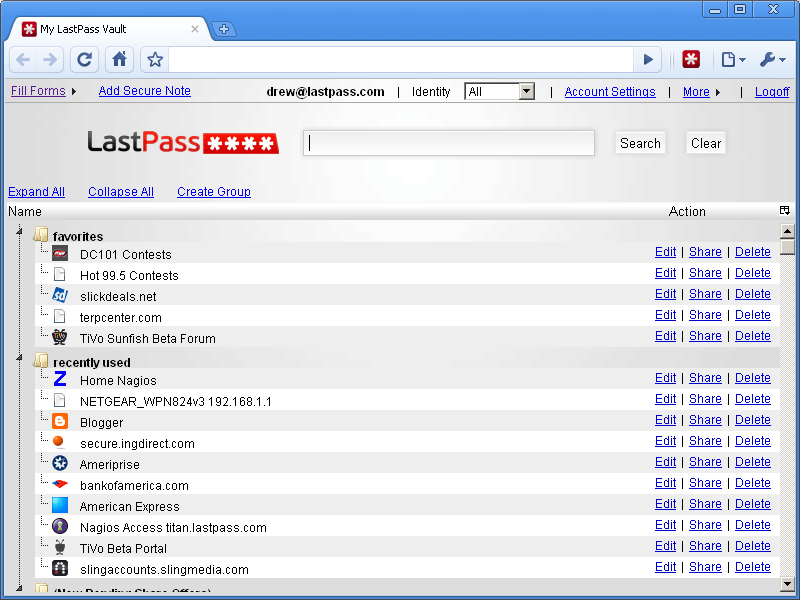
LastPass is an excellent free password manager. While it may not be the first cloud-based password manager, it definitely pioneered the industry and is now known as one of the premier password managers out there… despite being free.
In terms of features, LastPass is very much like Dashlane. LassPass allows users to store unlimited logins (usernames and passwords) and other information, such as form data and notes; LassPass has great browser integration (supports Firefox, Chrome, Internet Explorer, and Opera); LastPass secures user data using a master password plus AES 256 encryption; has a web version for computers that don’t have LastPass installed; and more. In fact, in some areas LastPass beats Dashlane such as the ability to use one-time passwords or virtual keyboards for logging in via the web on a computer that doesn’t have LastPass installed, and multifactor authentication support via Google Authenticator. However, there are two areas LastPass falls short when compared to Dashlane, which is why LastPass is runner up and not number one.
The first “issue” with LastPass is that it is totally cloud-based. Whether you like it or not, if you use LastPass then your data is stored in the cloud. As already mentioned, LastPass says no one has access to your data (courtesy that master password and encryption) but many people aren’t comfortable with storing their passwords, and other data, in a server so far away from home. I put issue in quotes because this may not be an issue for some people but it will be for others. It all depends on your personal tastes and preferences.
The second issue with LastPass is the free version does not support any mobile devices. With the premium version of LastPass you get more mobile support than Dashlane — Android, iPhone, BlackBerry, Windows Phone, and more. However, the free version of LastPass supports only desktop operating systems.
Of course the above two issues may be non-issues for some and LastPass is still an excellent password manager so don’t feel bad about grabbing it, if you don’t like or want Dashlane.
Honorable Mention 1
 Program Name: KeePass Password Safe
Developer: Dominik Reichl
Download Size: 2.4 MB
Version Reviewed: v2.20.1
Requires: Windows 2000/XP/Vista/Win7/Win8
Discussion
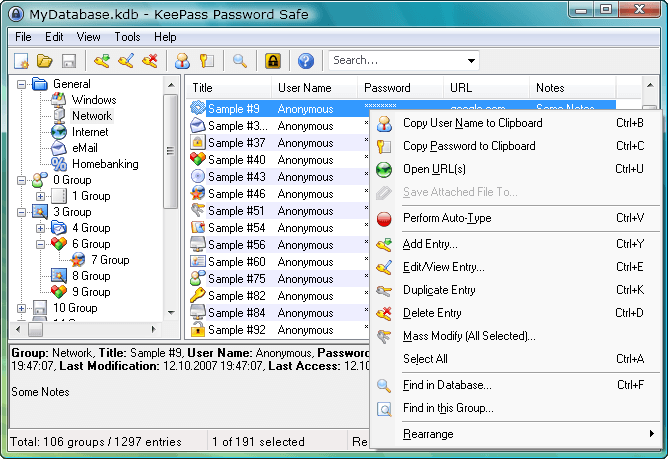
KeePass is another excellent password manager that offers most/all of the features expected of password managers — KeePass stores usernames, passwords, and lots of other types of information, and uses secure password protection and encryption to protect your data. However, KeePass brings something slightly different to the table than the previously mentioned LastPass and Dashlane — open source and portable goodness.
You see KeePass is Open Source Initiative certified. This means anyone and everyone can view the source code for KeePass, which helps with third party audits to ensure it is a safe program. Both LassPass and Dashlane are not open source. The other unique aspect to KeePass is it is portable. This means you can throw KeePass on a USB flash drive and carry your logins with you wherever you go, without having to store your information in the cloud.
With two big advantages over LastPass and Dashlane, why is KeePass an honorable mention and not #1 or #2? For two reasons.
As useful as being open source and portable is, the fact that KeePass has poor browser integration (it isn’t even close to how seamless Dashlane and LastPass are when logging in or filling out forms) really hurts the usefulness of the program. The other point is KeePass has no native way to sync to other devices. I know that many people don’t trust the cloud, but many people do trust the cloud (or, at least don’t not trust the cloud) so not having such a feature hurts KeePass’s usefulness in the age of cloud computing. On the bright side, there is a redeeming factor to the lack of sync capability: KeePass’s database (the one that stores your data) is extremely portable. In other words, you can manually copy/move KeePass’s database to other devices and computers if you want to “sync” your logins across multiple devices (e.g. KeePassDroid on Android can use KeePass’s database to allow you to bring your passwords to your Android device). However, manual isn’t the same as automatic.
Honorable Mention 2
 Program Name: Roboform
Developer: Siber Systems, Inc.
Download Size: 12 MB
Version Reviewed: v7.8
Requires: Windows XP/Vista/Win7/Win8
Discussion
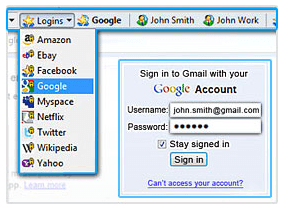
Similar to how LastPass pioneered cloud-based password management, Roboform is one of the oldest and best desktop password managers for your computer.
Overall, Roboform is an excellent feature-filled password manager with great browser integration. However, the free version of Roboform is limited to only 10 logins. That effectively kills it as a password manager. However, it is still a damn good password manager and deserves some sort of recognition.
(For what it is worth, you can purchase Roboform Pro for $30 and get unlimited logins or purchase Roboform Everywhere to get your data synced across multiple devices. There is also a portable version of Roboform Pro, if you are interested.)
Honorable Mention 3
 Program Name: Sticky Password
Developer: Lamantine Software
Download Size: 12.4 MB
Version Reviewed: v7
Requires: Windows XP/Vista/Win7/Win8
Discussion
While Sticky Password is not a pioneer in this field, it is a password manager very much like Roboform; it stores logins and other form data, is feature-filled, and has excellent browser integration. However, like Roboform, Sticky Password’s free version limits you to 10 logins which makes it fairly useless as a free password manager.
If you want to shell out money for Sticky Password, then by all means do so — the desktop version costs $30 and the cloud version (the version that syncs your data across devices) is $20 per year — because the program is terrific. However, I wouldn’t recommend the free version because of its limitation on the amount of logins you can store.




