
 Email article
 With today’s built-in redundancy measures, it is much harder to corrupt a Word, Excel, or PowerPoint document than it was in the past. However, corruption still happens. What to do when you have a corrupted Word, Excel, or PowerPoint document? If the document is DOCX, XLSX, or PPTX format, then you are in luck — this article provides a data recovery solution.
Now, before you get all excited, the trick we are going to show you isn’t a perfect solution. Not only is it time consuming (it won’t outright fix the document but rather you have to manually recover data) but it doesn’t guarantee you to recover all lost data. However, it is much better than nothing.
That being said, let’s dive in.
HOW TO RECOVER DATA FROM DAMAGED DOCX, XLSX, OR PPTX FILES
You see when Microsoft introduced new Office 2007 formats (DOCX, XLSX, and PPTX), they did it for multiple reasons. One of these reasons is better data recovery; thanks to use of XML and modular data storage, data recovery from corrupted DOCX, XLSX, and PPTX files is a lot easier than DOC, XLS, and PPT files. Of course, on the flip side, that means a corrupted DOC, XLS, or PPT file is a lot harder to recover data from; however,, for the purposes of this guide we will focus on the positive aspect — easier data recovery from DOCX, XLSX, and PPTX.
To recover data from a corrupted DOCX, XLSX, or PPTX file, you need to have a file archiver installed on your computer (or at least on-hand — portable archivers will work, too). This can be on a Windows, Mac OS X, or Linux machine — it doesn’t matter. For Windows, we recommend 7-zip because of its versatility.
With whatever file archiver you have, you need to extract the contents of the corrupted DOCX, XLSX, or PPTX file just like you would extract the contents of a ZIP file. With 7-zip, this is done by simply right-clicking the corrupted DOCX, XLSX, or PPTX file, selecting “7-zip”, and picking one of the “Extract” options.
Once you extract the contents of the corrupted document, you should see a bunch of folders:
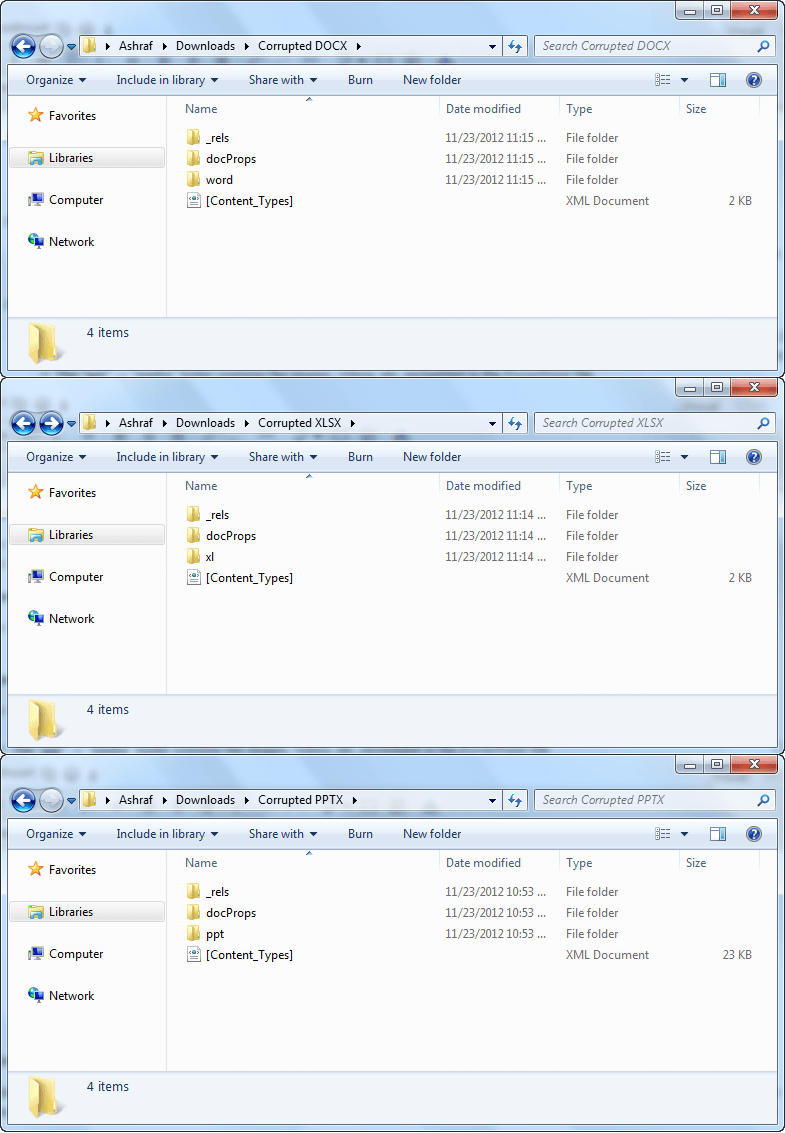
These folders that you see contain the data for your corrupted file. You need to go through these files and folders to recover whatever data you can. Now, there are a lot of files and folders and you don’t necessarily want to look at them all. You should focus on the following:
For corrupted DOCX
- The “word” folder will hold a “document.xml” file. This file contains the content (text only) of the Word document
- The “word” -> “media” folder contains the images, videos, etc. that were embedded in the Word document
- The “word” -> “embeddings” folder contains the objects (e.g. an Excel table) embedded in the Word document
For corrupted XLSX
- The “xl” -> “worksheets” folder contains a bunch of “sheet[X].xml” files for each individual spreadsheet of the Excel file. These XML files contain the data of each spreadsheet.
For corrupted PPTX
- The “ppt” -> “slides” folder contains a bunch of “slide[X].xml” files for each individual slide of the PowerPoint file. These XML files contain the data for each slide. will hold a “document.xml” file. This file contains the content (text only) of the Word document
- The “ppt” -> “media” folder contains the images, videos, etc. embedded in the PowerPoint file
- The “ppt” -> “embeddings” folder contains the objects (e.g. an Excel table) embedded in the PowerPoint file
When you find the data you desire, recovering it is as easy as copying + pasting the data to any other location. Media and object files can simply be moved while data from XML files will need to be copied to a text file or another Word/Excel/PowerPoint document.
How much data you find in the above-mentioned folders and files really depends on how badly corrupted the DOCX, XLSX, or PPTX file is. If it is isn’t that badly corrupted, you should be able to recover a significant amount of data. If it is very badly corrupted, you will be lucky to grab an image. To put it simply, your mileage will vary… but it is better than doing nothing!
[via Ghacks]




