Email article
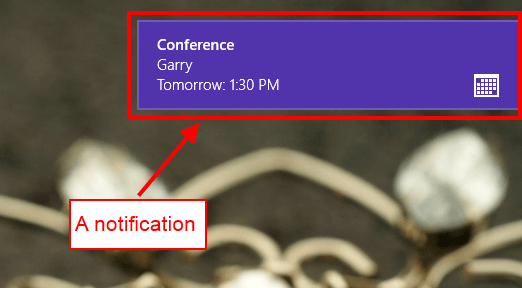
As you already knew, there are many and many new features in Windows 8. Most of them are focused on touch and mobile experiences. If you have used a smartphone, you problem know about “notifications,” which is the way your apps notify you of something. In Windows 8, there is a notification system that allows Modern apps and the desktop to attract your attention. For example, the Messaging app may show a notification about a new message.
Sometimes, you want to turn off notifications of an app or all of your apps. I will help you figure out how to do that in this article.
HOW TO TURN NOTIFICATIONS ON OR OFF
To manage your app notifications, do the following:
- Press Windows + I (or swipe from the right edge of your screen to bring up Charms and choose Settings, if you are using a tablet) to bring up Settings panel. Then select “Change PC Settings” from the bottom.
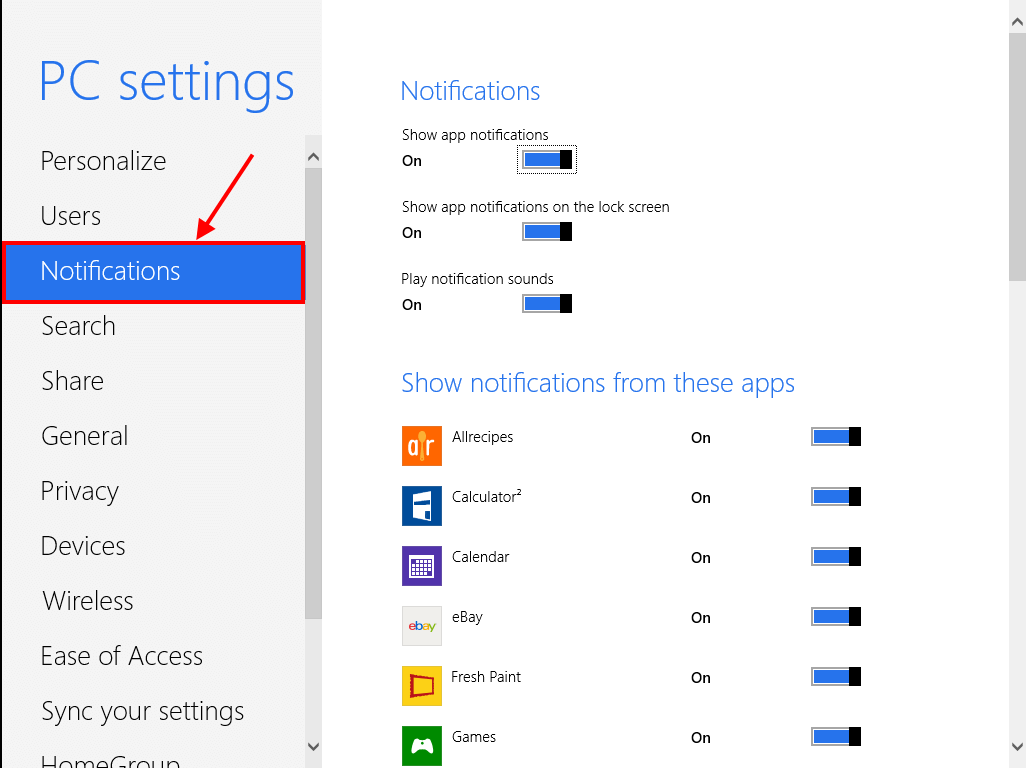
- Once PC Settings has opened, you have to choose “Notifications” from the left side.
- From the right side, you will see many options which you can toggle to modify how notifications work:
- “Show app notifications” — turn on or off all notifications
- “Show app notifications on the Lock screen” — show or hide all short and detail notifications on Lock screen
- “Play notification sounds” — turn on or off notification sounds
- There is also a list of your installed apps which have the ability to show notifications. In this list, you can turn off/on notifications for each specific app.
- Simply toggle whatever settings as you desire, then close PC Settings.
Done!
HOW TO TEMPORARILY DISABLE NOTIFICATIONS
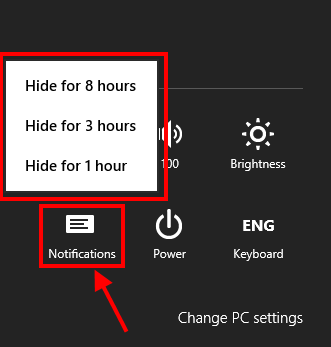
Sometimes I connect my computer with a TV to watch movies, and I need to hide all app notifications for a period of time or my dad and mom may read my messages when the Messaging app shows its notifications. To solve this problem, Windows 8 provides user a very quick way to temporarily hide all notifications. You can temporarily hide all app notifications doing the following:
- Press Windows + I (or swipe from the right edge of your screen to bring up Charms and choose Settings, if you are using a tablet) to bring up Settings panel.
- You will see a “Notifications” icon in the Settings panel — click/tap it, and choose how long you want to hide notifications (for one hour, three hours, or eight hours).
- To turn on all notifications back, you just need to click/tap Notifications icon again and turn them on. If you don’t manually re-enable notifications, they will automatically re-enable themselves after the time period you selected.
CONCLUSION
Despite the lack of a notification center (which is a place to show all notifications, such as in Android and iOS), Windows 8 finally has an effective notification system compared to previous Windows version. And now you know how to enable/disable it. Enjoy!