
 Email article
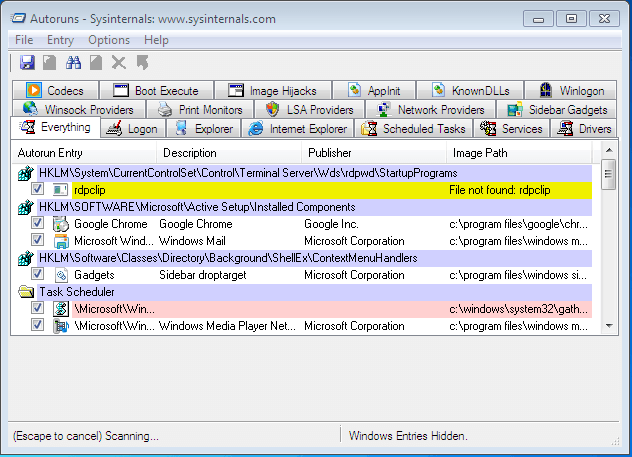 As you use your computer, more and more programs and processes start to add themselves to Windows boot. This slows down your Windows boot. So there is a desire to be able to control exactly what runs at Windows boot. This is where Autoruns comes in.
WHAT IS IT AND WHAT DOES IT DO
Main Functionality
Autoruns main feature is localizing anything that starts up, be it codecs loaded from the Windows registry, programs you’ve installed that have added themselves to the startup folder, login services, RunOnce services and even official Microsoft services. Autoruns lets you take a snapshot of your current startup configuration — an easy way to make sure you have a backup plan. Autoruns is also very handy in stopping the massive amount of speed loss via killing unneeded services.
Pros
- Lots of startup modification options — the most comprehensive startup manager you will ever find (see Discuss below to see the type of startup processes/programs/etc it supports)
- Allows for overall configuration exporting (saving a backup)
- Allows you to compare your saved startup file with your current one
- Can output in CSV
- Comes with a command line equivalent with more advanced features
- Is portable
Cons
- For experienced users only who understand what all these entries are
- Clumsy user interface
- Cannot delay startup programs or processes
Discussion
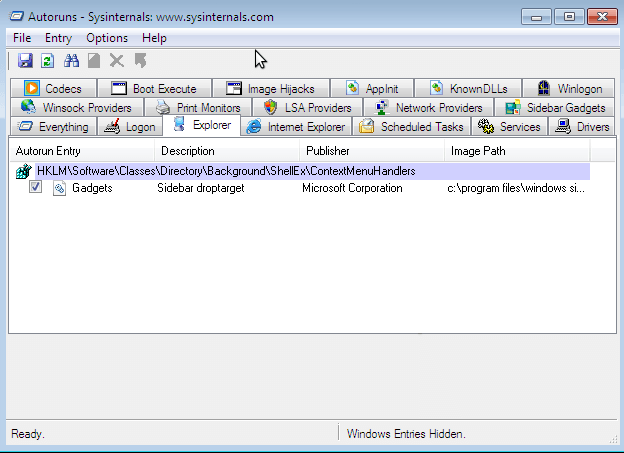 Autoruns is a utility that, as put in the developer’s own words, “has the most comprehensive knowledge of auto-starting locations of any startup monitor”. It shows you “what programs are configured to run during system bootup or login, and shows you the entries in the order Windows processes them”. Autostart locations displayed by Autoruns include “logon entries, Explorer add-ons, Internet Explorer add-ons including Browser Helper Objects (BHOs), Appinit DLLs, image hijacks, boot execute images, Winlogon notification DLLs, Windows Services and Winsock Layered Service Providers”. In more simple and straightforward terms: if it (“it” being anything from a program to a service to a driver) automatically starts up, Autoruns will tell you about it.
My favorite feature of Autoruns is the fact that you can hide Microsoft and/or Windows related auto-run entries (under “Options” – be sure to hit F5 to refresh your list afterwards); thus you can look at just third party start-up programs/services/etc. This can help you minimize the load on your computer during boot (by turning off certain third party things you know you don’t need) and it can help prevent potential problems by hiding Microsoft and/or Windows related processes so you can’t turn them off by accident (this is not to say all Microsoft or Windows related processes are necessary but many of them are and best left alone unless you know what you are doing).
That said, I don’t like Autoruns’ user interface. In my opinion, the user interface is very clumsy and mashed together. Everything is so tacked on and it feels like the developer didn’t try hard enough to make this program a good experience for the user.
Don’t get me wrong — in terms of functionality Autoruns is hard to beat. I just don’t like the interface. Outside of the few problems I had with the monotonous user interface, I was thoroughly satisfied with all of the features Sysinternals had provided me. I was able to stop Windows from loading everything to simple program startup entries, to Scheduled tasks, components of explorer.exe, and even audio/video codecs. Yes, autoruns even lets you kill codecs. Autoruns is also capable of exporting a complete configuration list to a .CSV file for analysis. Autoruns gets the job done and then some.
CONCLUSION AND DOWNLOAD LINK
Autoruns is a great startup manager; in fact, it is one of the most comprehensive startup manager I have ever used. It beats out Microsoft’s own MSConfig utility by a mile.
That all being said, Autoruns is definitely a program that will bombard you with a lot of information. I say check it out and see if you feel comfortable with handling all that. I recommend Autoruns… to anyone that has the knowledge to understand it. You need to be able to understand your operating system’s boot environment and all the services and programs that start at boot. This program is NOT something I recommend downloading if you don’t know what a ‘startup entry’ is.
Price: Free
Version reviewed: v11.42
Supported OS: Windows ME, Windows XP, Windows Vista, Windows 7, Windows 8 (compatibility mode)
Download size: 533KB
VirusTotal malware scan results: 1/46
Is it portable? Yes




