NOTE: This article is mainly focused on how to remove Windows 7. However, the methods here still apply even if you are trying to remove a different OS such as Vista or XP.
At this point, there are bound to be many people who the Windows 7 fetish has worn off of. So now they want to remove Windows 7 but are not sure how (obviously I am not talking to the tech gurus here). I am one of these people... the ones that want to remove Windows 7 that is, not the ones that don't know how =).
Going on and off from Linux a lot, I have quite a bit of experience when it comes to installing/'uninstalling' an OS besides your primary Windows. So I figured I should make a post about how to remove Windows 7 in case there are people out there who are not sure how. Maybe I will even make a few bucks on the way.
Okay how to remove Windows 7 depends on your situation. If you may recall, in my Windows 7 post I mentioned three main ways of how to install Windows 7:
1) Make Windows 7 your primary OS (i.e. upgrading or installing Windows 7 in/over your current Window partition/installation).
2) Installing Windows 7 virtually.
3) Dual booting Windows 7 w/ your current Windows.
I will explain how to remove/'uninstall' Windows 7 for each of these methods. All these methods have been tested by me and they work. However, use them at your own risk. Me, PMnet, anyone/anything associated/not associated with us are not responsible for any gain/loss coming out of using the methods mentioned in this HOW TO or the comments that follow. Also note that all of the following methods are cross platform so it does not matter if you have/want to have XP or Vista.
1) You upgraded to Windows 7 or you installed Windows 7 over your last Windows installation. Bottom line: Windows 7 is the only Windows on your computer at this moment.
Okay with a situation like this, I am sorry to inform you, but you cannot revert back to your earlier Windows - it just can't be done. The only way to remove Windows 7 would be to install another Windows over it effectively losing all your data, i.e. do a clean install. Thus you are recommended to backup any data you consider important.
In order for this to work, you need a Windows CD or a recovery CD. Either one of these should have come with your computer. If you have lost them or, for whatever reason, they did not come with your computer, try contacting customer service for your respective computer company to see if they will send you a new one. If that does not work, you can also borrow a Windows CD from a friend just for installation purposes. Or if push comes to shove, you can torrent a copy of the Windows that you need (but you must already have a valid Windows key!). Torrenting is not legal, nor is it recommended because you don't know what malicious content someone might have inserted into the ISO.
Okay first thing you want to do is look around your computer for a Windows label. If you are on a laptop it will probably be at the bottom of your laptop. If you are on a desktop, it can be anywhere. The label should list a product key for Windows. Copy this product key onto a piece of paper - you may or may not need it depending on your installation methods.
If you have a recovery CD, follow the directions provided by your computer manufacturer on how to restore your computer back to factory settings.
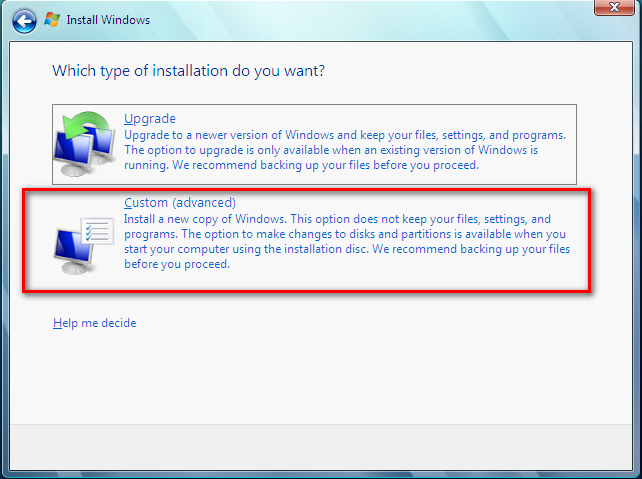
If you have a Windows CD, you will install it the same way you installed Windows 7. Pop the CD into the CD drive. Reboot your computer and follow on screen instructions. You should come to a page that asks you "What type of installation you want?". Choose "Custom(advanced)":
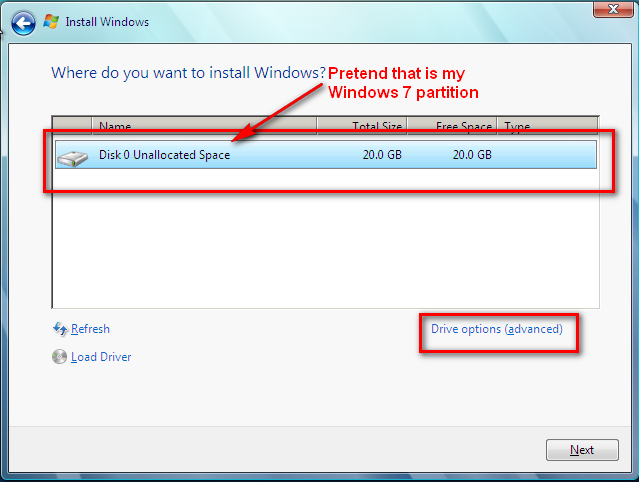
This will bring you to a page that will list all the partitions on your computer. Single left click on the partition that has Windows 7 installed. Then click on "Drive options (Advanced)":
Now you technically do not *have* to do the following, but for safe measures you should. Click on 'format':
After the partition is done being formatted, make sure you have the partition selected, and hit "Next". Just follow on screen instructions and you will have your Windows up in no time.
2) You virtually installed Windows 7
I mentioned three differnet programs you can use to virtually install Windows 7. However I recommeneded VirtualBox and that is the one I will use to explain on how to remove Windows 7. The method should, however, be similar for all three programs.
Removing OS installations that have been virtualized is really, really easy - literally a click of a button. This is when people start patting themselves on the back for going virtual...very easy to undo it all!
Okay load up VirtualBox. Right click on the Windows 7 installation and hit "Delete":
You will get a message box asking you if you are sure/asking you to confirm that you want to delete it. Click yes. NOTE: Once you delete it, you will not be able to get it back again. If you want it back you will have to reinstall it.
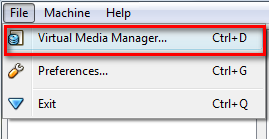
After that, go to File -> Virtual Media Manager:
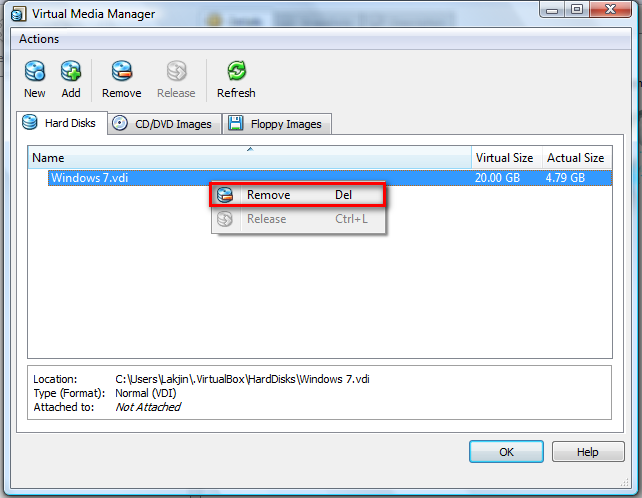
A window will pop up that will list the 'virtual hard drive' that you had Windows 7 installed. In order to get your hard drive space back that this 'virtual hard drive' is taking, you will have to delete it. Right click on the hard disk and click on "Remove":
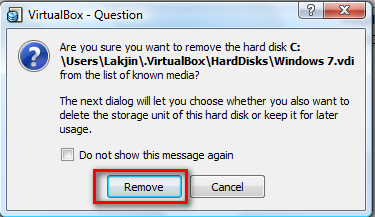
A message box will pop up asking you to confirm that you want to remove the hard disk. Hit "Remove":
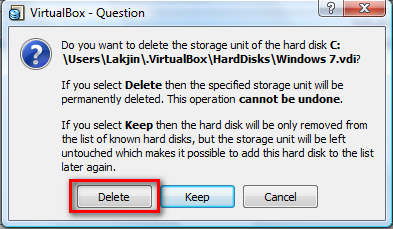
Another message box will pop up asking you if you want to delete the virtual hard drive or to keep it. Hit "Delete":
And that is it. Windows 7 is no longer virtually installed on your computer. If you do not think you will be installing an OS virtually again, feel free to uninstall VirtualBox also. Be sure to use RevoUninstaller.
3) You dual booted Windows 7 with another Windows on your computer.
I know that there are multiple ways on how to remove Windows 7 if you dual booted. However, I chose to use the following way because I find it to be very easy and it is cross platform so you do not have to worry about if you are on Vista or XP.
First thing you have to do is download and install Paragon Hard Disk Manager on your primary OS (the OS you want to keep - double check system requirements to make sure PHDM will work on your system), not Windows 7 (the OS you want to remove).
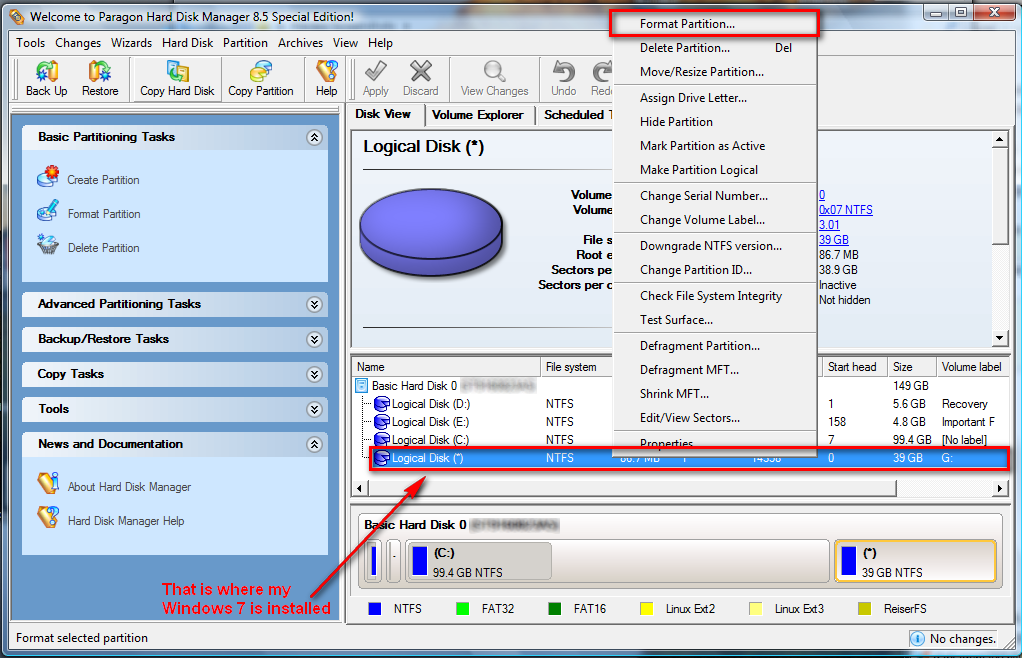
After that, run Paragon Hard Disk Manager. At the bottom you will see all your partitions listed. Right click on the partition that has Windows 7 installed and click on "Format":
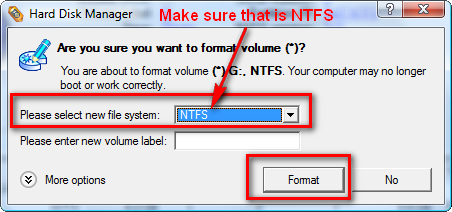
Make sure you are formatting the partition with Windows 7 and not the one with your primary OS installed! A window will popup asking you if you are sure you want to format the partition. It will give you the option to select a new file system and name it. Name it whatever you want, the name will be short lived anyway, but be sure to select "NTFS" for the file system. Hit "Format":
After that, go up to the top of the program window where the buttons are and hit "Apply":
You will be prompted with a message asking you are you sure you want to make the changes. Hit "Yes":
That will start the process of formatting your partition. A window will pop up that will allow you to monitor the progress. After the formatting is done hit "Close":
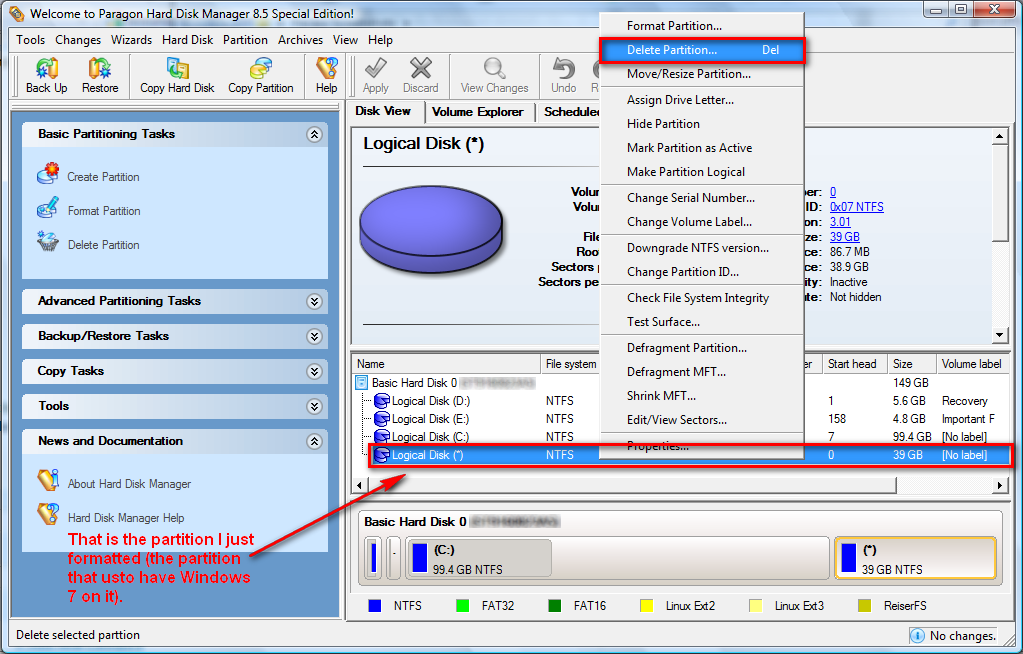
Now right click again on that partition that you just formatted, from the main program window, and hit "Delete":
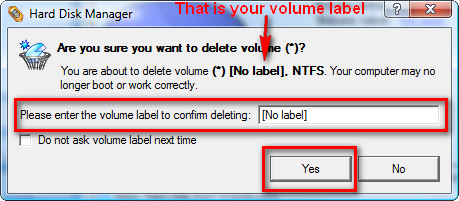
A window will popup asking you to type the label of the volume in order to confirm that you want to delete it. Type the name of the volume and hit "Yes". The label of the volume in my screenshot is "[No label]" (without the quotes) so I typed in "[No label]" (without the quotes):
After you hit "Yes", you will again have to hit the "Apply" button from the top:
You will be prompted with a message asking you are you sure you want to make the changes. Hit "Yes":
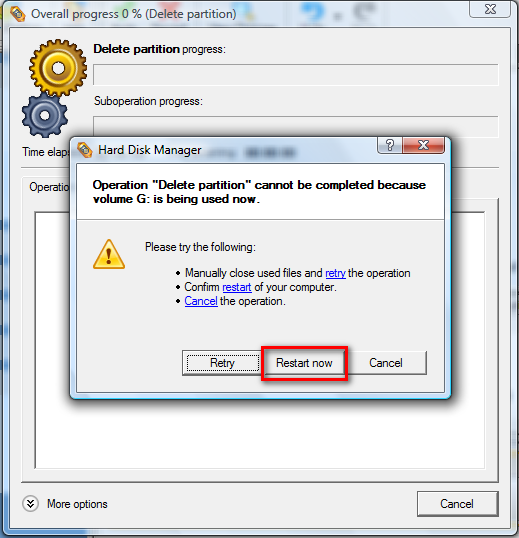
Again a window where you can monitor the progress of your partition deletion will popup. Just sit back and watch. After a few seconds, a window will popup telling you that your partition is in use and that you must reboot your computer to delete it. Hit "Restart Now":
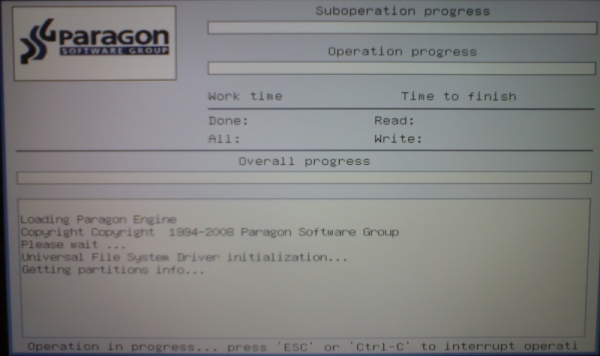
Your computer will then restart. Instead of your booting into Windows, you will be brought to a Paragon Hard Disk Manager screen (sorry for bad quality screenshot - had to use my camera phone):
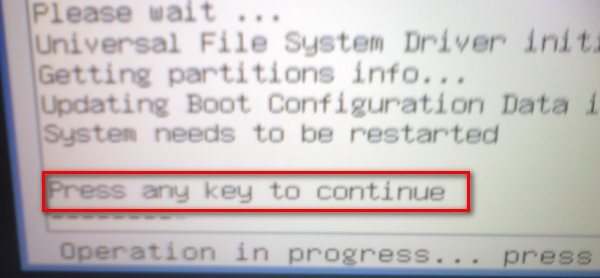
Allow the program to do its thing until the bottom left hand of the screen displays the following:
Hit any key you desire and allow your computer to restart. When restarting you should not be prompted with any screen that asks you to choose what OS to load - you should load directly into your primary OS, whether that is XP, Vista, Win98, whatever.
Now at this point you are done removing Windows 7. However, since you had designated X GB on your hard drive for Windows 7 and you no longer have Windows 7, you have X GB just sitting there and being useless on your hard drive. The following is optional but I highly recommend you do it so you can put those X GB back to good use.
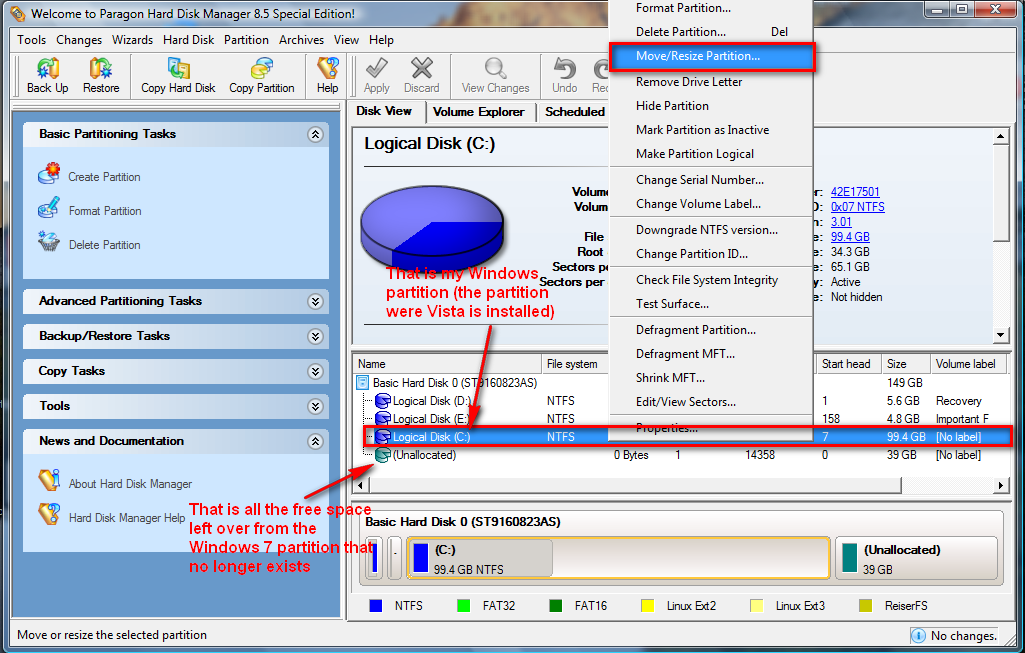
After your computer boots into your primary OS, run Paragon Hard Disk Manager again. You should at the bottom where it lists your partitions there should be an entry that says "(Unallocated)". That is all the space that usto be your Windows 7 partition now just sitting there. Lets change that. Right click on your current Windows partition and click on "Move/Resize Partition":
***If the 'unallocated' is not right next to your Windows partition (above or below) in the partition list, you have a special case. If you can't figure out how to make it work, take a screenshot and post it in the comments below - I will try to help.
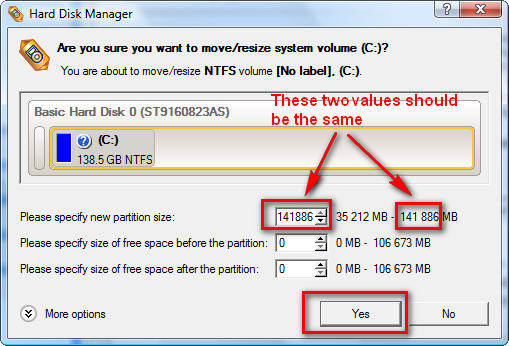
You should now see a window that will ask you to specify the new partition size:
Make it as big as possible and hit "Yes":
Again hit the "Apply" button from the top menu on the main program window:
You will be prompted with a message asking you are you sure you want to make the changes. Hit "Yes":
After that a window will popup where you can monitor the progress of making your partition bigger. After it is done, hit "Close":
You are done. Go enjoy what is left of your day.
![]()
That is it. If anyone has any questions, feel free to ask - I will try to help to the best of my ability.
>>Speed up your computer with Auslogics BoostSpeed


GAOTD Lover
Thanks!
GAOTD Lover
You tested these.
So you overwrote Vista, made a new partition, and VM’ed it?
Why did you need 3 installs?!
And is that why you reformatted your computer?
LOL,
GAOTD Lover
Ben
What if the bootloader was on the Windows 7 partition that carried the XP/7 selection screen? If that was wiped wouldn’t booting into XP complain of a missing disk, or a hal.dll error?
Ashraf
Paragon Hard Disk Manager should be able to handle it; it is supposed to do all the bootloader touch ups for you. But it is obviously a risk.
Worse comes worse, you can always rebuild your bootloader via recovery console on your Windows XP CD (if you don’t have one…you may need to torrent one depending on how bad your situation is or visit this website for setup disks). Once in recovery console just type in the following to fix/rebuild your MBR:
bootcfg /rebuild
fixboot
fixmbr
You can also check out this article on what to do if you ever get a hal.dll error.
Lastly, there is also an ‘update mbr’ (Hard Disk -> Update MBR) feature in Paragon Hard Disk Manager that you can run if you ever have any problems. All you have to do it create a recovery CD via Paragon (go to “Recovery Media Builder”) and pop in that CD shall you have any problems.
Andrés
se puede formatear completo el equipo para que quede xp solamente???
Ashraf
Si. Sólo tienes que seguir las indicaciones anteriores.
Uberto
Does it matter which original XP cd I use? I have an old xp CD lying around but my Toshiba came with another xp CD that I can’t find right now. Will just using the old one do the trick? Thanks for your help.
Ashraf
Uberto,
That depends on the following:
1) Are the two XP CDs the same version, i.e. both Home or Pro or w/e?
2) What are you trying to do? You want to reinstall XP? If both CDs are the same and you have a product key, yes it should work.
You may also consider contacting Toshiba to get a back CD just for the future.
Uberto
Thanks for posting a reply so quickly. I was going to format the Windows 7 partition and then boot with the older Win XP Home cd (I have Win XP home on my Toshiba too, the CD of which I can’t find) and repair the booting screen to take out the option for windows 7 and then when I get time, install Ubuntu on the partition that is now free. I am a little concerned that the older CD that I have found and I plan to use might not be a Win XP SP2. Do you think that matters? Thanks Ashraf.
Ashraf
Mm…I am not sure about the SP2 part. In theory, I don’t see why it should matter but I don’t want to tell you ‘no it won’t matter’ then you just mess up your computer.
Why not use the Paragon Hard Disk method I mention in my post above? Boot into XP, download Paragon, and follow the steps above. It will take care of all your problems.
Uberto
Sounds good, but I created the partition in the first place with Easeus Partition Manager – if I just use that instead of Paragon Hard Disk method, do you think that will work or would you still recommend Paragon Hard Disk Manager (since you probably have more knowledge about the latter)?
Uberto
Also, if I just use Paragon Hard Disk Manager and format the partition but don’t want to delete it and as I mentioned install Ubuntu on it, do I just stop after the step in your post:
“That will start the process of formatting your partition. A window will pop up that will allow you to monitor the progress. After the formatting is done hit “Close”:”
Once I am done with that, will it immediately log me into XP i.e. I don’t actually have to go through with deleting the partition and freeing up that disk space to be restored, right?
Thanks
Ashraf
Okay so you are looking to install Ubuntu over Windows 7? Are you going to use Wubi to install Ubuntu or are you going to install Ubuntu directly into its own partition? Because if you are going to use Wubi, you have no need to keep a partition for Ubuntu. For beginners, and even for experts, Wubi is great and highly recommended. Wubi installs Ubuntu like a program right into your Windows, but you are still able to dual boat. It truly is amazing.
If you are going to give Ubuntu its own parttion…it has been a while since I have installed Linux but if I remember correctly, when installing Linux, there are many different ways to go about creating your partition. You can have the installer automatically detect and partition your hard drive or you can designate a partition to be installed upon. I always found it easier to let the installer automatically detect and partition my hard drive since you need more then just your boot partition. My suggestion would be to follow the guide up to this point:
Now at this point you are done removing Windows 7. However, since you had designated X GB on your hard drive for Windows 7 and you no longer have Windows 7, you have X GB just sitting there and being useless on your hard drive. The following is optional but I highly recommend you do it so you can put those X GB back to good use.
Then install Ubuntu, if you are doing a full install and not using Wubi, and let the installer automatically partition your hard drive for you.
Ruk_90
Allora io ho installato Windows 7 su di un altro hard disk diverso da quello di vista. poi lo ho formattato ed istallato windows xp. però adesso xp parte senza problemi, mentre vista mi dice “errore caricamento sistema operativo” ed inserendo il dvd di vista per fare il ripristino mi da 2 sistemi: Windows 7 posizione sconosciuta e Windows Vista 160Gb! Come faccio ad eliminare da xp il boot di 7 o modificare quello di vista… in fondo vista non è danneggiato è 7 che lo ha bloccato… grazie a tutti!
Ashraf
Potete avviare in Vista? Se è possibile, che fare. Poi scarica Paragon Hard Disk Manager che ho citato sopra. Formato ed eliminare sia il 7 per Windows XP e partizioni. Quindi reinstallare Windows XP o 7 se si desidera.
saso
Aku punya masalah dg komputerku ..? saat aku menginstal windows 7,aku lupa untuk membelah partisi yang udah ada, pd koputerku operasi sitem dulunya windows vista home basic,apakah windows vistanya kehapus.? lalu bgmn cara untuk mengebalikan operasi sistem windows vista tersebut..,tolong beri petunjuk nya…terima kasih…
Preben
Hi!
I’ve got a problem. Some days ago, i installed the new windows 7. Im a bit noob when it comes to OS’s and. So i installed it!
The thing i did not know was that i installed it as a new OS, and replaced it with Windows XP or something. So all my old things got saved in a folder called Windows.old
I’ve realized that my programs and addons wont come back, but my files are still there. My problem is that my internet and sound wont work because there is none drivers for them. I have none installation CD’s for neather the internet driver nor the sound driver.
Is there anyway to fix this?
My other option is to remove Windows 7, and get my Windows XP (Pro) back, but my windows CD wont install XP because Windows 7 prevents it from doing it.
Please help! Are there anyway to get rid of windows 7?
(I have tried formating the C: Disk, but once again, W 7 prevents it)
Thanks, Preben.
Ashraf
Preben,
Let me understand your problem correctly: you installed Windows 7 over your XP Pro installation. After you installed Windows 7 you discovered that there were no working drivers for your computer.
Well for future I suggest you also backup your computer before doing anything major like a Windows install. Please check out the 7 free software to image/backup/ghost your computer (free alternatives to Acronis True Image, Norton Ghost, etc.) article for detail on programs you can use to backup your computer. The advantage of backing up your computer is that you can easily restore it if anything goes wrong.
Now as for what you can do now: you can shrink your C: partition and install XP Pro on the unallocated space you free from your C: partition. I am not 100% sure if this program works on Win7 or not but you can try Paragon Hard Disk Manager 8.5 SE. If Paragon does not work in Windows 7, create boot disk either from within Paragon Hard Disk Manager or use Paragon Rescue Kit. Once you have a boot disk created, just pop it in and restart your computer. Then use it to shrink your C: partition to create a new partition. Once you have a new partition install XP Pro on it.
Once you have XP Pro installed, use the method described about to uninstall Windows 7.
As for keeping your files? I am not sure how you would do that sorry.
If you need further assistance feel free to ask.
Preben
Thank you very much! I’ll try it all!
I will also tell you how it went!
Once again, thank you!
Preben
Shyam
I am having 4 partitions Win XP is installed in drive C.if i install Win7 in drive D then while removing Win7 i need to just format the drive.right ???
or do i need to delete and then reallocate the space.
Also..when i boot in either of the OS will I be able to access all the 4 drives ??
Jean-Luc Picard
@Shyam: The first one is the easy way, and you should be happy you thought of that!
Shyam
And what about accessing the drives while booting in either of the OS ??all the drives would be accessible ??
Jean-Luc Picard
Not sure about that, but I’m getting a new Laptop, and I plan to triple boot, so I’ll tell you.
Shyam
One more thing i want to know.
can I install Win7 on am empty partition from within Win XP by mounting the iso image ??
Jean-Luc Picard
No.
Stephanie
HELP! My 11 year old son got a copy of Windows 7. He said he partitioned the hard drive on my brand new imac (which was running OSX (containing lots of files I hadn’t yet backed up, emails, pictures, etc I had had transfered from my old imac)and then installed Windows 7. Now my computer appears to be running exclusively the Windows 7. There is no more mac. It is GONE! What do I DO???? any chance you could email me if you have an answer? I am totally flummoxed. THANKS!
Jean-Luc Picard
@Stephanie: Ouch- sounds like it might be bad! But the most important thing whenever you do something wrong (or really anyone does something wrong) with computers, DON’T PANIC. If he did it right, then it is MOSTLY HARMLESS. Just read this:
http://www.askdavetaylor.com/how_do_i_force_boot_camp_to_boot_into_mac_os_x.html
(I don’t personally have a Mac, but I do know about them.)
Sam roberts
Hi
when i put an xp disc to save it over windows 7 it doesn’t give me any options to boot from the disc even if i go through the “f” keys. Windows 7 is the only version of windows that has been on my computer what do I do. The only reason I need to uninstal it is to use the interne tas appropriate drivers haven’t been written yet. Can you email me back because i need to get internet asap.
thanks
sam
Ashraf
@Sam roberts: Restart your computer and go into your BIOS (F8 i think?). In your BIOS change the “Boot order” (or something similar) and place CDROM at the very top. Save and exit and you should be able to boot from CD now.
Sam roberts
@Ashraf: Thanks a lot thats got xp installed on my computer now. however (sorry this is turning into a q n answer session) when i try to turn the computer on it just turns into a blank black screen after the driver black page. If you don’t know could u point me to a good forum where I can ask.
Thanks for all your help
Jay
I have a fresh installation of windows 7. I wanted to revert back to XP. Don’t care about the data in the HP laptop. When I tried the first method you explained, it didn’t let me install. When I rebooted the system with win XP CD, it went to the blue setup screen. Then it complained that “Setup did not find any hard disk drives installed in your system”. I saw that it is SATA drive and there is no option to change it to IDE in BIOS.
Has anyone seen this. Any help is appreciated.
I’m even fine with a complete formatting of hard drive and installing xp. Can anyone point me on how to do this, iff it won’t give me the same problem again?
Thanks!
zahir
i put in the windows disk and reboot my cpu i then went on my computer and clicked the cd which had windows xp on it and i click install and it said that i cannot download windows because the version of windows on your computer is newer than the version on the cd…so basscially windows 7 is blooking it due to compatibilitiy issues help me plz!
mjblink
Was wondering if it’s possible to just make the unallocated half of my partitioned drive that used to have win7 part of the other half (basically recreating the original size of the drive) without reformatting the whole thing. Link to screenshot. I am running 64-bit Vista Home Premium. If it’s not possible that’s okay.
Ashraf
@mjblink: I don’t think it is. But you are welcome to try to merge the two. Let us know how it goes.
sasha
Hello,
I tried all you’ve listed bellow and no success.Please can anybody help me with this problem? I have installed windows 7 on a fresh hard disk no other windows are no dual boot just windows 7 on my hard drive. And now I cannot format or erase windows 7 and install windows XP. Please let me know asap if anybody can help me with that.
Thank you in advance
Sasha
Ashraf
@sasha: Do you have the Windows XP disc with you? If so you may want to try this:
1) Download East-Tec Eraser.
2) Install it and go to “Erase” -> “Erase Options” -> “Security Level” -> “Change method…” -> “Quick/no check”. Click OK twice and get back to the main program window.
3) Go to “Tools” -> “Entire Disk Wiper”. Use this tool to wipe the partition you have Windows 7 installed in (usually your C:/).
4) After it is done being wiped (it will probably tell you to restart your computer) put in your XP CD and try installing it now.
I don’t know if the above method will work since East-Tec may not let you wipe your C:/ partition but it is worth a shot.
Good luck.
???? ??? ?????
great tip!
swpod1959
Hi Ashraf:
I have an interesting situation in the way in which I installed Windows 7 in a dual boot scenario. I have two hard drives. The primary C: drive contains Win Vista and is 250 GB. I have a second hard drive, D: which is 1 TB, one partition only, and I use it for data. When I installed Windows 7 I selected the D: partition to install it on, but not in its own separate space (partition). I simply installed it on D: along with my other data folders. Next I used easyBCD edit and switched the primary OS to remain as Vista first, Windows 7 second. I am thinking about uninstalling Win 7 RC1 now. I know how to delete the Win 7 entry in bootloader. However, I cannot simply reformat my D: drive because it contains my data folders. So, how can I cleanly remove Windows 7 without losing all my other data folders? Is the only solution to backup those folders, then reformat, then copy them back onto D:? I know I can do that but I’m hoping there might be a simpler method. Thanks for your help!!
Ashraf
@swpod1959: Honestly? If there is a way to “cleanly” remove Win7 without having to format your D: and lose your other files I don’t know about it. Sorry!
James
Err. Im just going to say, you dont need any additional hard disk managing software, you can do the process decribed for the dual boot option with the tools windows gives you.
Ashraf
@James: Of course. There are many ways of doing it. This is only one. Some people prefer a simple GUI method others don’t. The choice is yours.
Frustrated with trying to uninstall
Well, I downloaded and installed Windows 7 on a 32gb partition to test it, and now I am done with testing. I want to get rid of it and free up that space. I am doing a dual boot with a different partition on the same drive. I tried doing these instructions:
http://www.mydigitallife.info/2009/01/17/how-to-uninstall-and-remove-windows-7-or-vista-leaving-windows-xp-on-dual-boot-system/
but after I got done with step 5, it still asked me, so I thought maybe I typed it in wrong. I did the same thing again (my big mistake I believe) and restarted it. This time it automatically booted right into XP, but as soon as it got done with the blue bars startup, I got a BSOD with “Driver_Irql_Not_Less_Or_Equal” I put my Win7 DVD in and repaired, and I had the choice to boot into Windows 7 again. I put my Win-XP CD in again and repaired and it worked. I don’t want to try that again.
I was going to follow your suggestion to use Paragon Hard Disk Manager, but apparently the offer is over, or the product is no longer available and I can’t download it. I have Acronis Disk Director Suite and was wondering if that would work, or if it wouldn’t remove the boot manager at startup?
Thanks for this great website and answering the questions!!
fly
i tried to install win 7 on second partion. after first restart a problem occured…and nothing worked after (repair,reinstall). now i have 12.8 Gb with that bullshit. i cannot format entire partition because i have many docs and personal files ~90 Gb. at startup boot menu had gone. how can i delete them? those are NTFS protected files…..i tried to use disk shredder…but doesn’t work “access is denied”.
Tatiana
hi, well, i just got a laptop about 5 months ago and just last month i got the windows 7 disc for free, i have a toshiba satellite m505 with vista, and after i installed windows 7, my computer started to crash on me, so now i am wondering is there any way to uninstall it, and yes when i bought my laptop i got the backup discs but when i put it in, nothing pops up! please help me
pauve
I would really appreciate if someone answered me quickly. the thing is i’m not int installing/uninstalling stuff on the computer at all; but my computer crashed and i got Windows 7 professional and accidentally installed it TWICE on my laptop. once on the recovery drive D: (10GB) and the second time on the OS C: drive (136GB).
How can i uninstall ONE of the Windows 7 ?(the one on the D: drive)????
Thank you
mak
@pauve: you want to remove window 7 and install window xp. Don’t worry, first install window vista and after that install window xp.becouse after window 7 you can boot by window vista and after window vista you can boot by window xp.
mak
you want to remove window 7 and install window xp. Don’t worry, first install window vista and after that install window xp.becouse after window 7 you can boot by window vista and after window vista you can boot by window xp.
mak
@mak: you want to remove window 7 and install window xp. Don’t worry, first install window vista and after that install window xp.becouse after window 7 you can boot by window vista and after window vista you can boot by window xp.
vicky
hey i had windows vista and upgraded to windows 7. i now want my vista back. i have installed paragon 9 as the 8.5 i cant get hold of. i have located the section where you do the partitioning. but i dont know which is my windows 7? there are 2 “local disk (~)” one takes 9.7 GB and the other 3.2, im presuming that the larger one is the windows 7. but i dont want to do anything until im certian. im a student and if my laptop buggers up then im screwed! please help. and ive just noticed the larger out of the 2 is labelled “PQSERVICE” with the other saying “no label”