8 free software to image/backup/ghost your computer (free alternatives to Acronis True Image, Norton Ghost, etc.).

April 10, 2009 95 Email article | Print article

Lately I have been running into a lot of backup programs. Each time I see a backup program, I think “Acronis True Image” or “Norton Ghost”. However both Acronis and Norton are commercial products that can be had for five simple payments of $19.95! Okay okay I exaggerate a bit – they are not that expensive. The point is every time I think of Acronis or Norton I think there must be viable free alternatives; there are always viable free alternatives. So I did the research, the testing, and have put together a list of 7 free programs that you can use to image/backup/ghost your partitions or hard drives like you can with Acronis True Image or Norton Ghost or any other similar commercial software.

Before I show the list of program, let me clarify something. Quite a few people have asked me “should I replaced X backup software with Y backup software”. Often times X and Y are two different types of backup software. What I mean is in the category of “backup software”, there are two subcategories:

  • Software that is intended to backup whole partitions/operating systems or hard drives. Usually software that can do this refer to the task as “creating an image” or “disk imaging” or something similar.
  • Software that is intended to backup individual files and documents.

Now every backup software does not have to be either or; one software may be able to do both tasks. The software I am about to show you are intended for full backup of partitions/operating systems or hard drives. They are not intended for individual files and documents. For a free backup software that is intended for files/documents check out Titan Backup.

Okay so here goes:

Clonezilla
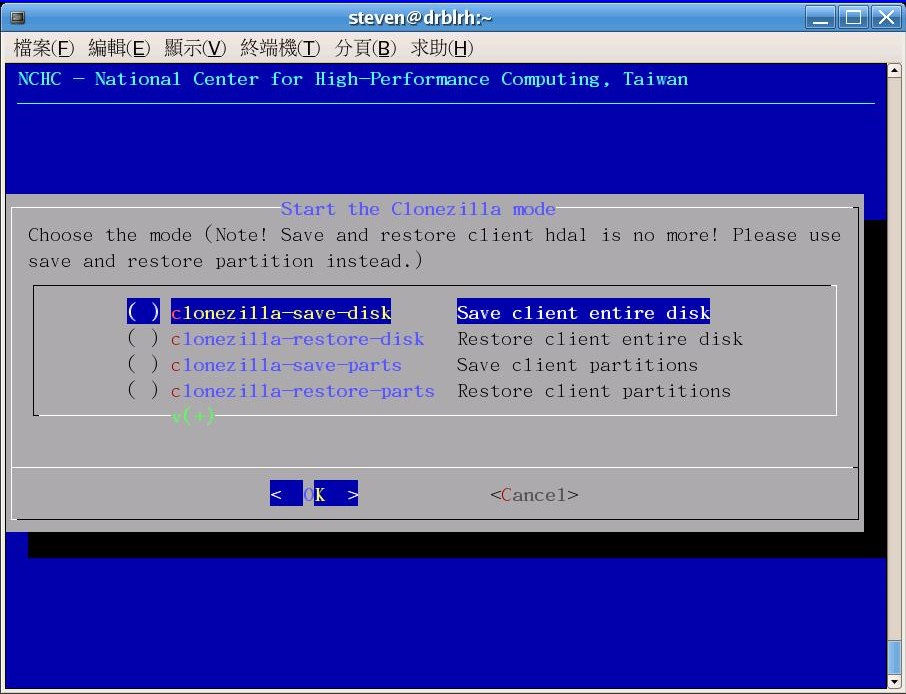
2009-04-10_172933

NOTE: Screenshot for Clonezilla was taken from the developer’s website.

PING

pingimage

NOTE: Screenshot for PING was taken from the developer’s website.

DriveImage XML
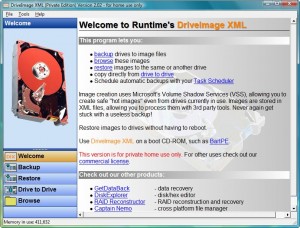
2009-04-10_173721

Paragon Drive Backup Express

2009-04-10_184742

Paragon Hard Disk Manager 8.5 SE

paragonharddiskmanager85se

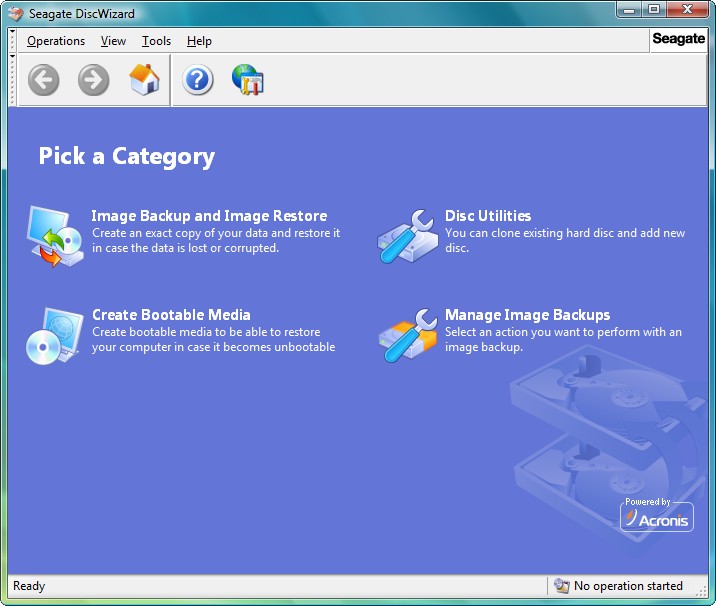
Seagate DiscWizard (by Acronis)

2009-04-10_175429

NOTE: Seagate DiscWizard is for Seagate hard drives only. For those people that don’t know, “Seagate” is a company that manufactures hard drives. You can try to use DiscWizard on a different hard drive brand at your own risk (some people say it works but I cannot verify that).

Acronis True Image WD Edition

Acronis for WD HDDs

NOTE: Acronis True Image WD Edition is for Western Digital hard drives only.For those people that don’t know, “Western Digital” is a company that manufactures hard drives. You can try to use this on a different hard drive brand at your own risk (some people say it works but I cannot verify that).

NOTE2: Seagate DiscWizard and Acronis True Image WD Edition are both the same software but for different hard drive brands. They are both “watered down” versions of Arconis True Image.

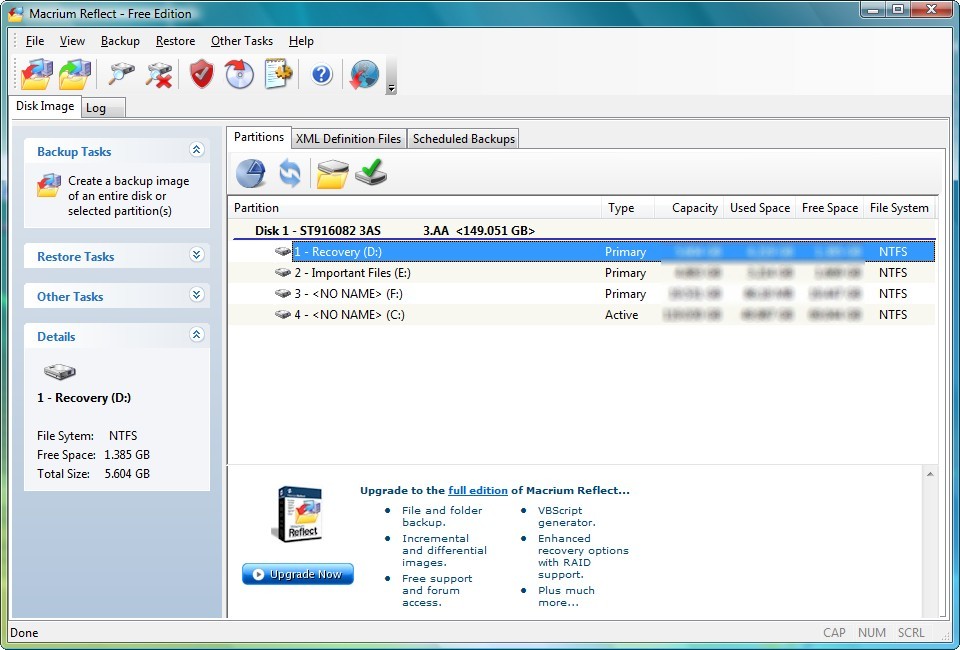
Macrium Reflect (Free Edition)

2009-04-10_175552

Before I start my “analysis” let me say that Paragon Hard Disk Manager 8.5 SE is one of my favorite freebies of all times. However, unfortunately, it does not really impress me in the category of partition/hard drive imaging/backup (it has bunch of other useful features though).

That being said, out of all seven programs, the programs that has the most features are definitely Seagate Disc Wizard and Acronis True Image WD Edition. Both are Acronis powered free tool Seagate and WD offers their customers. The only problem with them is is you must have a Seagate or WD hard drive to use it so it is hardly a freebie for everyone (since not everyone has a Seagate or WD hard drive). Additionally, I noticed that DiscWizard/Acronis True Image WD Edition was slower than I expected for backing up: when trying to create an image of ~44 GB partition, Seagate was giving me an estimate time of 3 hours at the highest compression =O. Safe to say I did not actually test to see if it in fact did take three hours, but if it does, that is very slow.

Okay so to figure out which program (bar DiscWizard and Acronis True Image WD Edition since they are brand specific) is the “best free partition/hard disk backup tool” I was used three criteria:

  • User friendliness.
  • Performance (speed/compression).
  • Ability to create a bootable CD.

Clonezilla and PING both are not very user friendly so those were out the window pretty quickly. DriveImage XML does not have the most user friendly process of creating a bootable CD so that was eliminated also.

That left me with Macrium and the two Paragons. All three of these programs did fairly well in all three of my criteria mentioned above, but Macrium impressed me the most.

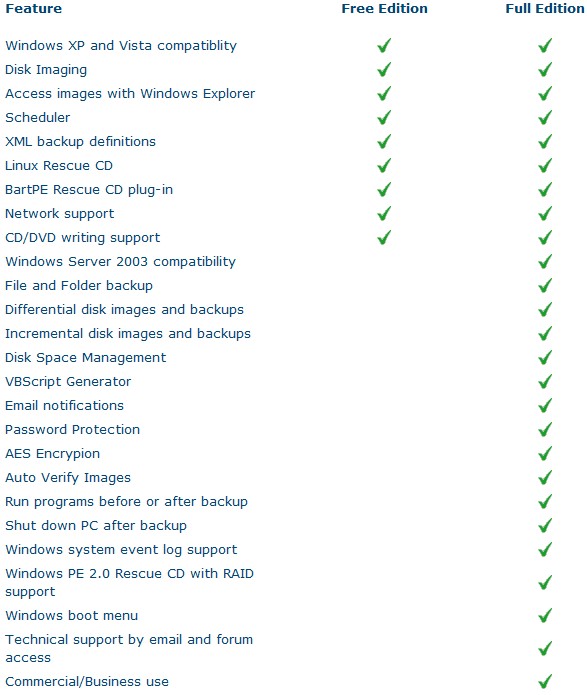
Macrium Reflect is an awesome professional disk imaging software that allows you to create and compress full image backups, to explore each image backup just like you were viewing a folder (useful if you want to only restore a certain file instead of the whole backup), has a scheduler and supports the creation of Linux and BartPE bootable disks.  There are two versions of Macrium, free edition (the one mentioned here) and full version (costs $39.99). Here is a full list of features:

2009-04-10_181641

Creating an image of my C:/ partition (32 GB in size – the one with Windows on it) was a breeze: it took me less than 30 minutes with Macrium set on low priority to create an image backup. I set compression at its highest and the image file size was only 10 GB (the image created by the Paragon software was 14.5 GB). The whole time the backup was running I was using my computer and never once did my computer even hiccup (Macrium supports Microsoft volume shadow copy so you can make a full backup of your Windows partition while using Windows).

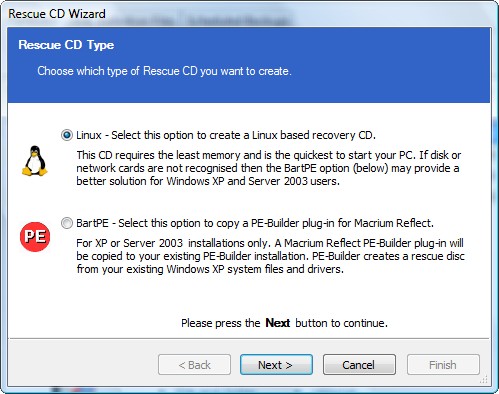
Additionally, as I already mentioned, you can create Linux or BartPE bootable/rescue CDs with Macrium:

2009-04-10_182455

These rescue CDs are helpful if your Windows screws up and you are not able to login. All you do is pop in the bootable disk and run Macrium and restore your Windows installation from previously backed up image files without ever logging into Windows. While Macrium does not have native support to create a bootable USB/flash drive, you can create an ISO of the Linux bootable disk and google how to turn the ISO into a bootable USB/flash drive.

To make everything even better, Macrium Reflect supports both 32 and 64 bit versions of XP and Vista and the size of the installation file you must download is only 27 MB.

Macrium Reflect Free Edition is dotTech.org’s free full partition/hard disk backup software of choice. If this was a formal review I would say “two thumbs up”.

Here are the download links for all the software I mentioned above:

Clonezilla

PING

DriveImage XML

Paragon Drive Backup Express

Paragon Hard Disk Manager 8.5 SE

Seagate DiscWizard

Acronis True Image WD Edition

Macrium Reflect Free Edition

95 Comments »

  1. sriadverts December 24, 2011 at 6:51 AM (comment permalink) -

    @Rob (Down Under):

    Rob,
    What do you mean by, “use the same physical hardware and connections that you used to create it, when you do a recovery ?” please?
    If I take an image of my existing hard drive and then transfer the image to a higher capacity (same type of) hard drive, won’t I still be breaking that rule of yours, please?
    Thanks, Sriadverts

    76
  2. sriadverts December 24, 2011 at 6:53 AM (comment permalink) -

    @Rob (Down Under):

    Also, how do you not create the image when Windows is running? – “Don’t create your image when Windows is running” – Do you mean these imaging software will work without the OS running? Or is there a better way to do this, please? Thanks, Sriadverts

    77
  3. Rob (Down Under) December 24, 2011 at 7:24 AM (comment permalink) -

    @sriadverts:
    My comments regarding using same connections (etc), were as a consequence of my problems in getting reliable images, and Validating those images, and restoring those images.
    I now realize that all those problems related to the unreliability of USB2 in older PCs.
    At the time when USB2 started appearing on motherboards, MS forbade the hardware manufacturers from providing drivers for USB2. MS instead, took it upon themselves to provide ALL the USB2 drivers.
    In older PCs (2003′ish) they may appear to work, but they can have slight errors, that the imaging software (Seagate Disc Wizard) detects, and then refuses to Restore them.
    If your PC is old, and you are using a USB connector to your external drive, then pay heed to my suggested precautions.
    If you have a newer PC, the USB may be more reliable.
    If you have an external drive (or better a Dock), that uses eSata, then you need not worry about my precautions.
    I now always use eSata, and find that the images are consistently reliable.

    Regarding using a bootable CD.
    If you install the Seagate Disc Wizard into a PC (any PC) you can then run it and ask it to create a bootable CD.
    Once you have the bootable CD, you place that into the desired PC, and reboot the PC.
    The PC then will boot into a Seage Disc Wizard OS (cough), with a few options.
    When running from that screen, Windows is not loaded in any way.

    I will post very soon on your dissimilar hardware question.

    Rob

    78
  4. Rob (Down Under) December 24, 2011 at 8:39 AM (comment permalink) -

    Seagate created , and supplies FREE their Seagate Disc Wizard program especially for people that are buying a new Seagate Drive. Most often people would have purchased a bigger Drive, and the developer of that program would readily cater for that.
    The normal option used in that situation, is one where the program copies the contents of the old drive, into your new drive. (I believe that was Seagate’s main objective for providing this free software) The program should easily handle the move to the bigger drive. It (the program), and I, would not consider that as dissimilar hardware.
    However since I avoid laptops, and have never upgraded a drive in one (IE cloned the working old drive, into an empty new drive), I may not be ‘fountain of all knowledge’ for you.
    Because you have a Dell, the original drive may be a bit ‘special’ ? (Or is it a Samsung ?)
    Is the new drive, the same brand as the old drive ?
    I am guessing that neither of the drives are Seagate, so that means you may need to purchase True Image’s imaging software.
    The free Seagate Disc Wizard was written by True Image, but they have built a pre-check into it, that peeps around to ensure that it can see at least one Seagate drive, somewhere/anywhere.
    You can use the Free program (if no Seagate drives), by pressing alt t o when the msgbox first appears. That is a Tech Override, that I read about on the official Seagate support forum (but see my Dell attempt below).

    There is a piece of hardware readily available for approx $15
    It has a mains to low voltage power supply, and a wee plastic thing. The wee plastic thing has sockets on it for 2.5″ and 3.5″ IDE drives. It has a USB cable to connect to your PC.
    The idea is, you remove your old laptop drive, and plug it into the wee plastic thing.
    You place the new drive into the laptop, and place the bootable CD into the laptop.
    When you boot the PC, the Disc Wizard program has one or two options that you use.
    Clone Disc
    Add New Disc
    You may find that you only have to use Clone Disc
    However if the program says it cannot see the new drive, then you will have to run ‘add New Disc’ first. Add New Disc offers to format the drive, and add a partition. You don’t have to add a Partition.
    If you do use the ‘Add New Disc’ option, first turn off the laptop, and disconnect the plastic thingy. that should prevent you from formatting the wrong drive.

    I normally avoid Dell’s (desktop) because of their ‘special’ hardware.
    However I was recently given a Dell Optiplex 760, and I just fired that up with the bootable Seagate Disc Wizard, so that I could get the correct names for those two options.
    The Alt t o did not work, so you may have to purchase the True Image program.
    Or if you have an external Seagate or Maxtor drive, you could connect that to keep the free program happy. Probably not a great idea, as you then would have to use extreme care as to which drive, gets things done to it.

    The good news is, if the Clone attempt does not work out, then you can always put the old drive back into the laptop.
    If the Clone does work, then you can try booting into Windows. If it fires up OK, that means the Clone was not considered dissimilar hardware.
    If Windows stuff’s up, then you can redo the above steps, with one precaution.
    Do not boot into the new clone. Instead place a retail copy (not oem) of your OS into the Laptop CD drive, and boot into that (do NOT boot into Windows), and do a repair install.
    You mentioned XP. Will you be using that ?
    (I will elaborate more on Repair Install, if you need it, as it is not Recovery Console repair)
    Did Dell give you a copy of the XP CD ?
    The Repair install option is not offered with most oem versions of XP

    I reckon it will be worth taking a punt on creating the clone, and booting into Windows.
    There is a fair chance you will not have to do a Repair Install

    Rob
    PS If all goes well and you are attempting to boot into Windows, then disconnect the old drive first. Windows gets weird when it sees another windows.

    79
  5. Rob (Down Under) December 24, 2011 at 9:01 AM (comment permalink) -

    PPS The Seagate Disc Wizard program (stupidly) has an option to wipe the old drive after it Clones it to the new drive.
    From my memory (which just turned 70), that option is part of the cloning steps
    It may have been elsewhere (not drive cloning)
    If my memory is correct, and that option is there, then ensure it is NOT ticked.

    80
  6. Darrell April 3, 2012 at 3:24 PM (comment permalink) -

    I ordered a USB Hard Drive Enclosure IDE Adapter Cable to transfer data from a PC that died to a new PC, both PC’s are running Windows XP. The hard drive is a Western Digital IDE drive. The failure of the old machine had nothing to do with the Hard Drive. I plugged the old hard drive into the adapter, powered up, can hear the drive spinning and then pluged the USB into the new PC but it doesn’t show up as a selection option in MY COMPUTER.
    Disk Manger also doesn’t show the old Hard Drive as a selection option. Is there a way to use any of the software listed using a hard drive enclosure? Or do you have any tips on what might be going on? After contacting tech support I tried changing the jumper to every option available, CS, Slave, Master and no jumper at all and it still won’t show up.

    81
  7. RobCr April 3, 2012 at 9:59 PM (comment permalink) -

    @Darrell:
    I had problems with enclosures in the past, and I now avoid them.
    For SATA drives, I use Docks, which you just shove the drive vertically into them.
    My Docks have both USB and eSata connectors.
    For IDE drives, I use a very cheap ($12) little plastic plug, which plugs in to the IDE socket on the drive. The plastic thingy comes with a power adapter, which plugs into the mains, and into the small power socket on the drive.
    The plastic thingy has a USB cable coming out of it, for plugging into your PC.
    http://www.ebay.com.au/itm/USB-2-0-SATA-IDE-2-5-3-5-Hard-Drive-Adapter-Cable-/190381373861

    Just making sure I am understanding you correctly.
    You have purchased a hard disc enclosure.
    Internally that enclosure takes an IDE drive.
    You have placed your WD inside the enclosure.
    (Get Seagate in the future, as they are more standard than WD)
    You have connected it (inside the enclosure) with a short IDE cable.
    You have connected a power cable inside the enclosure.
    By the way are we talking about a 3.5″ drive ?

    Do you have a spare hard drive ?
    Try placing that in the enclosure to see if it works.

    82
  8. sys-eng April 4, 2012 at 8:16 AM (comment permalink) -

    @Darrell:

    Your experience is common. Windows Logical Volume Manager wants a letter such as “G” assigned to the disk drive partition.

    - Reboot computer and see if the drive appears in BIOS. If USB connected drive, it may or may not show up. If not, do not worry.
    - If the partition does not appear in the lower section of Disk Manager, then rescan to find it. This may take several minutes.
    - After the disk/partition is located, assign a drive letter to it.
    - Go to this Microsoft help article for additional info: http://support.microsoft.com/kb/309000

    83
  9. Darrell April 9, 2012 at 1:30 PM (comment permalink) -

    @RobCr: Thank You for responding to my question. I have tried both the setup you are speaking of and a IDE enclosure. Both do not show up in My Computer or under Disk Manager. Not sure what I am doing wrong but thanks again for trying to help me.

    84
  10. Darrell April 9, 2012 at 1:33 PM (comment permalink) -

    @sys-eng: Thanks for responding to my problem. I’ll try looking at what Microsoft has to say about it and try rescaning something I did not know that I could do. Thanks again.

    85
  11. Rob (Down Under) April 9, 2012 at 10:11 PM (comment permalink) -

    @Darrell:
    Did you try an external Dock (drive shoved vertically into the Dock), or did you try the cheap plastic plug ‘thingy’ that I gave a link for ?

    Have you tried another good drive, to see if it works in your enclosure (or works in the ‘thingy’) ?

    The more detail you give in your posts, the more chance one of us will spot a solution. I asked a lot of questions and received hardly any answers.

    86
  12. Parvez April 26, 2012 at 3:14 AM (comment permalink) -

    I want to require ghost software for Winxp and Win7. I want Ghost software without any hardware dependancy. Becouse I have diffrant model pc in my office. So I hope U R Solve my problem and Solution.Pls. Replay on my mail.

    87
  13. Muhammad Azharuddin May 18, 2012 at 4:28 AM (comment permalink) -

    first thank you very much this is a awesome help who do not know how to back up. I read this 3 months before I and I download Paragon Backup & Recovery™ 2011 (Advanced) Free and make back up on two DVD’s and I use it first time it is fantastic I empress very much but yesterday I did not work I try many times but every time it say input output error. After three hours of trying I am frustrating and install window 7 again, So what is happen I am not undastand please help me. my email is azhar8058978346@gmail.com

    88
  14. RobCr May 18, 2012 at 6:16 AM (comment permalink) -

    @Muhammad Azharuddin:
    I would NOT be backing up to DVDs
    (If you put a gun to my head, I would not be backing up my IMAGES to DVDs)

    Read my posts (‘RobCr’ and ‘Rob Down Under’) and get the free Seagate Discwizard.
    Get an external Dock (not an enclosed one), and get a Seagate 3.5″ Sata drive to shove vertically into it.
    Get a Dock with both an eSata cable socket, and a USB cable socket.
    Do not get a fancy dock with multiple slots, and do not get one with other crap like USB hubs, and card readers built in.
    Where backups are concerned you should KEEP THINGS SIMPLE

    You probably will have to install the DiscWizard program, but immediately create a bootable CD from one of it’s options.
    Close Windows, and use the bootable CD to create images.
    (Do NOT have Windows running, when imaging)
    Immediately after you create the image, run the option to verify the image.
    (You can do that from the same session – you do not have to reboot the CD)
    If your PC has an eSata connector use an eSata cable.
    I have never had a failure since using eSata connector.

    Rob
    PS The Seagate DiscWizard will run merrily as long as it sees a Seagate/Maxtor connected somewhere (even by cable).
    For those that need to use the DiscWizard, and do not have a Seagate drive connected, you can use the ‘Tech Override’ -

    At the Error screen (message box showing), hold down the Alt key while you type t then o (for tech override), and then click OK (on that messagebox).
    The above is actually written by a Seagate Tech Support employee -
    http://forums.seagate.com/t5/DiscWizard-and-MaxBlast/Using-DiscWizard-MaxBlast-to-back-up-non-Seagate-internal-hard/m-p/25406

    89
  15. Mik Quoz July 11, 2012 at 4:06 PM (comment permalink) -

    I would probably buy Norton Ghost except it would cost me US$99. However, I see that if I lived in the US I could get it from Amazon for US$20.

    If Symantec really wish to sell Norton Ghost worldwide then it should make prices comparable worldwide, not stick a huge premium on the product just because a customer lives outside the US.

    For now I’ll stick with Macrium Reflect Free and a free copy of FarStone Total Recovery Pro I was lucky to acquire via Tipradar. That program does Incremental & Differential backup.

    imquozymiklum

    90
  16. Mik Quoz July 13, 2012 at 9:29 PM (comment permalink) -

    2nd thoughts on FarStone TRP, either I messed up or it did (without warning me). Lost 2 partitions on boot disk while doing a restore of C partition.

    91
  17. sys-eng July 14, 2012 at 5:21 AM (comment permalink) -

    Anyone using hardware RAID such as 3Ware, LSI, or any other brand should visit their web site of the RAID controller and verify how to backup and restore if the controller fails. You cannot simply unplug a drive that was attached to a RAID controller and plug it into a regular SATA port and expect it to work. RAID is special. If you have not taken special steps in your backup image, you will probably discover that you have to get another RAID controller exactly like the one you had before you can restore your image.

    92
  18. laptop repairs July 23, 2012 at 9:28 PM (comment permalink) -

    Hey there! Do you know if they make any plugins to assist with
    Search Engine Optimization? I’m trying to get my blog to rank for some targeted keywords but I’m
    not seeing very good success. If you know of any please share.
    Thanks!

    93
  19. cigarette prices uk November 2, 2012 at 5:13 AM (comment permalink) -

    I have been exploring for a bit for any high-quality articles
    or weblog posts in this kind of space . Exploring in Yahoo I ultimately stumbled upon this site.
    Studying this info So i am happy to show that I have an incredibly good uncanny feeling
    I discovered exactly what I needed. I most definitely will make certain
    to do not put out of your mind this website and provides it a
    glance on a continuing basis.

    94
  20. Muhammad Azharuddin Qadri January 4, 2013 at 9:28 PM (comment permalink) -

    Finally I got Acronic but it is old verison 2011. but it is very good and now I undastand why you said “I am not take back up in DVD’s” thank you very much.

    95

Leave A Response »