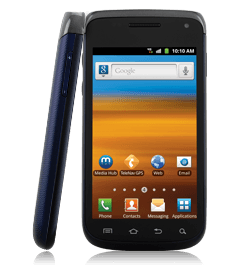
How to root Samsung Galaxy Exhibit 4G and install ClockworkMod recovery [Guide]

December 26, 2012 14 Email article | Print article

Samsung-Galaxy-Exhibit-4GInstalling ClockworkMod (CWM) recovery on your Samsung Galaxy Exhibit 4G and getting it rooted will not only help you to just install some apps that were alien to your device till now, but it also opens up a new window to tweaking your device to your needs. If you are not yet on Android 2.3.6, following this guide will also help you to get to the latest Gingerbread (Android 2.3.6) release for your device.

Disclaimer: This guide is intended as a helpful “how to”. dotTech and its writers are not responsible for any gain or loss (including but not limited to bricked devices) incurred as a result of following this guide. Install a custom recovery at your own risk. Installing a custom recovery may void your warranty. Root your device at your own risk. Rooting may void your warranty.

Requirements

This guide will help you to install ClockworkMod (CWM) recovery and root your Samsung Galaxy Exhibit 4G. This guide actually flashes a rooted stock (official) ROM (Android 2.3.6) to your device. Though it’s a simple and safe process; if not done properly (or if you are so unlucky), there are chances that the process might turn out to be bad for you. Proceed at your own risk.

Before We Begin

To start with installing ClockworkMod recovery on your device, make sure that you are ready with the following:

  • Download cwm.6012.t679.zip(ClockworkMod Recovery file). Do not extract this file.
  • Download root-stock.zip (root files). Do not extract this file also.
  • Install ADB and Fastboot on your computer.
  • Samsung USB drivers for Windows, if you are running Windows (this guide needs you to use Windows operating system for the process).
  • Make sure that USB debugging is enabled in your device (Settings -> Developer Options -> USB debugging).

How To install/flash ClockworkMod recovery on Samsung Galaxy Exhibit 4G

Follow the steps below to install ClockworkMod (CWM) recovery on your Samsung Galaxy Exhibit 4G:

  • Copy cwm.6012.t679.zip to any preferred location on your phone.
  • Power off your phone.
  • Boot into the stock recovery of the device (Press and hold Volume up+Power buttons, until the Samsung logo appears).
  • After you have entered the recovery, press the Menu button on the screen (on the bottom-left of the screen).
  • Choose ‘apply update from sdcard’, and then select the file cwm.6012.t679.zip.
  • You shall now be having ClockworkMod recovery installed on your Samsung Galaxy Exhibit 4G, if everything went fine.

How To Root Samsung Galaxy Exhibit 4G

Now that you have CWM recovery installed on your phone, follow the steps below to get your Samsung Galaxy Exhibit 4G rooted:

  • Copy root-stock.zip to any preferred location on your phone.
  • Power off your phone.
  • Boot into CWM recovery, the same way you had booted into the stock recovery earlier (Press and hold Volume up+Power buttons, until the Samsung logo appears).
  • Go to Install zip from sdcard -> Choose zip from sdcard and select the file root-stock.zip which you had moved to your device earlier. Select ‘Yes’ when prompted.
  • Go back to the main menu of CWM recovery using the back button.
  • Select ‘reboot system now’.
  • Congrats! Your device is now rooted!

Conclusion

Enjoy an extensive ClockworkMod recovery and the power of root on your Samsung Galaxy Exhibit 4G!

[via XDA]

14 Comments »

  1. muhammad December 26, 2012 at 7:29 AM (comment permalink) -

    thanks GODWIN,

    just a quick one..what will happen if i extracted the ClockworkMod Recovery file!

    i have Samsung S3 GT-I 9300 and i used mobile odin to open the CWM…

    thanks in advance

    1
  2. Godwin December 27, 2012 at 9:18 AM (comment permalink) -
    Minion

    @muhammad: DO NOT try to install THIS CWM package to your Galaxy S3.
    Extracting the zip will just leave you with files which cannot be used directly to install CWM on any device. You need to have .tar package of CWM to get it flashed to your device using Mobile ODIN.

    2
  3. Matthew Grant Anson December 27, 2012 at 10:20 PM (comment permalink) -

    Thanks, working on this now.

    Slight amendment to the directions: you don’t say when to move the root file over, so it’s easy for some people (like me) to end up looking for it in the directory and not being able to find it since they forgot about it.

    3
  4. Ashraf December 28, 2012 at 12:46 AM (comment permalink) -
    Mr. Boss

    @Matthew Grant Anson: Thanks, updated article. Sorry we forgot to mention that step.

    4
  5. therooter February 6, 2013 at 7:14 PM (comment permalink) -

    running this exploit on my exhibit was a tricky tack at first while trying to follow instructions off of forum.xda-developers.com/showthread.php?t=1686384

    their instructions were not really that clearly written out causing major confusion.

    thank you for simplifying it :)

    just got this phone yesterday and was dying to root it.

    ive rooted many of other android phones but this one was a bit different to do. thank you.

    5
  6. Norm March 19, 2013 at 3:20 PM (comment permalink) -

    How do I copy the file onto my phone? I have windows vista and I installed the usb device driver for this phone.

    6
  7. therooter April 2, 2013 at 7:27 AM (comment permalink) -

    [@Norm] plug in your usb when it isnt in debugging mode and it should auto run with options.. choose view files and just transfer your root stock and cwm that way.

    7
  8. Jerrod Hoke April 15, 2013 at 4:05 PM (comment permalink) -

    I am unable to select anything once at the stock recovery… I press where the install from sd card part is, and it doesn’t let me pick anything.

    8
  9. keegrebu April 23, 2013 at 12:04 PM (comment permalink) -

    [@Jerrod HokeYou have to use the volume down button to scroll through the menu]

    9
  10. therooter April 25, 2013 at 4:50 AM (comment permalink) -

    [@Jerrod Hoke] plug your phone into your computer.

    Your computer will show up 2 auto run windows

    Choose the one that ISNT your SDcard

    Put the files into there then try the recovery.

    10
  11. firstrooter April 27, 2013 at 8:50 PM (comment permalink) -

    When i tried to open the file from sd.zip appear a message saying faling the update , how can i do now ?

    11
  12. therooter April 28, 2013 at 12:46 PM (comment permalink) -

    [@firstrooter] when you boot into cwm recovery choose the update from external_SD do not rename the file to update.zip. leave the file name just as it is when you download it. Hope that helps any.

    12
  13. therooter April 28, 2013 at 12:48 PM (comment permalink) -

    [@firstrooter] p.s. if you change the name of the .zip to update.zip 9/10 it will unsign the package causing it to fail.

    13
  14. therooter April 28, 2013 at 1:30 PM (comment permalink) -

    For anybody who is interested… this is the latest update for cyanogenmod 10 for galaxy exhibit. I have taken the liberty of adding the gapps instead of having to download the gapps.zip. they are all included in with the ROM saving you time and space. I also included a couple of extra apps such as.. root browser full.apk and black market.

    Black market will ask you to update it after you open. I recommend that you do.

    If root browser says anything about the license key, just close it and reinstall the app. Link will be provided. That usually fixes the issue. Enjoy!

    Cyanagenmod 10 with gapps download

    root browser full.apk download

    Here is the official Samsung galaxy exhibit unrooted stock recovery

    stock 2.3.6 unrooted

    14

Leave A Response »