Use very user-friendly Tag2Find to tag and organize all your files

March 23, 2012 26 Email article | Print article

2009-08-27_175932Are you an unorganized personality like me? Yes, I must say, it is really hard for people like us to keep track of all our files… especially the ones we download. I often find myself, amongst other things, downloading my lecture notes, and later being unable to find them because I left them in my download folder (which happens to contain more files than you want to know about) instead of properly placing them where they should go. To help address I discovered Tag2Find. Tag2Find is a free software that allows you to “tag” all of your files allowing you to easily sort and organize them. “Tags” are simply words/short phrases describing the contents of an object (the object can be a file, a blog post, etc.).

With Tag2Find you can tag the files on your computer and easily find them regardless of where you downloaded them or saved them to. I have run across quite a few tagging software; what initially got me interested in Tag2Find is one simple thing: the tags you assign to files with Tag2Find remain “attached” to the file even if you move the file from its original location to another location on your computer. For example, lets say I download “cool.pdf”, save it in a folder named “Help” and tag it as “dotTech documents”. Then a day later I decide to move “cool.pdf” to a whole different folder named “What are you talking about”. Tag2Find will keep track “cool.pdf” even though I moved its file location and “cool.pdf” will still be tagged with “dotTech documents”. This feature I find to be very essential because people are bound to move files from place to place and if a file tagging software is unable to keep track of the files when they are moved… there is no real use of tagging it in the first place.

After Tag2Find caught my attention, I discovered it has many more extremely useful features:

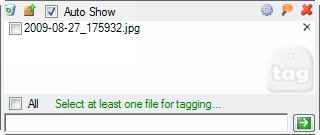
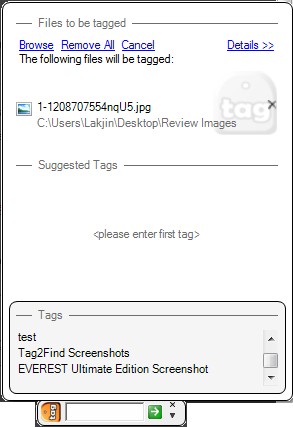
  • Live “Notifier” – Tag2Find runs a “notifier” in the background. What this “notifier” does is it monitors multiple specified locations on your computer (i.e. you can set it to monitor your downloads folder, your desktop, etc.) for new files. When a new file is downloaded and/or created the “notifier” detects it and asks you to tag the file:
2009-08-27_175949

All you need to do is simply check the file you want to tag and type in the tag. If you prefer not to tag the file, just ignore the popup notification and it will go away after a few seconds.

If you do decide not to add a tag, the file is left in the notifier and will appear the next time the notifier popups up. This is useful because if you are, for example, taking screenshots and want to tag them all after you are done, you can just wait until the last screen has been taken then tag them all at once:

2009-09-04_143831

If you want to remove all the files from the notifier (without tagging) you can click the “x” on each file individually or click on the recycle bin icon to get rid of them all.

Note when you go to type in a tag a popup above the notifier popup lists tags you have used previously. You can click on those tags and reuse them easily if you like.

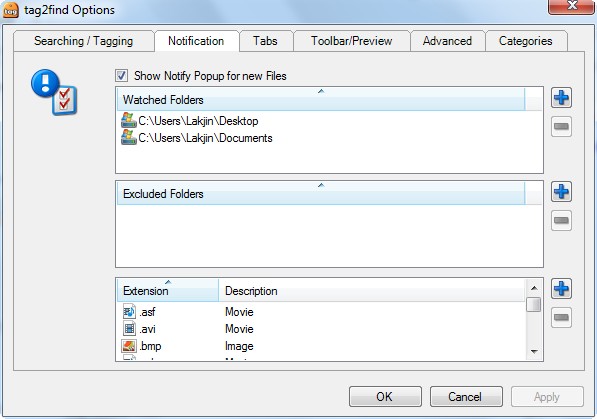
You control what folders and type of files are monitored by the “notifier” via options:

2009-09-04_144224

This “notifier” is extremely useful for those people who download  (or save) all their files to one folder (i.e. many Firefox users set one location to download their files). Now you can download like crazy and still be able to access specific files  easily because you tagged them.

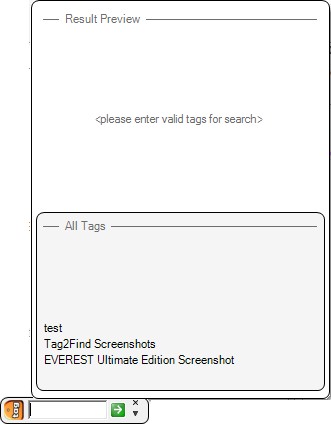
  • Floating toolbar – Tag2Find has a floating toolbar which allows you to search and find the files you have tagged:

2009-09-04_144614

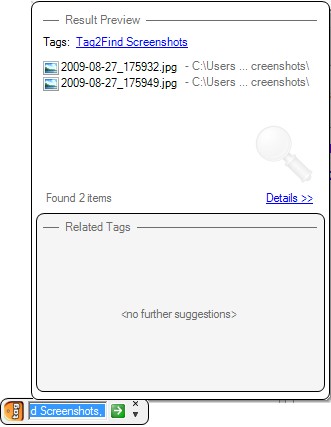
Either type in the tags of the files you want to look for…

2009-09-04_144939

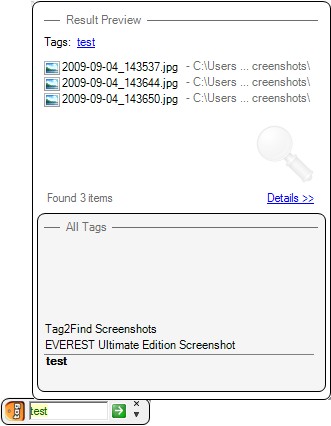
…or click on the tag from under the “All Tags” list:

2009-09-04_145008

Take note when typing in the tag name, be sure to be caps sensitive.

If you click on “Details >>” you can get details about the files listed under “Result Preview” and right clicking on the files allow you to open them, open the folder they are located in, or add another tag to the file:

2009-09-04_145306

You can control the behavior of the floating tool bar via options:
2009-09-04_145524

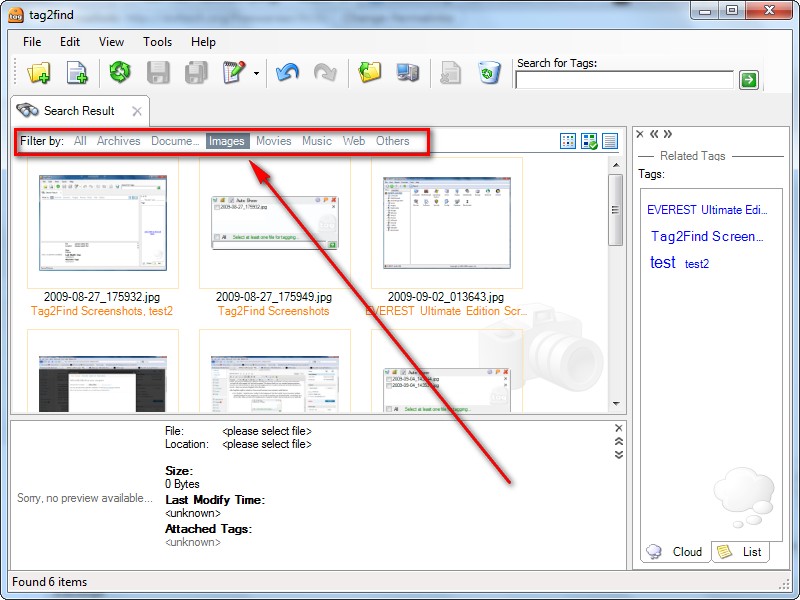
  • Filters – Tag2Find has the ability to filter your files by their extension (i.e. .PDF = document while .JPG = image) for easy viewing:
2009-09-04_145708

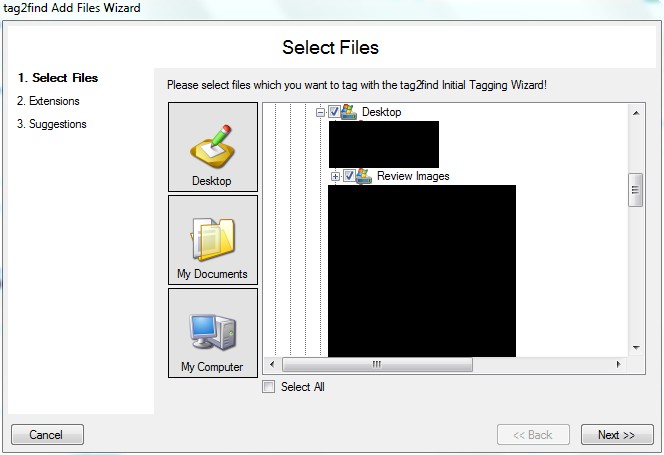
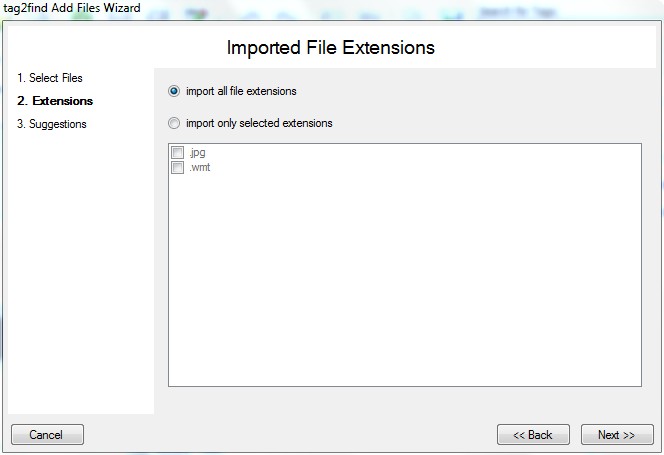
  • You can add tags to files by either the notifier I mentioned above, by right clicking on a file and selecting “Quick Tag This”…

2009-09-04_150456

2009-09-04_150536

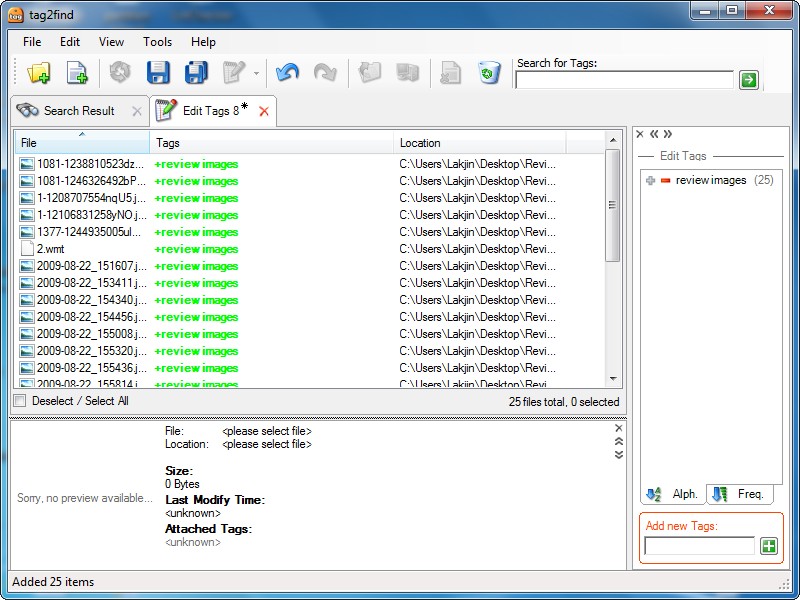
…or selecting files from within the main program window:

2009-09-04_150332

2009-09-04_151030

2009-09-04_150910

2009-09-04_150916

2009-09-04_150927

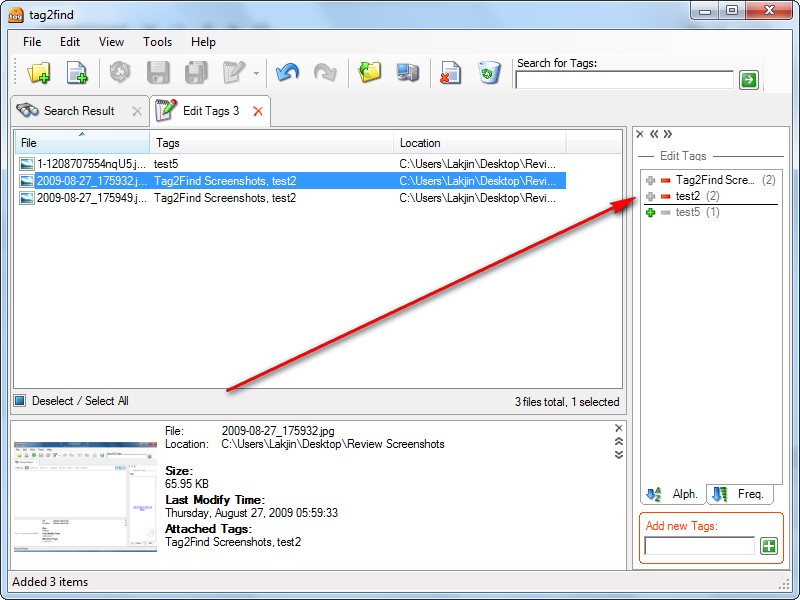
  • The ability to easily add/remove tags to/from already tagged files:

2009-09-04_151615

2009-09-04_151636

  • The ability to add multiple tags to one file.

Great program this one is. Very handy for helping you tag and organize your files. The only caveat with Tag2Find is the development is slower than molasses. Tag2Find has been “v0.10.2.5 technical preview” for something like 3 years now. However Tag2Find works just fine (even on Windows 7) so I am not complaining that it is 3 years old. On the bright side the developer of Tag2Find is still showing signs of life promising a version of Tag2Find “Next Generation” will be shipped out to his beta tester in October. If the developer can start continuous development on this software, I can see this one going far because of how feature filled it is, user friendly, and useful it is.

Update: Some people are wondering since this is a “technical preview” if the “full version” of Tag2Find will be free. The answer is the following: when Tag2Find was in constant development (i.e. 3 years ago) the developer pledged there will always be a free edition of Tag2Find for home users. However now, 3 years later, since the development of Tag2Find has died down, the developer is about to go open source with Tag2Find. So ya… no worries!

You can download Tag2Find from the following link:

***Tag2Find is officially supported on 32-bit Windows XP  and Vista but I have found it works just fine on Windows 7 32-bit. I am not sure about support on 64-bit machines… if someone gets it to work on 64-bit please let me know.

Click here to download Tag2Find

Click here for download mirror (in case above link does not work)

26 Comments »

  1. Quro@75 September 4, 2009 at 4:28 PM (comment permalink) -

    Can’t reach the link you provided (Lead me to somewhere with no end, or waiting for something or some what), Ashraf..

    1
  2. Ashraf September 4, 2009 at 4:40 PM (comment permalink) -
    Mr. Boss

    @Quro@75: I think it is because the website seems down right now for some reason. What bad luck… I just tried to literally 30 seconds before I made this post public!

    Please download it from http://www.softpedia.com/get/System/File-Management/tag2find.shtml instead.

    2
  3. howard warriner September 4, 2009 at 7:30 PM (comment permalink) -

    Thanks for this research. I’m going to try Tag2Find out.

    But I have a question for someone like yourself (and related to finding files):

    I’m using Vista for Business. On my machine, its “Search, For Files and Folders” differs from my old XP Search For Files, in that, I am unable to search through all files for a specific word.

    My Vista Search only offers finding a sequence of characters in the file or the folder name. I want to search inside files for a specific word, just like I did in XP. I am like you, my files get lost and often it is because I am unable to remember names like, “xyz_gambits_for_penny_10_printers.jnk,” etc.

    So is my Vista too complicated for me (am I missing something in Vista’s Search), or are you aware of a simple program (Vista compatible) to search for a specific word in all the files on my hard drives (including USB drives)?

    Again, thanks for all you effort(s), including your GAoTD revies. Thank you.

    Howard Warriner

    3
  4. Elaine September 5, 2009 at 1:54 AM (comment permalink) -

    Another option if you don’t want an additional program on your computer is if you are using Vista (I use Vista Home Premium), they have already built a tag option into the program. It is found in the properties section of each file.

    4
  5. aesar September 5, 2009 at 2:43 PM (comment permalink) -

    Installed wonderfully on Win7 RC. Ran well until I received an email about the latest and greatest version. Installed and it sucked the life out of my cpu. Went from 5% usage to 95%, and memory went up to 80%. Had to stop the services.

    5
  6. Praveen September 5, 2009 at 11:27 PM (comment permalink) -

    Hi

    How would you compare it with RomeXoft’s Doc organiser?

    Regards,
    Praveen

    6
  7. Ashraf September 6, 2009 at 12:38 AM (comment permalink) -
    Mr. Boss

    @howard warriner: I am on Win7 right now so I cant specifically answer that question, but if I recall Vista has a little checkbox you tick and it should search inside of files no? If not I think I have run across software that allow you to search inside files… I will look them up for you soon.

    @aesar: What “latest and greatest” version? The version I linked above is the latest as far as I know.

    @Praveen: I don’t know because I have never used RomeXoft’s Doc Organizer. However I googled it and it seems like RomeXoft’s Doc Organizer is shareware. Tag2Find is freeware… so ya.

    7
  8. aesar September 6, 2009 at 7:11 AM (comment permalink) -

    The first version I downloaded and installed was 0.10.1.3. I was later informed that a new version, 0.10.2.5, was available. Downloaded and installed, and was requested to perform a restart. Upon restart I noticed my system was extremely slow, and discovered Tag2Find was the culprit.

    8
  9. howard warriner September 6, 2009 at 3:41 PM (comment permalink) -

    Thank you for making me look farther into Vista. You are right, you have to go to: Tools; Folder Options…; Search. In the first pane it allows you to select searching files for content. I just love it when Microsoft buries a useful feature. Thank you, I would never have looked for that option, that far down.

    Howard Warriner

    9
  10. Ashraf September 10, 2009 at 3:31 PM (comment permalink) -
    Mr. Boss

    @aesar: v0.10.2.5 does not cause the problems for me which you describe. However since v.0.10.2.5 won’t work for you, you can download v0.10.1.3 from http://download.cnet.com/tag2find/3000-2379_4-10702034.html if you want to use that one again.

    @howard warriner: Great to see it worked for you.

    10
  11. David Roper September 11, 2009 at 7:30 AM (comment permalink) -

    Well, here I am from Tabbles.

    If it’s good enough for you, Ashraf, it’s what I need too. I Download a lot of files and I am always wondering where in the devil I put them. So it’s off to SEARCH. Arghhhh!! Had to be done. Sorry.

    Looks like it has a minimal learning curve. I need that because I’m stupid sometimes about learning new stuff on top of learning new stuff in Windows. Uncomplicate my PC life, please, not the other way around.

    And this is freeware, love that. Thanks, another 5 stars, Ashraf.

    11
  12. Dale L. September 11, 2009 at 8:35 AM (comment permalink) -

    This is a nice and efficient software. I really appreciate this because I find it so uncomfortable in Windows to store and find things. This tagging system is easy and helpful. I’ve been looking for something like this for a while. Prior to this, I was using (freeware) TaggedFrog – not bad, but not as good as Tag2Find. So far, no problems with RAM and CPU – great performance… I’m glad I found this…!

    12
  13. priska September 13, 2009 at 7:52 AM (comment permalink) -

    Thank you for informing us on this precious software !
    I was always tagging my photos in picasa but did not even dream of tagging my files !!! :)
    Now would any of you have found out how to REMOVE TAGS from your “all tags” list ?
    When I checked things I made up some silly tags (*blushing*, how could I be so stupid?)… and now I would like to get rid of them !!!!
    Only found your blog recently Ashraf, it’s super ! :D
    MfG

    13
  14. Nicholas May 20, 2010 at 6:35 AM (comment permalink) -

    @Quro@75: Anyone know how to remove all tags at once in tag2find,
    and  how to delete tags from the automated list so it does not propose them ?
    Thanks

    14
  15. IT3 July 9, 2010 at 1:00 AM (comment permalink) -

    What, no more final verdict stamp of approval or rejected with 1 or 2 thumbs up/down?
    :(

    15
  16. Ashraf July 9, 2010 at 1:23 AM (comment permalink) -
    Mr. Boss

    @IT3: Hmmm? I have never had that on these types of reviews. Only on “formal” reviews have I had that.

    16
  17. Fum July 9, 2010 at 2:19 AM (comment permalink) -

    Can anyone tell me if tag2find will ever be 64-bit compatible? I’ve been waiting for two years now..

    17
  18. Ashraf July 9, 2010 at 10:47 AM (comment permalink) -
    Mr. Boss

    @Fum: Development has been stalled for a long time, so I doubt it.

    18
  19. Robin Rakes July 10, 2010 at 7:13 PM (comment permalink) -

    If I read this right- this does not work with Windows 7 64 bit?
    Just came from Tagger- I liked what I did- but I have to many files.
    TY

    19
  20. Ashraf July 10, 2010 at 7:15 PM (comment permalink) -
    Mr. Boss

    @Robin Rakes: AFAIK, no it does not.

    20
  21. Gary Greene March 8, 2011 at 9:47 AM (comment permalink) -

    Had tried Tabbles (tabbles.com) at someone else’s suggestion. Immediately my PC slowed. Found your review (http://dottech.org/gotdreviews/16693) and confirmed my suspicions about Tabbles being the culprit. On that review page, you referred to this post about Tag2Find. I’m so glad to find there is a way I can continue to tag my files. I loved the idea, but was forced to abandon Tabbles due to the slowness of my PC with it operating. THANKS!

    21
  22. ebony March 27, 2012 at 7:02 AM (comment permalink) -

    @Ashraf:” I am not sure about support on 64-bit machines…”
    Now that is just all sorts of wrong. ROFL

    22
  23. Clancolin April 19, 2012 at 9:20 AM (comment permalink) -

    Hi. I used Tag2Find right from the start, but the deal-breaker for me was that the tags never got included in the file itself. So I could tag 1000 files, but if i transferred them to my laptop, Windows didn’t have any keywords (aka tags) to search.

    I use Benubird PDF (don’t let the name put you off) and this does write the tags into the Windows keywords section. So those 1000 files are quickly searchable.

    So if there was some way to marry these programs together, that would be the ideal solution.

    23
  24. mimkorn February 5, 2013 at 1:53 PM (comment permalink) -

    I used tag2find for a while, it has wonderful features, however, there is an error occuring frequently, when I try to tag files from my C:\ partition. Which is a deal-breaker. The error is a frequent one among users and they didn’t fix it. Actually, it’s 3 years now that they haven’t posted any news on their site; it seems like the whole project is dead now. It’s a very sad thing since there is no such good software like this one out there. The Tabbles misses tons of important features. Tagged frog is just too small. It doesn’t make sense to me, that such important thing like tagging doesn’t have a functional and good implementation…

    Do you know any alternatives, which would be a good replacement for tag2find?

    24
  25. David Roper February 5, 2013 at 2:29 PM (comment permalink) -

    @mimkorn:

    Try Tabbles (Google it) The personal version is free and may fit your problem. It MAY slow down your system due to the indexing. YMMV. Portable version available.

    25

Leave A Response »