
 Email article
As mentioned earlier, starting in Firefox 19, Firefox has a native PDF reader. This means Firefox can view PDFs without you having to install a third-party add-on or program. Firefox’s PDF viewer is enabled by default. The issue is, some people may prefer their third-party PDF readers over Firefox’s built-in viewer. This article shows you how to disable Firefox’s native built-in PDF viewer and change it back to your third party program.
Take note this tip is divided into two parts. The first part shows you how to make Firefox use the third-party PDF reader you have installed instead of Firefox’s built-in PDF viewer. The second part shows you how to disable Firefox’s built-in viewer completely. The difference is, with the first part you don’t disable Firefox’s PDF viewer — you just don’t use it. With the second part you completely disable the viewer.
HOW TO CHANGE BACK TO DIFFERENT READER
The process of changing back to your other PDF reader is actually pretty simple. Do the following:
- Go to Firefox ‘Options’. Depending on your Firefox settings, it may vary how to get to ‘Options’ but most people should be able to get there by clicking the orange ‘Firefox’ button in the top-left corner, going to ‘Options’ and then ‘Options’ again.
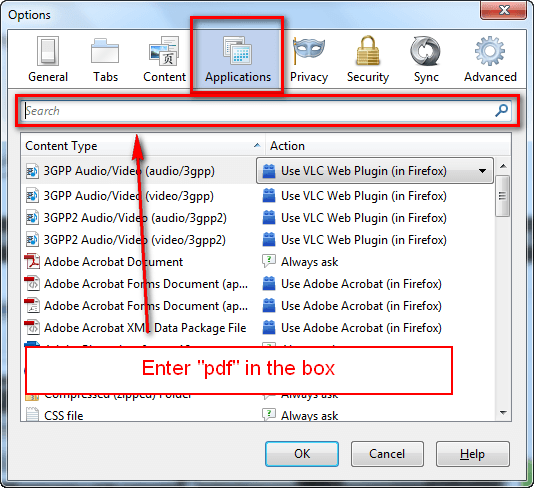
- Once in ‘Options’, go to ‘Applications’.
- At ‘Applications’ type “pdf” in the search box (without the quotes):
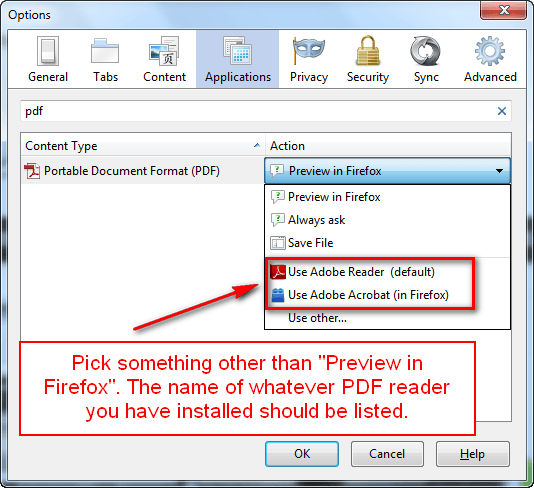
- Once you type “pdf” in the search bar, you should see a PDF entry show up. Click on the drop-down menu and select the PDF reader/viewer that you want to use:
- Finally, click ‘OK’:
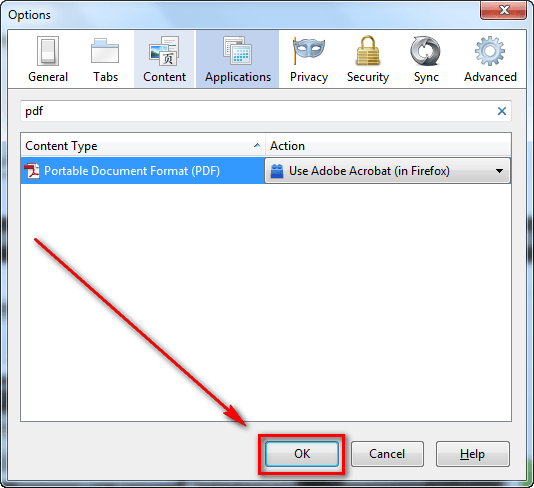
Done! Now Firefox will display PDFs in the PDF reader/viewer of your choice and not Firefox’s built-in PDF viewer.
HOW TO DISABLE FIREFOX NATIVE PDF VIEWER
This one is a bit more tricky and involves the use of about:config. Do the following:
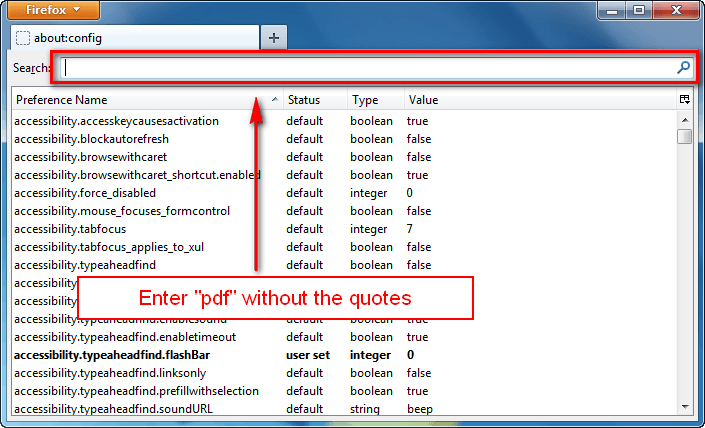
- Type in ‘about:config’ (without the quotes) in your address bar and press ‘Enter’ on your keyboard.
- You will be prompted with a warning that says “This might void your warranty”. Read the warning and click ‘I’ll be careful, I promise’.
- Now type in “pdf” (without the quotes) in the search bar at the top:
- Once you type “pdf”, the results will be filtered to only show PDF-related results. Find ‘pdfjs.disabled’ and double left-click it so that it says ‘true’ for ‘Value’:
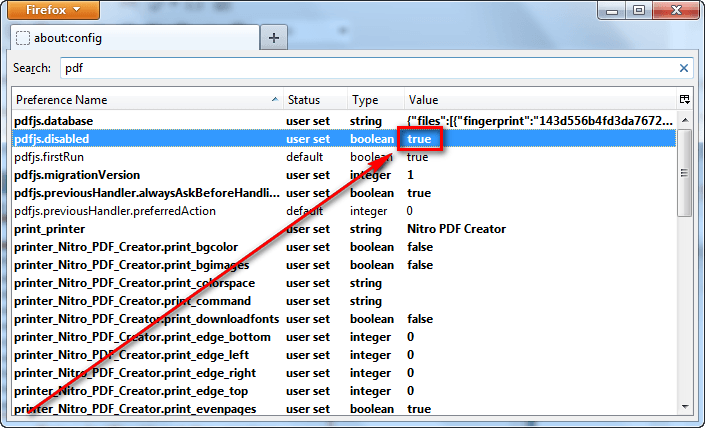
- Done!
You can close the tab/window. Once you have set ‘pdfjs.disabled’ to ‘true’, Firefox’s native PDF viewer has been disabled. There is no save button to hit — all changes are saved in real-time.
Conclusion
Enjoy!




