Customize Firefox’s about:blank page

November 27, 2011 38 Email article | Print article

Every time I open a new tab in Firefox, I’m greeted with about:blank.  As far as creative names go, the name of this page is not very creative because it is just that – blank:

Default state of about:blank

For most of us this isn’t a big deal because we don’t really spend much time staring at a new, open tab. However others may want to customize it. This article will teach you how to do just that.

To customize your about:blank page, you’ll need a user-content.css file.  To make one, press the Windows key and R simultaneously.  A box titled “Run” will pop up.  In it, type %APPDATA%.  Then go to Mozilla\Firefox\Profiles. In that folder you should see a folder named something like [randomtext].[profilename]:

For most of us there should only be one folder like this. For others (who created multiple profiles) there will be multiple folders. If there are multiple folders, select the folder corresponding to the profile that you want to customize about:blank for.

Once you are in the [randomtext].[profilename]: folder, look for the chrome folder. In that folder, find userContent-example.css and rename it to userContent.css.

Next, open userContent.css in Notepad or any other text editor (Notepad is preferred over something like Word because it is more simple) add the following code to the end of the file:

@namespace url(http://www.w3.org/1999/xhtml);
@-moz-document url(“about:blank”) {

* {
background: url(‘[INSERT IMAGE URL HERE]‘);
background-color: #000000;
background-position:bottom right;
background-attachment:fixed;
background-repeat:no-repeat;
}
}

Where it says [INSERT IMAGE URL HERE], put the URL of either an image from the web (Ex: http://www.google.com/logos/giroux1.gif) or the URL of an image on your computer (Ex: file://C:/Users/Public/Pictures/Sample Pictures/desert.jpg).

In addition to changing the background image, you can

  • Change the background color via the background-color field. Change the #000000 code to whatever color you want (be sure to leave the # for whatever new code you enter). The code is in hex for colors is RGB. To find a list of colors and their corresponding codes, visit Wikipedia.
  • Change the position of the background image (assuming you have it set to no-repeat otherwise the position is pointless) via the background-position field. Here is a list of what you can enter:

top left
top center
top right
center left
center center
center right
bottom left
bottom center
bottom right
x% y%
xpos ypos
inherit

After you have edited the settings as you please, save the file and restart Firefox (if you had it open). You should then see something like this every time you open a new tab:
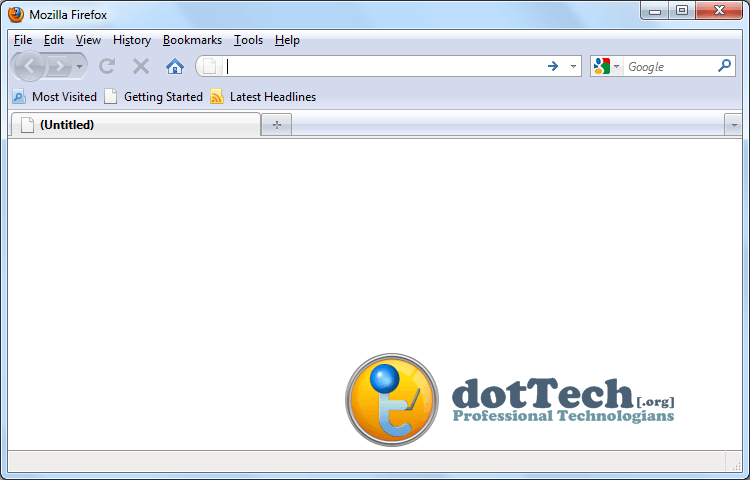
Enjoy the extra eye candy!

[via MozillaLinks]

UPDATE:  I added clarification on how to open %APPDATA%.

38 Comments »

  1. sean February 15, 2010 at 2:02 PM (comment permalink) -

    @ ira could you post the code you’ve used and where you’ve posted the picture?

    and yea, it’s a kids site >.<

    26
  2. Jon February 15, 2010 at 4:17 PM (comment permalink) -

    TabMixPlus here also. Can easily change new tab to one of 5 choices; blank, user location, home, current page or duplicate page (not sure what the difference between last 2 are). Using the ‘user location’ you can easily set any page you want. Not to mention you can do about a million other things with tabs with this addon/extension. :)

    27
  3. RobCr February 15, 2010 at 10:24 PM (comment permalink) -

    @Clodmore:
    The combination of TabMixPlus and Speed Dial, is as close to perfection as we will find.
    When I open a new Tab, I have my local(Aust) Google in the number 1 ‘Dial’ box.
    The focus is in the URL box, so I can type or paste a web address immediately.
    Or, if I was wanting Google instead, I can use Ctrl 1 to open the Google page (or mouse click that ‘Dial’ box).
    My other most visited site (weather) is in another ‘Dial’ box.

    28
  4. Ryan February 18, 2010 at 10:21 AM (comment permalink) -

    @ira

    I know where you have gone wrong. At the url, do not put the [ and ] quotes. Save the file. Run firefox again. You will see your picture.

    Cheers!!!

    @Jim Anderson

    It is very simple.

    1. Copy %APPDATA%\Mozilla\Firefox\Profiles and paste it at the run command. Hit enter. Then follow Locutus instructions. For color, change 00000 which is black to another color code. Go to Wikepedia to find the colors codes you want. For url, do not put the quotes [ and ]. Hope this helps. Happy playing.

    Cheers.

    29
  5. Conall July 25, 2010 at 8:00 AM (comment permalink) -

    I can’t seem to get this to work properly, my code won’t even change the background colour! can anyone help me with this? here’s my code:
    /*
    * Edit this file and copy it as userContent.css into your
    * profile-directory/chrome/

    */

    /*
    * This file can be used to apply a style to all web pages you view
    * Rules without !important are overruled by author rules if the
    * author sets any. 
    Rules with !important overrule author rules.
    */

    /*
    * example: turn off “blink” element blinking
    *
    * blink { text-decoration: none ! important; }

    *
    */

    /*
    * example: give all tables a 2px border
    *
    * table { border: 2px solid; }
    */

    /*
    * example: turn off “marquee” element
    *
    * marquee { -moz-binding: none; }
    *
    */

    /*

    * For more examples see http://www.mozilla.org/unix/customizing.html
    */
    @namespace url(http://www.w3.org/1999/xhtml);
    @-moz-document url(“about:blank”){

    *{
    background: url(‘Ex: file//C:/Users/Conall Ó Chórrain/My Pictures/My Pictures/Gears of War.jpg’);
    background-color: #FF033E;
    background-position:center center;
    background-attachment:fixed;
    background-repeat:no-repeat;
    }
    }

    30
  6. Conall July 25, 2010 at 8:01 AM (comment permalink) -

    I can’t seem to get this to work properly, my code won’t even change the background colour! can anyone help me with this? here’s my code:/* * Edit this file and copy it as userContent.css into your * profile-directory/chrome/ *//* * This file can be used to apply a style to all web pages you view * Rules without !important are overruled by author rules if the * author sets any.  Rules with !important overrule author rules. *//* * example: turn off “blink” element blinking * * blink { text-decoration: none ! important; } * *//* * example: give all tables a 2px border * * table { border: 2px solid; } *//* * example: turn off “marquee” element * * marquee { -moz-binding: none; } * */ /*  * For more examples see http://www.mozilla.org/unix/customizing.html */ @namespace url(http://www.w3.org/1999/xhtml);@-moz-document url(“about:blank”){*{background: url(‘Ex: file//C:/Users/Conall Ó Chórrain/My Pictures/My Pictures/Gears of War.jpg’);background-color: #FF033E;background-position:center center;background-attachment:fixed;background-repeat:no-repeat;}}

    31
  7. Serviceman November 28, 2011 at 4:40 AM (comment permalink) -

    Works fine, but unfortunately the “blank” page appears as background on some Comment discusion window like this one (but fortunately not here) and it creates mess.

    32
  8. ebony November 28, 2011 at 10:27 AM (comment permalink) -

    I really enjoy reading your articles. Even though I have no “CLUE” what you are talking about. Every time I think I have gained a bit of knowledge, I read one of your articles and realize I have a loooottttt to learn.

    Thanks for sharing.

    33
  9. Ziggy December 2, 2011 at 6:40 AM (comment permalink) -

    The easy & safe way to do this is by installing “Stylish” add-on for Firefox & choosing from the various styles or making one. The advantage is having the ability to switch between the styles & to get updates from their author.

    34
  10. Ziggy December 2, 2011 at 6:43 AM (comment permalink) -

    @Serviceman:

    To avoid the “mess” – you need to add a few lines to the code, check out this example:

    /* about:blank – LavaFox & BlackFox */

    @namespace url(http://www.w3.org/1999/xhtml);

    @-moz-document url(“about:blank”) {

    *:empty:not([style]):not([text]):not([class]):not([onresize]) {

    background: #000000 url(“chrome://browser/skin/Extra/LavaOrb.jpg”);
    margin:0px;

    background-position:center;

    background-attachment:fixed;

    background-repeat:no-repeat;

    }

    .editable, .editable * {

    background:none !important;

    }

    }

    35
  11. Dennis Chow July 22, 2012 at 7:40 PM (comment permalink) -

    Thanks for the good information, It helps me to create a new blank page with motivational quotes, that’s really awesome to make me more focused when exploring sites.

    36
  12. casinoslotsp September 25, 2012 at 9:14 AM (comment permalink) -
  13. Fun Games March 20, 2013 at 6:38 AM (comment permalink) -

    A noteworthy article, thanks from a fellow games lover.

    38

Leave A Response »